> ## Documentation Index
> Fetch the complete documentation index at: https://docs.tess.im/llms.txt
> Use this file to discover all available pages before exploring further.
# Agent Versioning
> Version history, diff, and rollback in Agent Studio — how to use, cases, and permissions.
**Agent versioning** records an immutable history of the changes made in Agent Studio. With this, teams can **audit changes**, **compare versions (diff)**, and perform a **rollback** (restore previous versions) safely, maintaining complete traceability of what was published.
Versioning allows you to track an agent's evolution over time. With every relevant change, Tess automatically saves a new version, making it possible to review what changed, identify problems, and quickly revert to a stable state.
### What is it?
Every time you save an agent with relevant changes, Tess creates a new version — also called a **snapshot** (it is basically a "frozen" record of the agent's complete state at that moment).
This snapshot includes information such as Prompt, selected model, defined Tools, fields, and additional settings, as well as type and visibility, as applicable to the created agent.
The history is available when accessing an agent's editing in Agent Studio, opening a **versions panel** in a timeline format, featuring a summary of changes and a **before and after** (diff) comparison between versions.
### **Where to find it in the interface**
Follow the step-by-step below to reach the history from scratch:
In the left side menu, click on **Agent Studio**. In the agent list, click on the agent you want to audit to open it in the editor.
If you don't see **Agent Studio** in the menu, your profile probably doesn't have agent editing permissions in the Workspace.
With the agent open, look at the **top right corner** of the editor. Next to the **Preview** and **Save** buttons, there is a small **clock icon** — this is the **View history** button.
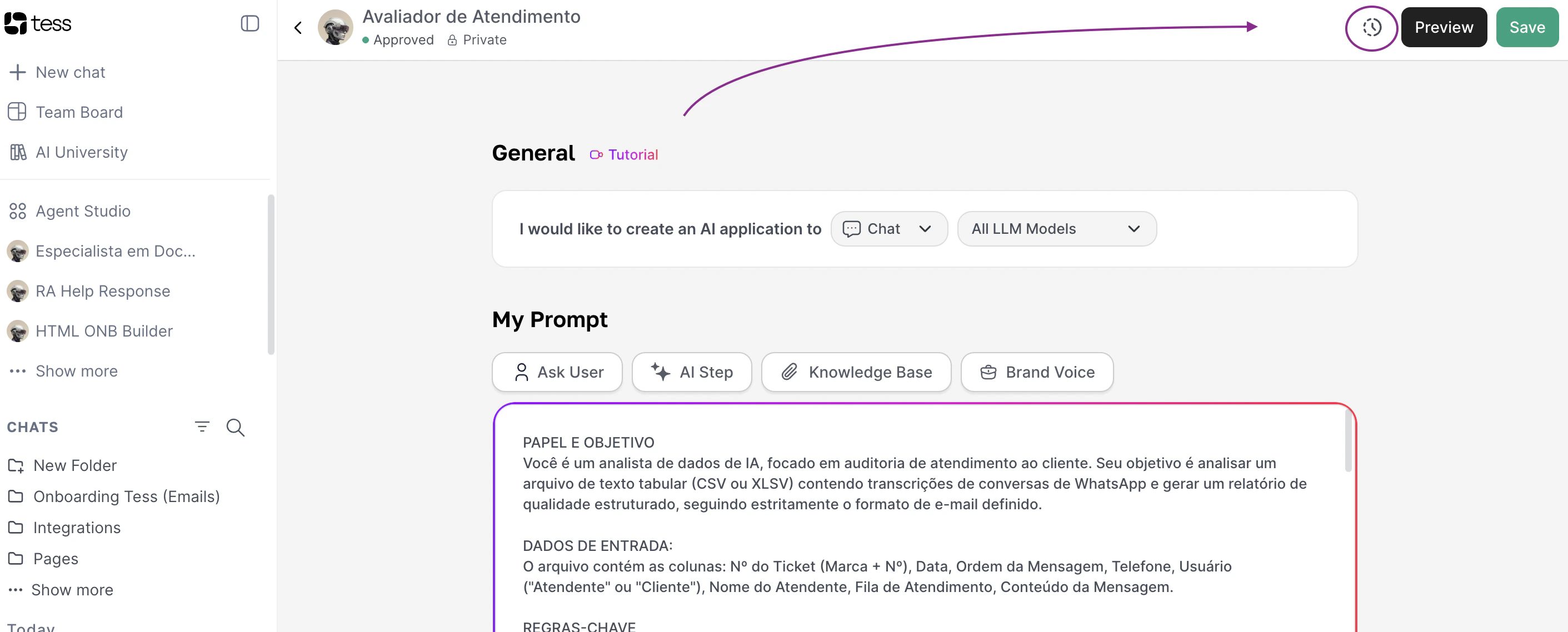 If the icon **doesn't appear**, check two things:
1. Does your profile have **read** permission for versions? (see [Permissions](#permissoes))
2. Does the agent already have at least **one registered version**? For very new agents, the icon only appears after the first version is created (save an actual change and reload).
By clicking the **clock icon**, the **Version history** panel opens over the editor. It shows:
* On the **left**: the **timeline** with all versions (the most recent marked as **Current**), with author and date/time.
* On the **right**: the **details** of the selected version, with collapsed sections (**No Changes**) and expanded sections with a **Changed** badge.
If the icon **doesn't appear**, check two things:
1. Does your profile have **read** permission for versions? (see [Permissions](#permissoes))
2. Does the agent already have at least **one registered version**? For very new agents, the icon only appears after the first version is created (save an actual change and reload).
By clicking the **clock icon**, the **Version history** panel opens over the editor. It shows:
* On the **left**: the **timeline** with all versions (the most recent marked as **Current**), with author and date/time.
* On the **right**: the **details** of the selected version, with collapsed sections (**No Changes**) and expanded sections with a **Changed** badge.
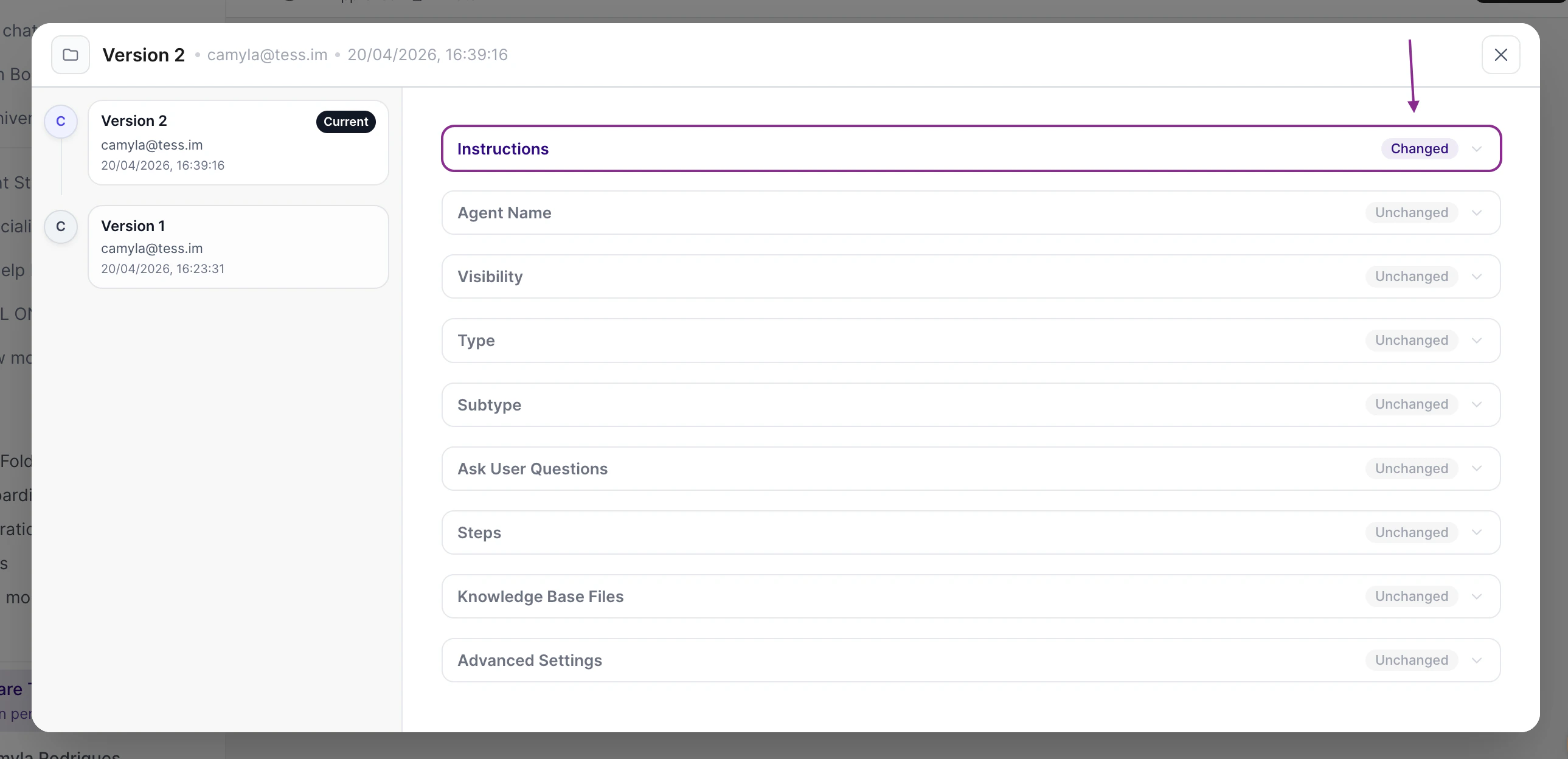 * In each changed section: a **BEFORE** block (red) and **AFTER** (green) — the diff of what changed.
Click on any item in the **timeline** on the left to see the diff of that version compared to the previous one. If your profile has **write** permission for versions, the action to **restore** that version will appear (the restoration is confirmed before applying and generates a new entry in the history). To close, use the **Close** button on the panel.
The **first version** is usually created after the first relevant edit post-availability of the feature for the Workspace. Very old agents may receive the initial version on the first save that generates a real change compared to the previous state.
### **What you see in each version**
* **Version number** and date/time the snapshot was recorded.
* **Author** of the change that originated that version (when applicable).
* **Change summary** (`change_summary`) in readable language, aligned with the diff between the version and the previous one.
* **Field-by-field diff** between the selected version and the immediately previous version, for fine review of the Prompt, model, Tools, and other fields exposed in the panel contract.
### Understanding the terms
1. **Snapshot**
A **snapshot** is a complete record of the agent at a point in time. It ensures that you can reconstruct exactly how the agent was configured.
2. **Diff**
The **diff** is the comparison between two versions. It allows you to quickly identify changes in a Prompt, Tools, or settings without having to review everything manually.
3. **Rollback**
A **rollback** does not "delete" the history: it **creates a new version** whose content restores the snapshot of a chosen version. Thus, the timeline remains **auditable** — it is clear that a restoration occurred and from which point.
Before confirming, the interface requests **explicit confirmation**, since the operation alters the agent's current state to reflect the selected version (as a new revision).
**Attention:** rollback is a **governance** action. Use it in accordance with your Workspace policies (changes in critical agents should be communicated to the team consuming the agent via chat, API, embed, or schedules).
***
## Use cases
A change in the Prompt or Tools broke behavior in production. The team restores the last stable version from the history, without manually rebuilding the agent.
It is necessary to demonstrate **what changed**, **who changed it**, and **when**, for internal reviews or enterprise requirements (e.g., SOX, ISO). The history centralizes snapshots and diffs.
The team tests a new configuration; if the result is not satisfactory, they rollback to the previous baseline, keeping a record of the attempts in the timeline.
Support or an Owner investigates an incident related to the agent's behavior: they compare versions before/after the incident to isolate the change that caused the undesired effect.
***
* In each changed section: a **BEFORE** block (red) and **AFTER** (green) — the diff of what changed.
Click on any item in the **timeline** on the left to see the diff of that version compared to the previous one. If your profile has **write** permission for versions, the action to **restore** that version will appear (the restoration is confirmed before applying and generates a new entry in the history). To close, use the **Close** button on the panel.
The **first version** is usually created after the first relevant edit post-availability of the feature for the Workspace. Very old agents may receive the initial version on the first save that generates a real change compared to the previous state.
### **What you see in each version**
* **Version number** and date/time the snapshot was recorded.
* **Author** of the change that originated that version (when applicable).
* **Change summary** (`change_summary`) in readable language, aligned with the diff between the version and the previous one.
* **Field-by-field diff** between the selected version and the immediately previous version, for fine review of the Prompt, model, Tools, and other fields exposed in the panel contract.
### Understanding the terms
1. **Snapshot**
A **snapshot** is a complete record of the agent at a point in time. It ensures that you can reconstruct exactly how the agent was configured.
2. **Diff**
The **diff** is the comparison between two versions. It allows you to quickly identify changes in a Prompt, Tools, or settings without having to review everything manually.
3. **Rollback**
A **rollback** does not "delete" the history: it **creates a new version** whose content restores the snapshot of a chosen version. Thus, the timeline remains **auditable** — it is clear that a restoration occurred and from which point.
Before confirming, the interface requests **explicit confirmation**, since the operation alters the agent's current state to reflect the selected version (as a new revision).
**Attention:** rollback is a **governance** action. Use it in accordance with your Workspace policies (changes in critical agents should be communicated to the team consuming the agent via chat, API, embed, or schedules).
***
## Use cases
A change in the Prompt or Tools broke behavior in production. The team restores the last stable version from the history, without manually rebuilding the agent.
It is necessary to demonstrate **what changed**, **who changed it**, and **when**, for internal reviews or enterprise requirements (e.g., SOX, ISO). The history centralizes snapshots and diffs.
The team tests a new configuration; if the result is not satisfactory, they rollback to the previous baseline, keeping a record of the attempts in the timeline.
Support or an Owner investigates an incident related to the agent's behavior: they compare versions before/after the incident to isolate the change that caused the undesired effect.
***
Permissions
Access to versioning is controlled by **Workspace permissions** (RBAC) and, when applicable, by the plan's **feature flags**. In practical terms:
| Capability | Who usually has access |
| :-------------------------------------------------------- | :-------------------------------------------------------------------------------------------------------------------------------------------------------------------------------------------- |
| **View the history panel** and open diff between versions | Members with **read version history** permission for the agent (in the product, associated with the version viewing feature / `agent:version:read` as configured in the Workspace). |
| **Execute rollback** (restore a previous version) | Users with **write versions** permission — that is, authorized to create a new version from an old snapshot (equivalent to rollback permission / `AGENT_VERSION_WRITE` in the API layer). |
| **No read permission** | The icon or the history panel **does not appear** or access is denied, aligned with the Workspace policy (even if the user edits other aspects of the agent, according to other permissions). |
Roles like **Owner** and **Admin** of the Workspace usually include these capabilities when the feature is enabled for the plan. In **Enterprise** environments, governance can **delegate** reading or writing of versions to specific profiles (compliance, support) without granting full Owner access — according to the permissions matrix defined for the Workspace.
### **Relationship with visibility and governance**
* Versioning deals with the agent's **configuration history** ("how it was saved over time").
* [**Visibility**](/pt/visibility) defines who can **find or use** the agent (private, Workspace, public, etc.). Both complement each other in enterprise scenarios: you can restrict who sees the history even if the agent is shared in the Workspace.
***
## Limitations and roadmap (product vision)
* The current flow focuses on **snapshot on save** and **history + rollback** in Agent Studio. An explicit **draft / publish** flow with a dedicated button may evolve in future iterations.
* In some scenarios, **executions** (chat, API, scheduler, embed) may remain aligned with the **active agent** model as already known by the platform; isolating executions by "published version" is a product evolution when applicable.
**Best practices**
* Communicate relevant changes to the team before restoring agents used by many people.
* Use the diff (clock) to review changes in **Prompt** and **Tools** before triggering mass restorations.
* Combine with [**Members and Permissions**](/pt/members-permissions) policies to define who can alter critical agents.
Versioning brings operational security to evolve agents in Tess AI. With a complete history, visual diff, and simple rollback, your team can iterate with confidence, reduce risks, and maintain governance over agents in production.