> ## Documentation Index
> Fetch the complete documentation index at: https://docs.tess.im/llms.txt
> Use this file to discover all available pages before exploring further.
# Accessing Cowork
> Open Cowork from the Tess sidebar and land on the Mesh Canvas
## Overview
Cowork is Tess’s real-time space for hiring and managing Digital Employees with your team. This guide shows how to open it and what you see first.
## Prerequisites
* An active Tess account
* Cowork enabled for your workspace (gated feature — ask a workspace admin if you do not see it)
* Permission to use Cowork in that workspace
## How to open Cowork
### Step 1: Find Cowork in the sidebar
In the Tess sidebar (next to **New Chat** and other main items), click **Cowork**.
### Step 2: Land on the Mesh Canvas
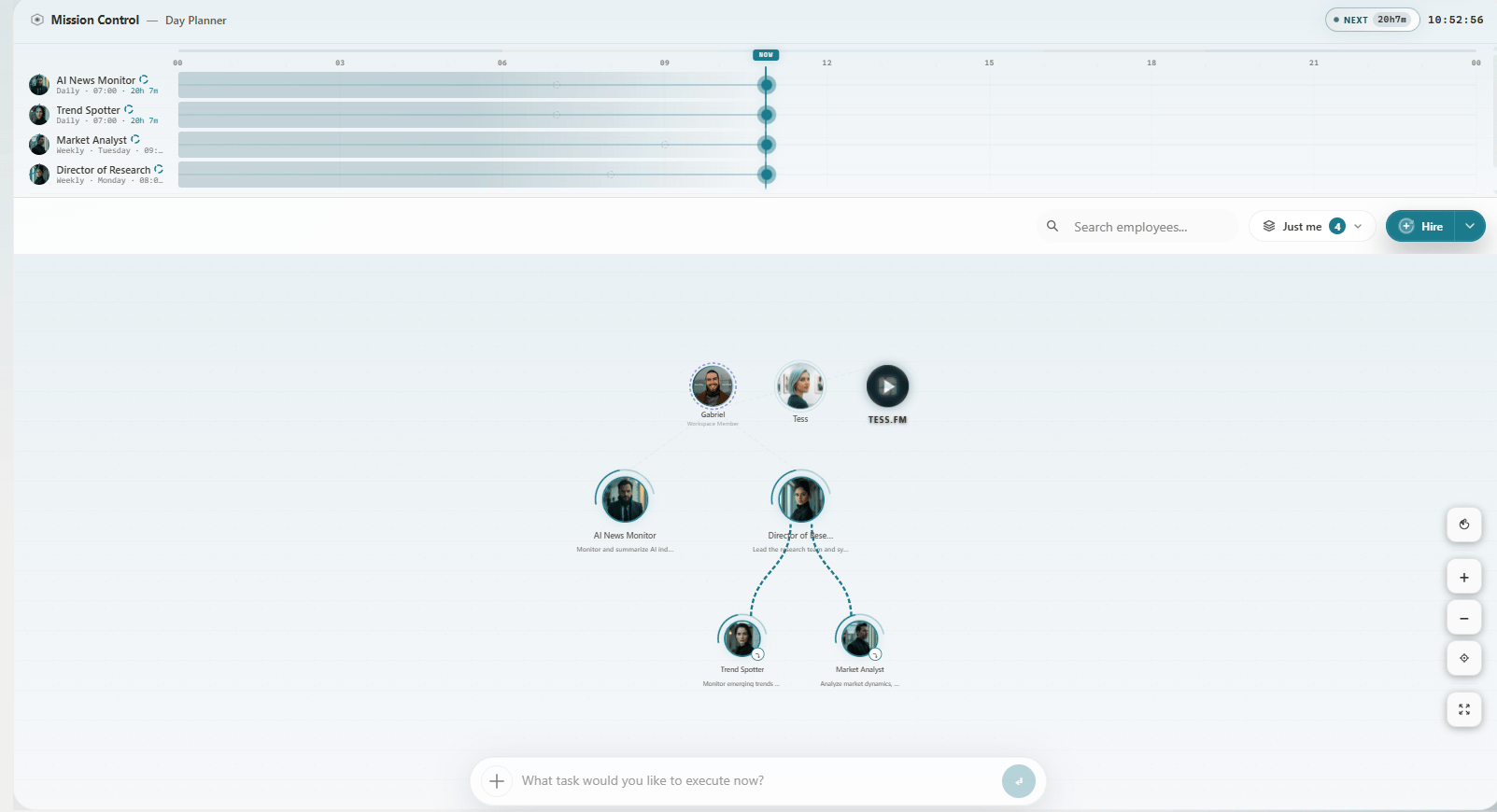
You go straight to the **Mesh Canvas** (Mission Control): employee nodes, presence, search, Hire, Layers, and the Omnibar at the bottom.
 ## If you do not see Cowork
1. Ask your workspace admin to enable Cowork for the workspace
2. Confirm your role can use Digital Employees
3. Contact your admin if the menu item is still missing
## Next steps
* [Main Interface (Mesh Canvas)](/en/cowork/primeiros-passos/interface-principal)
* [Mesh Canvas overview](/en/cowork/mesh-canvas/mesh-canvas-overview)
* [Creating a Digital Employee](/en/cowork/digital-employees/configuracao-basica/criando-um-digital-employee)
## If you do not see Cowork
1. Ask your workspace admin to enable Cowork for the workspace
2. Confirm your role can use Digital Employees
3. Contact your admin if the menu item is still missing
## Next steps
* [Main Interface (Mesh Canvas)](/en/cowork/primeiros-passos/interface-principal)
* [Mesh Canvas overview](/en/cowork/mesh-canvas/mesh-canvas-overview)
* [Creating a Digital Employee](/en/cowork/digital-employees/configuracao-basica/criando-um-digital-employee)