> ## Documentation Index
> Fetch the complete documentation index at: https://docs.tess.im/llms.txt
> Use this file to discover all available pages before exploring further.
# Main Interface (Mesh Canvas)
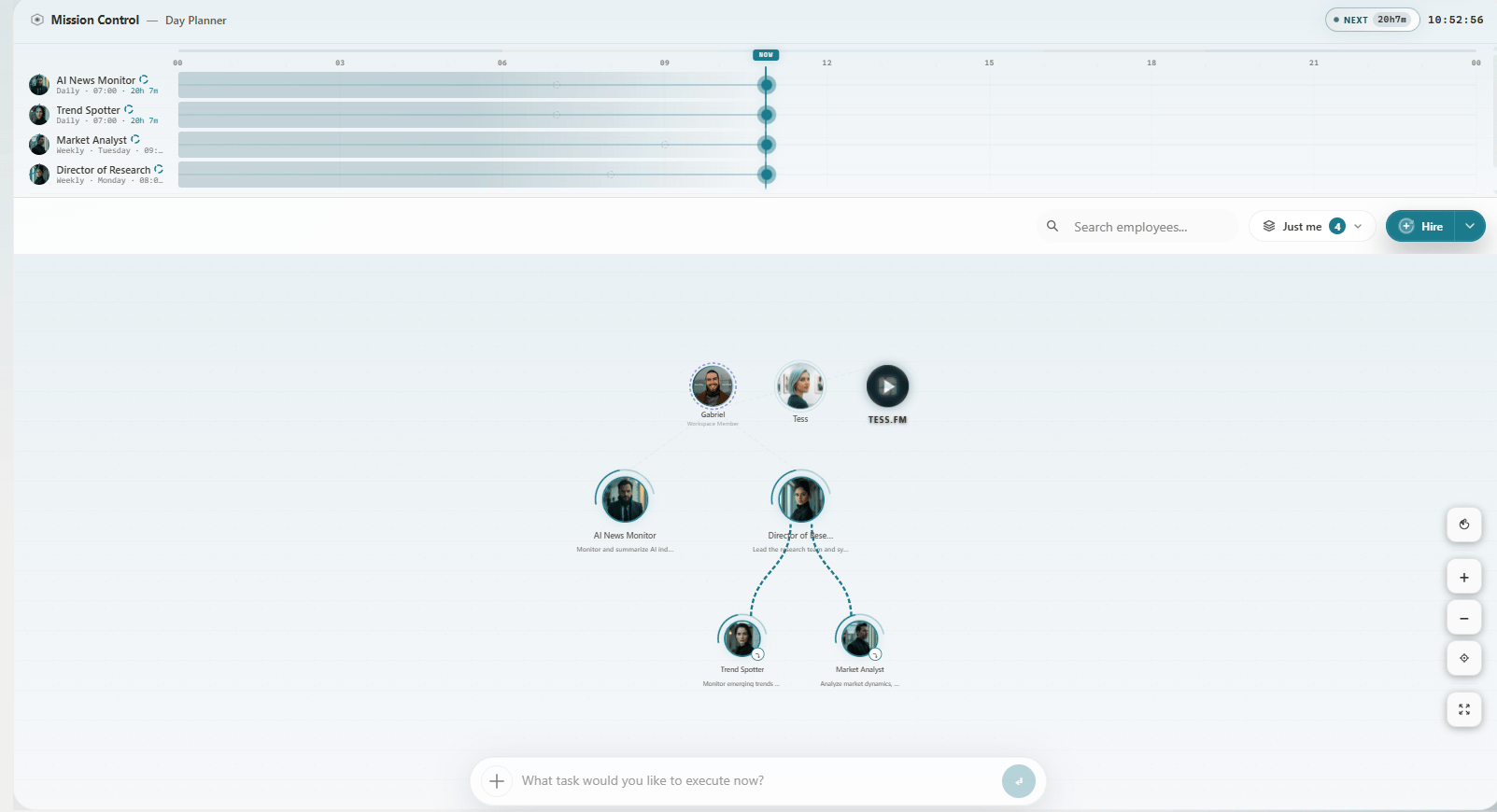
> Mission Control chrome: canvas, Hire, Layers, search, Omnibar, and employee drawer
## Overview
The **Mesh Canvas** is Cowork’s main screen. Tess labels it as **Cowork / Mission Control**. Digital Employees, squads, documents, and teammates appear as nodes on an interactive canvas.
## Layout
 ### Header
Shows **Cowork / Mission Control**, wallet/credits cues when relevant, and teammate presence controls.
### Action bar
* **Search employees** — find agents by name; matches stay highlighted
* **Cowork Layers** — whose employees you see (My area / Direct reports / Their employees / Full org), based on visibility permissions
* **Hire** — dropdown: Open position (full form), Talent Pool, Assemble Team, and related options
### Center canvas
* **Employee nodes** — avatar and status; click to open the **detail drawer**
* **Squad nodes** — a team of employees
* **Document nodes** — files/outputs; open to review workspace files
* **Teammate presence** — who else is on Cowork
**Interactions**
* **Zoom** — mouse wheel / trackpad, or `+` / `−` controls
* **Pan** — drag empty canvas space
* **Click a node** — open the employee (or document) drawer
* **Double-click empty canvas** — can open Create / Open position (when available)
### Mission Control — Day Planner
Collapsible panel for upcoming wake-ups, pending hire/review items, and operational lanes. Use it for “what needs attention now,” not as a separate Control Center app.
### Bottom Omnibar
### Header
Shows **Cowork / Mission Control**, wallet/credits cues when relevant, and teammate presence controls.
### Action bar
* **Search employees** — find agents by name; matches stay highlighted
* **Cowork Layers** — whose employees you see (My area / Direct reports / Their employees / Full org), based on visibility permissions
* **Hire** — dropdown: Open position (full form), Talent Pool, Assemble Team, and related options
### Center canvas
* **Employee nodes** — avatar and status; click to open the **detail drawer**
* **Squad nodes** — a team of employees
* **Document nodes** — files/outputs; open to review workspace files
* **Teammate presence** — who else is on Cowork
**Interactions**
* **Zoom** — mouse wheel / trackpad, or `+` / `−` controls
* **Pan** — drag empty canvas space
* **Click a node** — open the employee (or document) drawer
* **Double-click empty canvas** — can open Create / Open position (when available)
### Mission Control — Day Planner
Collapsible panel for upcoming wake-ups, pending hire/review items, and operational lanes. Use it for “what needs attention now,” not as a separate Control Center app.
### Bottom Omnibar
 Type a task to route work, or use `/hire` followed by a natural-language role description. See [Omnibar](/en/cowork/mesh-canvas/omnibar).
### Bottom-right controls
Zoom in/out, fit-to-view, background options, and distraction-free mode (`Esc` to exit).
## Empty vs active canvas
* **Empty** — no employees yet; Omnibar and **Hire** are ready for the first hire
* **Active** — employee nodes with live status, optional squads and documents, teammate presence
## Next steps
* [Creating a Digital Employee](/en/cowork/digital-employees/configuracao-basica/criando-um-digital-employee)
* [Mesh Canvas Navigation](/en/cowork/mesh-canvas/navigation-interaction)
* [Real-time Collaboration](/en/cowork/colaboracao-tempo-real/realtime-collaboration)
Type a task to route work, or use `/hire` followed by a natural-language role description. See [Omnibar](/en/cowork/mesh-canvas/omnibar).
### Bottom-right controls
Zoom in/out, fit-to-view, background options, and distraction-free mode (`Esc` to exit).
## Empty vs active canvas
* **Empty** — no employees yet; Omnibar and **Hire** are ready for the first hire
* **Active** — employee nodes with live status, optional squads and documents, teammate presence
## Next steps
* [Creating a Digital Employee](/en/cowork/digital-employees/configuracao-basica/criando-um-digital-employee)
* [Mesh Canvas Navigation](/en/cowork/mesh-canvas/navigation-interaction)
* [Real-time Collaboration](/en/cowork/colaboracao-tempo-real/realtime-collaboration)