> ## Documentation Index
> Fetch the complete documentation index at: https://docs.tess.im/llms.txt
> Use this file to discover all available pages before exploring further.
# What is Cowork
> Learn the fundamentals of Cowork — the Mesh Canvas where Digital Employees work with your team 24/7
# What is Cowork
Cowork is **Tess's** visual collaboration space where you hire, monitor, and guide autonomous **Digital Employees** on business work. You operate from the **Mesh Canvas** (Mission Control): agents, teammates, documents, and squads appear as live nodes you can interact with.
## Why Cowork?
Traditional automation handles one-off tasks. Cowork supports ongoing team-level work:
* **Digital Employees** run on a schedule (Work Cycle) or when you trigger them
* **Live collaboration** with teammate presence on the same canvas
* **Documents on the canvas** capture outputs you can open and share
* **Squads** group employees that work together
* **Human oversight** via plan approvals, input requests, and connector action reviews
## The Mesh Canvas
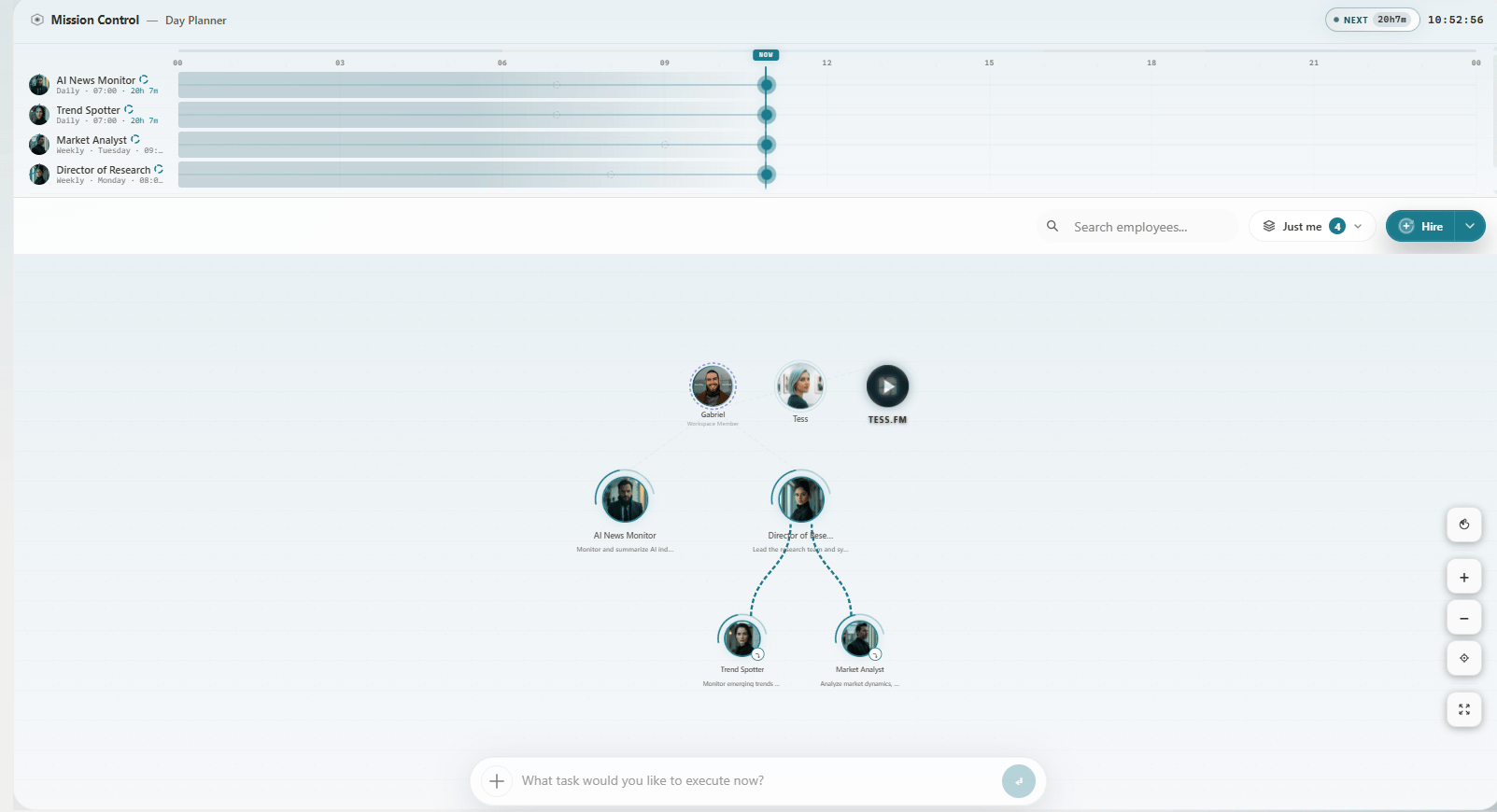
Open **Cowork** in the Tess sidebar. You land on the Mesh Canvas — your Mission Control view.
 ### What you see
* **Employee nodes** — hired Digital Employees with avatar and status; click to open the detail drawer
* **Teammate presence** — colleagues currently on Cowork
* **Document nodes** — files and outputs linked to employees
* **Squad nodes** — teams of employees working together
* **Omnibar** — bottom input for tasks or `/hire`
* **Hire** — dropdown to create employees (Open position, Talent Pool, and related options)
* **Mission Control / Day Planner** — upcoming wake-ups and pending items
## Core concepts
### Digital Employees
Agents you hire once and run repeatedly. In the Hire / Edit Employee form you set:
* **Identity** — name, avatar, voice, optional Goal
* **Work instructions** — how the employee should operate
* **Work Mode** — Supervised vs Autonomous
* **Work Cycle** — when the employee wakes (Time / Day / Week / Month / Interval / None)
* **Advanced settings** — personality, timezone, knowledge base, model, tools, Credits/day and Credits/month
You can also create an employee with `/hire` in the Omnibar (natural language; no field-by-field form).
### Documents & outputs
When employees produce files, they show up as document nodes on the canvas and in the employee drawer. Open a node to review or download workspace files.
### Squads
A **Squad** is how you assemble several Digital Employees (and shared files) around one initiative. Create and manage squads from Cowork — not from a separate “Project Rooms” product screen.
### Approvals & input
During a run, the employee may pause for **plan approval**, **input needed**, or **connector action** review. Those requests appear on the employee drawer and on the live run view — there is no separate approvals inbox.
## Getting started
In the Tess sidebar, click **Cowork**. You land on the Mesh Canvas (Mission Control).
Use **Hire → Open position** for the full form, or type `/hire …` in the Omnibar for a fast natural-language hire.
The employee appears on the mesh. Open its drawer to see status, schedule, and timeline. Approve the first plan if prompted.
Open document nodes or the drawer’s files section to collect results.
Create a Squad when several employees should share context and work together.
## Features at a glance
| Feature | What it does | When to use |
| --------------------- | ---------------------------------------------------- | --------------------------- |
| **Digital Employees** | Hire agents that run on a Work Cycle or on demand | Recurring or delegated work |
| **Mesh Canvas** | Mission Control view of people, agents, docs, squads | Day-to-day monitoring |
| **Documents** | Outputs visible on the canvas and in the drawer | Reviewing deliverables |
| **Squads** | Coordinate multiple employees | Multi-agent initiatives |
| **Approvals** | Plan / input / connector gates in the drawer | Supervised work |
| **Voice** | Call an employee from the drawer (when enabled) | Live guidance during a run |
## What's next?
* [Accessing Cowork](/en/cowork/primeiros-passos/accessing-cowork)
* [Main Interface (Mesh Canvas)](/en/cowork/primeiros-passos/interface-principal)
* [Creating a Digital Employee](/en/cowork/digital-employees/configuracao-basica/criando-um-digital-employee)
Clear goals and work instructions up front reduce how often the employee needs to stop for approval or input.
### What you see
* **Employee nodes** — hired Digital Employees with avatar and status; click to open the detail drawer
* **Teammate presence** — colleagues currently on Cowork
* **Document nodes** — files and outputs linked to employees
* **Squad nodes** — teams of employees working together
* **Omnibar** — bottom input for tasks or `/hire`
* **Hire** — dropdown to create employees (Open position, Talent Pool, and related options)
* **Mission Control / Day Planner** — upcoming wake-ups and pending items
## Core concepts
### Digital Employees
Agents you hire once and run repeatedly. In the Hire / Edit Employee form you set:
* **Identity** — name, avatar, voice, optional Goal
* **Work instructions** — how the employee should operate
* **Work Mode** — Supervised vs Autonomous
* **Work Cycle** — when the employee wakes (Time / Day / Week / Month / Interval / None)
* **Advanced settings** — personality, timezone, knowledge base, model, tools, Credits/day and Credits/month
You can also create an employee with `/hire` in the Omnibar (natural language; no field-by-field form).
### Documents & outputs
When employees produce files, they show up as document nodes on the canvas and in the employee drawer. Open a node to review or download workspace files.
### Squads
A **Squad** is how you assemble several Digital Employees (and shared files) around one initiative. Create and manage squads from Cowork — not from a separate “Project Rooms” product screen.
### Approvals & input
During a run, the employee may pause for **plan approval**, **input needed**, or **connector action** review. Those requests appear on the employee drawer and on the live run view — there is no separate approvals inbox.
## Getting started
In the Tess sidebar, click **Cowork**. You land on the Mesh Canvas (Mission Control).
Use **Hire → Open position** for the full form, or type `/hire …` in the Omnibar for a fast natural-language hire.
The employee appears on the mesh. Open its drawer to see status, schedule, and timeline. Approve the first plan if prompted.
Open document nodes or the drawer’s files section to collect results.
Create a Squad when several employees should share context and work together.
## Features at a glance
| Feature | What it does | When to use |
| --------------------- | ---------------------------------------------------- | --------------------------- |
| **Digital Employees** | Hire agents that run on a Work Cycle or on demand | Recurring or delegated work |
| **Mesh Canvas** | Mission Control view of people, agents, docs, squads | Day-to-day monitoring |
| **Documents** | Outputs visible on the canvas and in the drawer | Reviewing deliverables |
| **Squads** | Coordinate multiple employees | Multi-agent initiatives |
| **Approvals** | Plan / input / connector gates in the drawer | Supervised work |
| **Voice** | Call an employee from the drawer (when enabled) | Live guidance during a run |
## What's next?
* [Accessing Cowork](/en/cowork/primeiros-passos/accessing-cowork)
* [Main Interface (Mesh Canvas)](/en/cowork/primeiros-passos/interface-principal)
* [Creating a Digital Employee](/en/cowork/digital-employees/configuracao-basica/criando-um-digital-employee)
Clear goals and work instructions up front reduce how often the employee needs to stop for approval or input.