> ## Documentation Index
> Fetch the complete documentation index at: https://docs.tess.im/llms.txt
> Use this file to discover all available pages before exploring further.
# Dynamic Training
"User Inputs" are an essential feature in Agent Studio for creating more interactive and customizable AI agents. Instead of relying on a single text instruction, you can build forms and structured fields to collect exactly the information your agent needs to perform a task.
In this guide, we’ll explore the five types of user input available on the Tess platform, showing how and when to use each one to enhance your creations.
### How to Set Up a User Input
Before we explore the input types, the process for adding them is always the same and happens in your agent’s configuration panel.
There you’ll see the "User Input" option—click it to create a new input field.
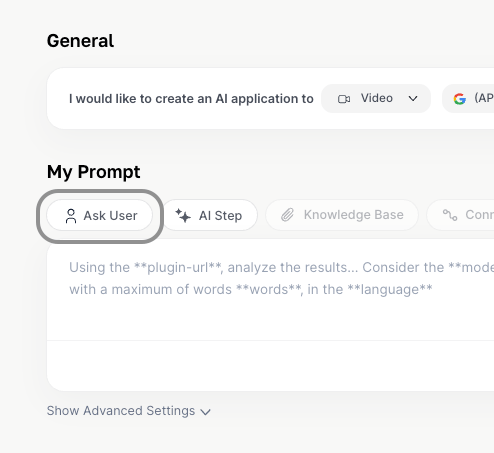 For each variable, you will configure (at least) three main fields:
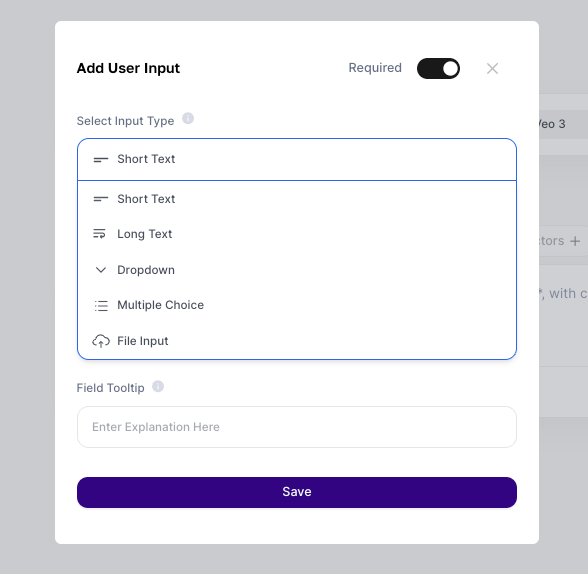 The input format the user will fill out (text, list, file, etc.).
The variable’s internal name, which will be used in the instruction (prompt). Use short names, without accents or special characters.
The text that will be shown to the end user, guiding them on how to fill it in.
### Exploring the Input Types
Now, let’s detail each of the input types you can configure.
Ideal for collecting brief and direct information. Use this field when the user needs to fill in a word, a phrase, or a specific piece of data.
What it’s for: Collecting names, emails, order numbers, search terms, document titles, etc.
> Usage example: You can create an agent that generates personalized greetings. The Client Name variable (Short Text) would ask for the client’s name:
>
> And the instruction would be: "Create a friendly greeting for **client-name**"
Perfect for situations where the user needs to provide a large volume of information, such as a full text, a detailed paragraph, or a code block.
The input format the user will fill out (text, list, file, etc.).
The variable’s internal name, which will be used in the instruction (prompt). Use short names, without accents or special characters.
The text that will be shown to the end user, guiding them on how to fill it in.
### Exploring the Input Types
Now, let’s detail each of the input types you can configure.
Ideal for collecting brief and direct information. Use this field when the user needs to fill in a word, a phrase, or a specific piece of data.
What it’s for: Collecting names, emails, order numbers, search terms, document titles, etc.
> Usage example: You can create an agent that generates personalized greetings. The Client Name variable (Short Text) would ask for the client’s name:
>
> And the instruction would be: "Create a friendly greeting for **client-name**"
Perfect for situations where the user needs to provide a large volume of information, such as a full text, a detailed paragraph, or a code block.
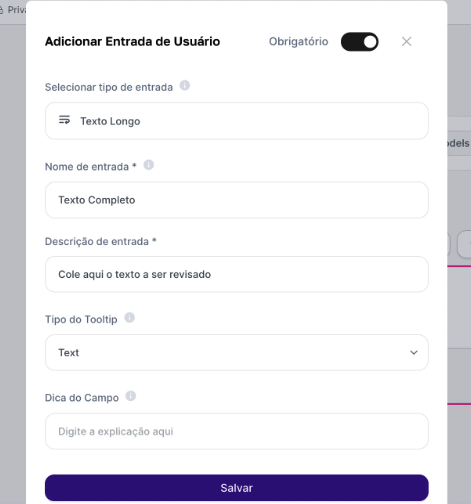 What it’s for: Allowing the user to paste an email to be summarized, an article to be analyzed, a problem description to be diagnosed, or code to be debugged.
> Usage example: A text review agent. The Full Text variable (Long Text) would ask the user to paste the text.
>
> And the instruction would be: "Review the following text and correct grammatical errors: **full-text**"
Use the dropdown to ensure the user’s response is standardized. It presents a list of predefined options, from which the user can choose only one.
What it’s for: Limiting the choice to a set of options, such as selecting a language (Portuguese, English), a department (Sales, Support), a tone of voice (Formal, Informal), or a specific action (Translate, Summarize).
> Usage example:
>
> A translation agent. The target\_language variable (Dropdown) would offer options like "English", "Spanish", and "French".
>
> The instruction would be: "Translate the following text to **target\_language**."
Similar to the dropdown, but with the flexibility to let the user select multiple options from a predefined list.
What it’s for: When the user can choose more than one valid alternative, such as selecting topics of interest for a report, the social networks to publish a post, or product features to include in a description.
> Usage example:
>
> A campaign creation agent. The social\_networks variable (Multiple Choice) would list "Facebook", "Instagram", and "LinkedIn".
>
> The instruction would be: "Create a post about AI for the following networks: **social\_networks**."
This input type turns your agent into a powerful document analyst, allowing the user to attach files for processing.
What it’s for: Analyzing contracts in PDF, extracting data from spreadsheets in XLSX or CSV, summarizing reports in DOCX, or interpreting the contents of any text file.
> Usage example:
>
> An agent that analyzes spreadsheets. The sales\_spreadsheet variable (File) would ask for the file upload.
>
> The instruction would be: "Based on the **sales\_spreadsheet** spreadsheet, calculate total sales for the last quarter."
What it’s for: Allowing the user to paste an email to be summarized, an article to be analyzed, a problem description to be diagnosed, or code to be debugged.
> Usage example: A text review agent. The Full Text variable (Long Text) would ask the user to paste the text.
>
> And the instruction would be: "Review the following text and correct grammatical errors: **full-text**"
Use the dropdown to ensure the user’s response is standardized. It presents a list of predefined options, from which the user can choose only one.
What it’s for: Limiting the choice to a set of options, such as selecting a language (Portuguese, English), a department (Sales, Support), a tone of voice (Formal, Informal), or a specific action (Translate, Summarize).
> Usage example:
>
> A translation agent. The target\_language variable (Dropdown) would offer options like "English", "Spanish", and "French".
>
> The instruction would be: "Translate the following text to **target\_language**."
Similar to the dropdown, but with the flexibility to let the user select multiple options from a predefined list.
What it’s for: When the user can choose more than one valid alternative, such as selecting topics of interest for a report, the social networks to publish a post, or product features to include in a description.
> Usage example:
>
> A campaign creation agent. The social\_networks variable (Multiple Choice) would list "Facebook", "Instagram", and "LinkedIn".
>
> The instruction would be: "Create a post about AI for the following networks: **social\_networks**."
This input type turns your agent into a powerful document analyst, allowing the user to attach files for processing.
What it’s for: Analyzing contracts in PDF, extracting data from spreadsheets in XLSX or CSV, summarizing reports in DOCX, or interpreting the contents of any text file.
> Usage example:
>
> An agent that analyzes spreadsheets. The sales\_spreadsheet variable (File) would ask for the file upload.
>
> The instruction would be: "Based on the **sales\_spreadsheet** spreadsheet, calculate total sales for the last quarter."