> ## Documentation Index
> Fetch the complete documentation index at: https://docs.tess.im/llms.txt
> Use this file to discover all available pages before exploring further.
# AI Step | Google Ads
The Google Ads step allows your agents to manage campaigns directly from Tess. This includes everything from budget and status adjustments to full performance reports. With it, AI can act as an autonomous paid media manager, executing actions and generating insights without manual intervention.
### **What is the Step?**
This integration connects Tess to Google Ads and provides six actions divided into two categories:
Actions (execute changes in campaigns)
* Change Campaign Budget → changes the budget of a specific campaign
* Change Campaign Status → enables or pauses a campaign
* Budget Shift Campaigns → redistributes budget across campaigns based on performance
Reports (collect and analyze data)
* Keyword Performance Report → analyzes keywords
* Metrics Trend Report → analyzes metric trends over time
* Search Term Performance Report → analyzes search terms that triggered campaigns
### **Where to find it**
1. AI Studio
2. Add AI Step
3. App Integration
4. Google Ads
5. Choose the desired action
## **How to use (Quickstart by action)**
### **1. Change Campaign Budget**
Changes the budget of a specific campaign with control over the change method.
| **Field** | **Description** |
| :----------------------- | :-------------------------------------------------------------------------- |
| Step Name | Internal step name |
| Google Ads Account ID \* | Ads account ID. Ex: `1234567890` |
| Campaign ID \* | Campaign ID to be changed. Ex: `1234567890` |
| Budget Change Method \* | Change method. Option: `Set Exact Amount` |
| Budget Change Value \* | Value to apply. Ex: `100.00` (fixed), `30` (percentage) or `-20` (decrease) |
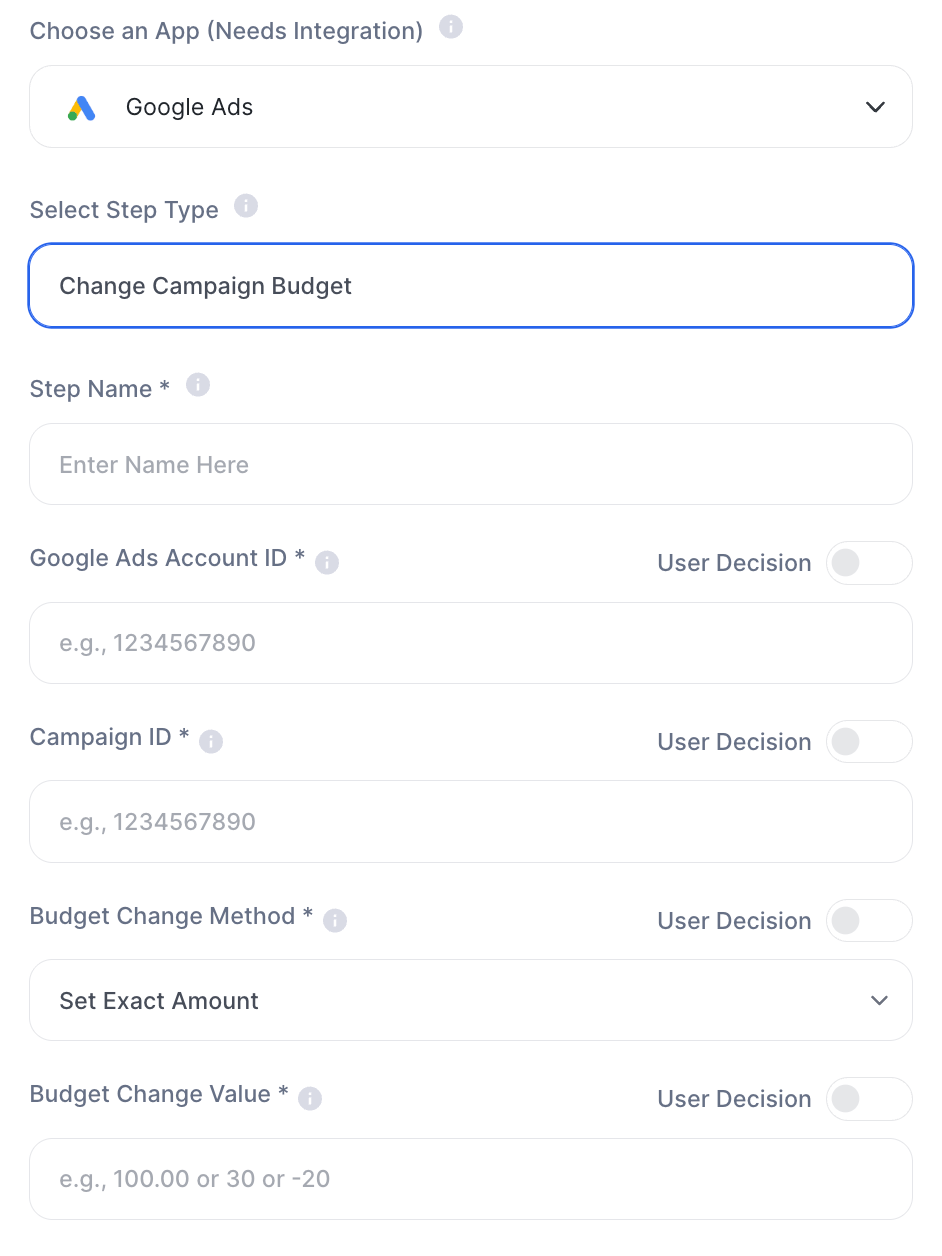 This step allows you to either define an exact value or apply a relative adjustment, depending on the Budget Change Method logic.
***
### 2. Change Campaign Status
Enables or pauses a campaign directly via the agent.
| **Field** | **Description** |
| :----------------------- | :----------------------------------------- |
| Step Name | Internal step name |
| Google Ads Account ID \* | Ads account ID |
| Campaign ID \* | Campaign ID |
| New Campaign Status \* | `enabled` to activate or `paused` to pause |
This step allows you to either define an exact value or apply a relative adjustment, depending on the Budget Change Method logic.
***
### 2. Change Campaign Status
Enables or pauses a campaign directly via the agent.
| **Field** | **Description** |
| :----------------------- | :----------------------------------------- |
| Step Name | Internal step name |
| Google Ads Account ID \* | Ads account ID |
| Campaign ID \* | Campaign ID |
| New Campaign Status \* | `enabled` to activate or `paused` to pause |
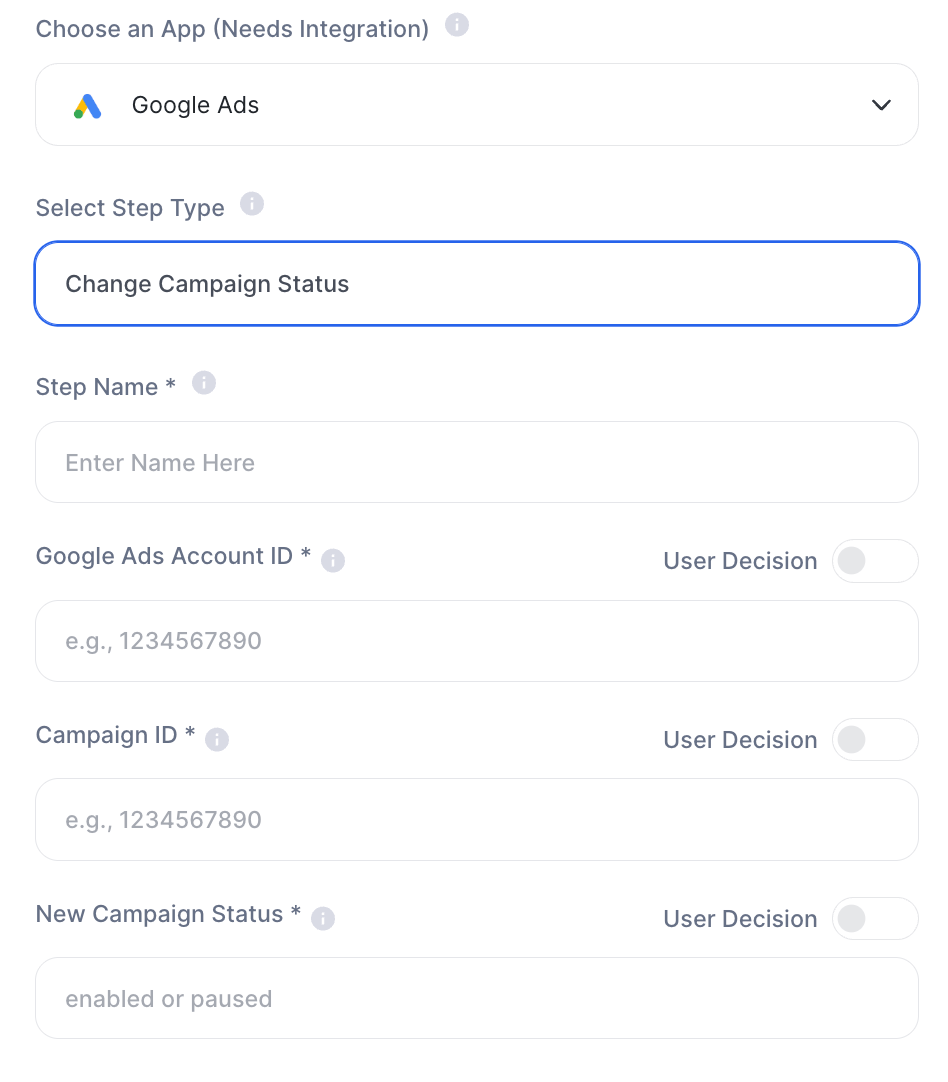 Attention: this action impacts real and active campaigns. Make sure the IDs are correct before saving.
***
### 3. Budget Shift Campaigns
Redistributes budget across campaigns based on performance analysis.
| **Field** | **Description** |
| :--------------------------- | :------------------------------------------------------- |
| Step Name | Internal step name |
| Google Ads MCC ID \* | Manager account ID |
| Google Ads Account ID \* | Ads account ID |
| Analysis Period (Days) \* | Analysis period. Ex: `30` |
| Has New Budget Allocation \* | `Yes` or `No` |
| New Budget | New budget value. Ex: `2500.00` |
| Percent Adjust | Percentage adjustment. Ex: `20` or `20%` |
| Excluded Campaigns ID | Campaign IDs to ignore in redistribution. Ex: `123, 456` |
***
### **4. Keyword Performance Report**
Analyzes keyword performance over a period.
| Field | Description |
| :------------------------ | :------------------------ |
| Step Name | Internal step name |
| Google Ads MCC ID \* | Manager account ID |
| Google Ads Account ID \* | Ads account ID |
| Analysis Period (Days) \* | Period analyzed. Ex: `30` |
Attention: this action impacts real and active campaigns. Make sure the IDs are correct before saving.
***
### 3. Budget Shift Campaigns
Redistributes budget across campaigns based on performance analysis.
| **Field** | **Description** |
| :--------------------------- | :------------------------------------------------------- |
| Step Name | Internal step name |
| Google Ads MCC ID \* | Manager account ID |
| Google Ads Account ID \* | Ads account ID |
| Analysis Period (Days) \* | Analysis period. Ex: `30` |
| Has New Budget Allocation \* | `Yes` or `No` |
| New Budget | New budget value. Ex: `2500.00` |
| Percent Adjust | Percentage adjustment. Ex: `20` or `20%` |
| Excluded Campaigns ID | Campaign IDs to ignore in redistribution. Ex: `123, 456` |
***
### **4. Keyword Performance Report**
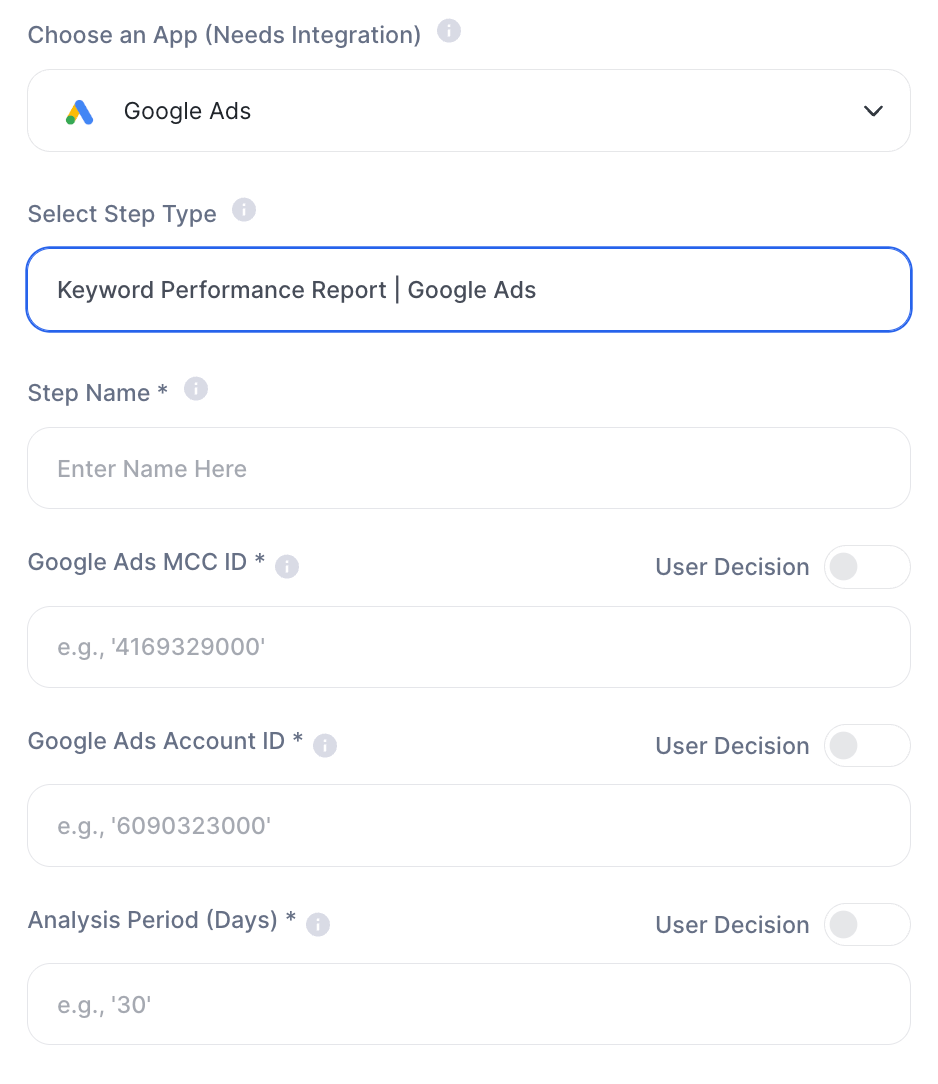
Analyzes keyword performance over a period.
| Field | Description |
| :------------------------ | :------------------------ |
| Step Name | Internal step name |
| Google Ads MCC ID \* | Manager account ID |
| Google Ads Account ID \* | Ads account ID |
| Analysis Period (Days) \* | Period analyzed. Ex: `30` |
 ***
### **5. Metrics Trend Report**
Analyzes the trend of a metric over time by segment.
| **Field** | **Description** |
| :--------------------------------- | :------------------------------ |
| Step Name | Internal step name |
| Google Ads MCC ID \* | Manager account ID |
| Google Ads Account ID \* | Ads account ID |
| Analysis Period (Days) \* | Period analyzed. Ex: `30` |
| Report Segment \* | Report segment. Ex: `campaigns` |
| Key Performance Indicator (KPI) \* | Main metric. Ex: `cpa`, `roas` |
***
### **5. Metrics Trend Report**
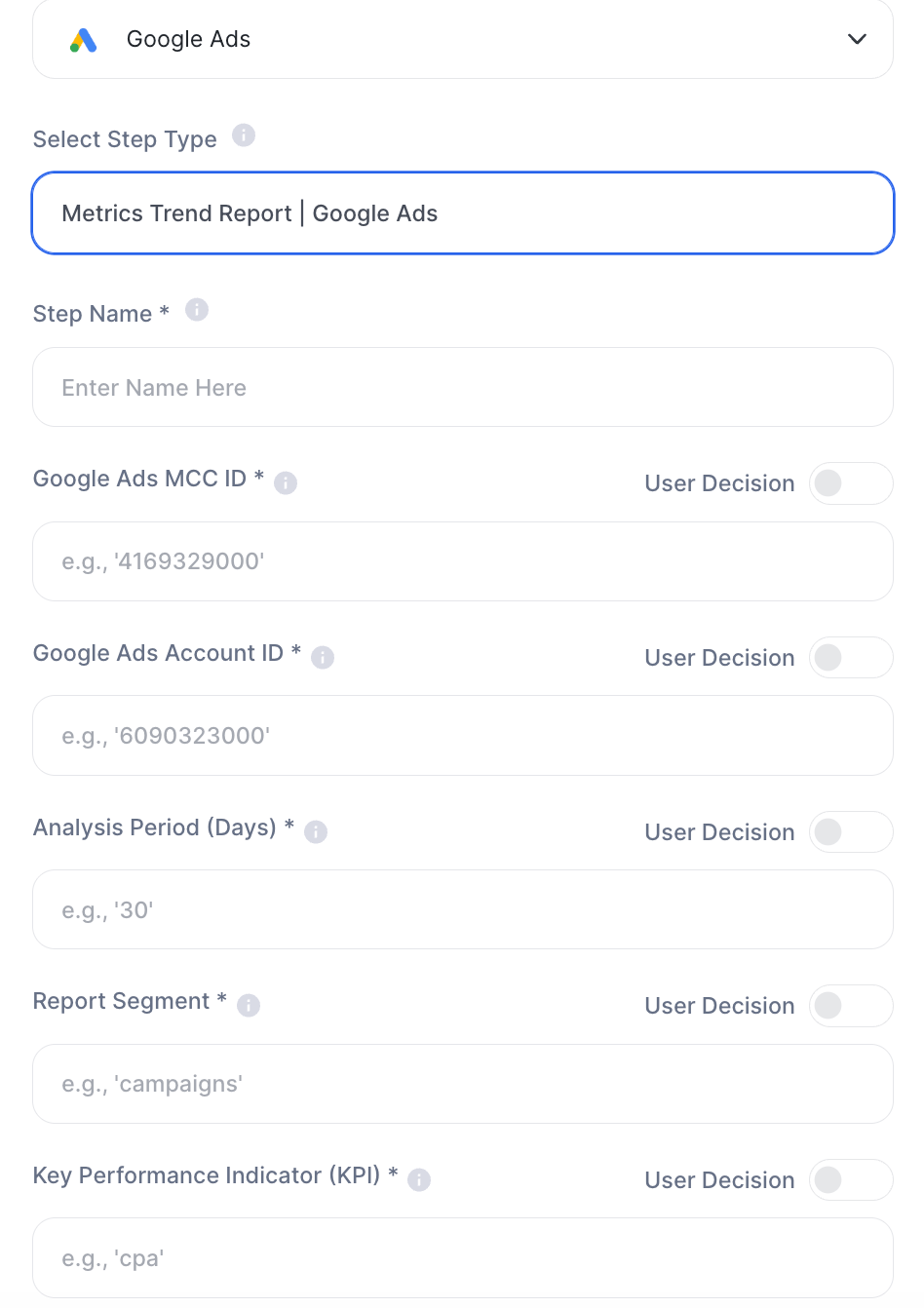
Analyzes the trend of a metric over time by segment.
| **Field** | **Description** |
| :--------------------------------- | :------------------------------ |
| Step Name | Internal step name |
| Google Ads MCC ID \* | Manager account ID |
| Google Ads Account ID \* | Ads account ID |
| Analysis Period (Days) \* | Period analyzed. Ex: `30` |
| Report Segment \* | Report segment. Ex: `campaigns` |
| Key Performance Indicator (KPI) \* | Main metric. Ex: `cpa`, `roas` |
 ***
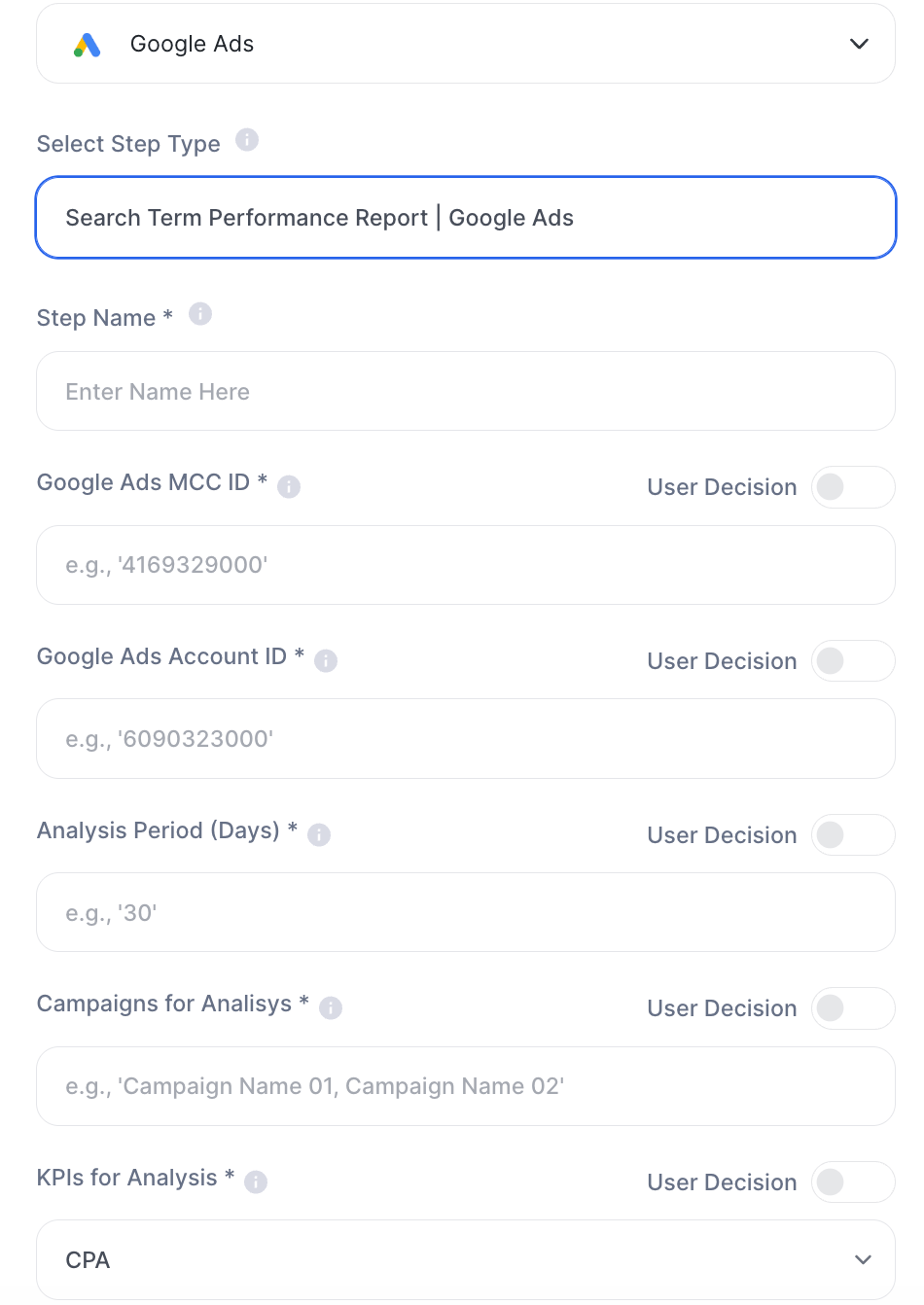
### **6. Search Term Performance Report**
Analyzes the search terms that triggered campaigns and evaluates their performance.
| **Field** | **Description** |
| :------------------------ | :------------------------------------------------------------ |
| Step Name | Internal step name |
| Google Ads MCC ID \* | Manager account ID |
| Google Ads Account ID \* | Ads account ID |
| Analysis Period (Days) \* | Period analyzed. Ex: `30` |
| Campaigns for Analysis \* | Campaign names. Ex: `Campaign 1, Campaign 2` |
| KPIs for Analysis \* | Select: `CPA`, `ROAS`, `Clicks`, `CPC`, `Conversions`, `Cost` |
***
### **6. Search Term Performance Report**
Analyzes the search terms that triggered campaigns and evaluates their performance.
| **Field** | **Description** |
| :------------------------ | :------------------------------------------------------------ |
| Step Name | Internal step name |
| Google Ads MCC ID \* | Manager account ID |
| Google Ads Account ID \* | Ads account ID |
| Analysis Period (Days) \* | Period analyzed. Ex: `30` |
| Campaigns for Analysis \* | Campaign names. Ex: `Campaign 1, Campaign 2` |
| KPIs for Analysis \* | Select: `CPA`, `ROAS`, `Clicks`, `CPC`, `Conversions`, `Cost` |
 \\
***
## **Important variable details**
* MCC ID → manager account
* Account ID → specific ads account
Both are required to properly access the data.
* Defines the analyzed period:
* `7` → last week
* `30` → last month
* `90` → more strategic view
* The step can work in two ways:
* With a new defined budget
* With a percentage adjustment
This enables strategies such as:
* increasing 20% on high-performing campaigns
* automatically redistributing budget
### Practical examples
**1. Automatic media optimization**
* campaigns with higher ROAS receive more budget
* underperforming campaigns lose investment
**2. Automated marketing report**
Prompt:\
"Analyze CPA trends and identify the main deviations."
**3. Discovering new opportunities**
* search term analysis
* identify high-potential keywords
**4. Campaign audit**
* identify wasted budget
* find bottlenecks
Best practices
* Always validate MCC and Account ID
* Use consistent periods (e.g., 30 days)
* Avoid mixing very different campaigns in the same analysis
* Define clear KPIs: avoids generic analysis
* Be careful with Budget Shift: direct impact on investment
### Important notes
* Google Ads integration is required
* Account permissions are necessary
* Data depends on account structure
* Budget Shift impacts real investment
* Results vary depending on data volume
Google Ads within Tess turns your agent into a paid media analyst and optimizer. It enables identifying patterns, generating insights, and even automatically adjusting budgets, bringing more efficiency and scale to marketing operations.
\\
***
## **Important variable details**
* MCC ID → manager account
* Account ID → specific ads account
Both are required to properly access the data.
* Defines the analyzed period:
* `7` → last week
* `30` → last month
* `90` → more strategic view
* The step can work in two ways:
* With a new defined budget
* With a percentage adjustment
This enables strategies such as:
* increasing 20% on high-performing campaigns
* automatically redistributing budget
### Practical examples
**1. Automatic media optimization**
* campaigns with higher ROAS receive more budget
* underperforming campaigns lose investment
**2. Automated marketing report**
Prompt:\
"Analyze CPA trends and identify the main deviations."
**3. Discovering new opportunities**
* search term analysis
* identify high-potential keywords
**4. Campaign audit**
* identify wasted budget
* find bottlenecks
Best practices
* Always validate MCC and Account ID
* Use consistent periods (e.g., 30 days)
* Avoid mixing very different campaigns in the same analysis
* Define clear KPIs: avoids generic analysis
* Be careful with Budget Shift: direct impact on investment
### Important notes
* Google Ads integration is required
* Account permissions are necessary
* Data depends on account structure
* Budget Shift impacts real investment
* Results vary depending on data volume
Google Ads within Tess turns your agent into a paid media analyst and optimizer. It enables identifying patterns, generating insights, and even automatically adjusting budgets, bringing more efficiency and scale to marketing operations.