> ## Documentation Index
> Fetch the complete documentation index at: https://docs.tess.im/llms.txt
> Use this file to discover all available pages before exploring further.
# GPT Image 2.5 (Tool)
> New OpenAI image model available as a tool in Tess Chat.
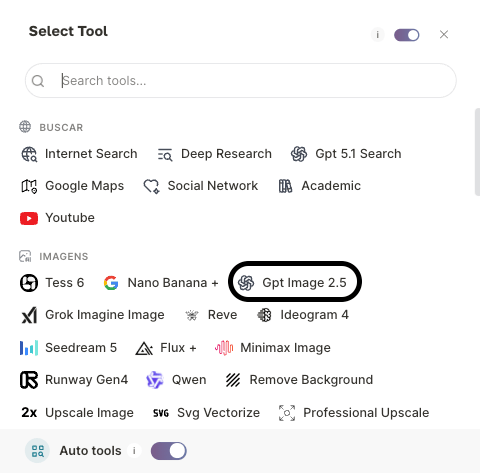
GPT Image 2.5 is OpenAI's new **image generation and editing tool** in Tess. It is initially available in Chat as a single option under **Tools → Images**. Behind this experience, the implementation uses the **Flare** variant for speed and **Sunburst** for quality and visual precision—without requiring users to choose between them.
| **Tool in Tess**
GPT Image 2.5 | **Provider**
OpenAI | **Input**
Text + image | **Output**
Image |
| :---------------------------------------- | :---------------------------------------------------------- | :------------------------------------------------------ | :--------------------------------- |
| **Type**
Image model | **Initial access in Tess**
Chat → Tools → Images | **Internal implementation**
Flare · Sunburst | **Release**
Sep 8, 2026 |
In this initial Tess release, GPT Image 2.5 is available **only in Chat through the Images tool**. Flare and Sunburst are image models, not conversational LLMs, and are not yet available in the Agent Studio Image Generator.
## What powers the tool
The experience in Tess is unified, but the implementation brings together two model variants. Both generate images from text and edit existing images; the technical difference is the balance between speed and refinement.
| | GPT-Image-2.5 Flare | GPT-Image-2.5 Sunburst |
| --------------- | --------------------------------------------- | ---------------------------------------------- |
| Profile | Smaller model optimized for speed | Base model optimized for quality |
| Focus | Everyday production and fast iteration | Detailed, demanding visual work |
| Quality | Comparable to GPT Image 2, with lower latency | Better than GPT Image 2, according to OpenAI |
| Editing | Fast changes while preserving the rest | Greater precision and control in complex edits |
| Generation time | Lower | Higher |
In Tess, **GPT Image 2.5 appears as a single tool**, without a visual selector for Flare or Sunburst. To use a specific variant, simply ask for **Flare** or **Sunburst** directly in Chat; the tool will run the requested option.
## What improves in the 2.5 family
Compared with the previous generation, the GPT Image 2.5 family was designed to deliver:
* faster image generation;
* greater fidelity for people, objects, and references;
* more consistent details across multiple edits;
* more precise changes while preserving what was not requested;
* better performance in compositions, layouts, and text inside images.
## Formats and aspect ratios
In the provider implementation, GPT Image 2.5 offers automatic or custom dimensions and supports configuring format, aspect ratio, quality, and background.
| Setting | Options supported by the model |
| ----------------- | -------------------------------------------------------------- |
| Output format | PNG, JPEG, and WebP |
| Aspect ratio | Between **1:3 and 3:1** |
| Custom dimensions | Edges divisible by 16, with up to 3,840 px on the longest edge |
| Quality | `auto`, `low`, `medium`, `high`, `xhigh`, or `max` |
| Background | Automatic, opaque, or transparent |
For transparent-background images, use PNG or WebP.
| Use | Aspect ratio | Common sizes |
| ---------- | -----------: | -------------------------: |
| Square | 1:1 | 1024 × 1024 or 2048 × 2048 |
| Landscape | 3:2 | 1536 × 1024 |
| Portrait | 2:3 | 1024 × 1536 |
| Widescreen | 16:9 | 2048 × 1152 or 3840 × 2160 |
| Vertical | 9:16 | 2160 × 3840 |
In Tess Chat, include the desired format and aspect ratio in your request—for example: **“Generate a PNG image in vertical 9:16 format.”** The options applied may vary depending on the tool configuration.
## How to use it in Tess Chat
In Chat, open the Tools menu, find the **Images** category, and select **GPT Image 2.5**. It appears as a single option in the interface.
Explain whether you want to create an image from scratch, generate variations, or edit an existing reference. Generation happens inside the conversation and uses the context you have already shared.
Provide the objective, format, composition, style, lighting, colors, visible text, and anything that should not appear. If you have a reference, attach the image in Chat.
Request focused changes, such as replacing only the background, adjusting a product's position, or correcting text. The thread context helps preserve the visual direction.
 ## Where GPT Image 2.5 creates the most value
Use the tool for work such as:
* social media and ad variations;
* visual concepts, moodboards, and thumbnails;
* hero images for campaigns;
* product photography based on references;
* localized editing while preserving the composition;
* pieces with demanding text, materials, or lighting.
### Campaign exploration
```text theme={null}
Create three visual directions for a B2B software launch ad.
Use a 1080 × 1350 format, clean composition, dark background, and technological
lighting. Leave room for a headline at the top and a CTA at the bottom. Do not
include logos or final copy. I want to compare concept, framing, and palette.
```
### Precise product editing
```text theme={null}
Use the attached image as a reference. Preserve the product, framing, visual
identity, and proportions exactly. Change only the background to a graphite-toned
studio with soft side lighting and a natural shadow. Do not change the label,
colors, logo, or packaging details.
```
## An efficient visual production workflow
1. **Explore directions:** request alternatives and compare composition, palette, and framing.
2. **Choose a version:** approve the visual direction before requesting final polish.
3. **Refine in stages:** make focused requests and explicitly state what must remain unchanged.
4. **Validate the result:** check text, anatomy, brand, product, and elements that should not have changed.
This workflow reduces conflicting changes and helps preserve the visual direction throughout revisions.
AI-generated images may still contain errors in text, hands, objects, brands, or factual details. Review every asset before publishing, especially commercial materials and product representations.
## Best practices
* Explicitly state what should change and what must remain unchanged.
* Use high-resolution reference images with useful framing.
* Separate creative exploration from final polishing.
* Avoid requesting too many conflicting changes in a single edit.
* For branded assets, validate colors, typography, logo, and product before approval.
See also: [Image Generation in Chat](/en/images) · [Models and Costs](/en/models-and-cost) · [Image prompting (OpenAI)](https://developers.openai.com/api/docs/guides/image-prompting).
## Where GPT Image 2.5 creates the most value
Use the tool for work such as:
* social media and ad variations;
* visual concepts, moodboards, and thumbnails;
* hero images for campaigns;
* product photography based on references;
* localized editing while preserving the composition;
* pieces with demanding text, materials, or lighting.
### Campaign exploration
```text theme={null}
Create three visual directions for a B2B software launch ad.
Use a 1080 × 1350 format, clean composition, dark background, and technological
lighting. Leave room for a headline at the top and a CTA at the bottom. Do not
include logos or final copy. I want to compare concept, framing, and palette.
```
### Precise product editing
```text theme={null}
Use the attached image as a reference. Preserve the product, framing, visual
identity, and proportions exactly. Change only the background to a graphite-toned
studio with soft side lighting and a natural shadow. Do not change the label,
colors, logo, or packaging details.
```
## An efficient visual production workflow
1. **Explore directions:** request alternatives and compare composition, palette, and framing.
2. **Choose a version:** approve the visual direction before requesting final polish.
3. **Refine in stages:** make focused requests and explicitly state what must remain unchanged.
4. **Validate the result:** check text, anatomy, brand, product, and elements that should not have changed.
This workflow reduces conflicting changes and helps preserve the visual direction throughout revisions.
AI-generated images may still contain errors in text, hands, objects, brands, or factual details. Review every asset before publishing, especially commercial materials and product representations.
## Best practices
* Explicitly state what should change and what must remain unchanged.
* Use high-resolution reference images with useful framing.
* Separate creative exploration from final polishing.
* Avoid requesting too many conflicting changes in a single edit.
* For branded assets, validate colors, typography, logo, and product before approval.
See also: [Image Generation in Chat](/en/images) · [Models and Costs](/en/models-and-cost) · [Image prompting (OpenAI)](https://developers.openai.com/api/docs/guides/image-prompting).