> ## Documentation Index
> Fetch the complete documentation index at: https://docs.tess.im/llms.txt
> Use this file to discover all available pages before exploring further.
# History
The Tess History is where all interactions with AI are automatically recorded. It allows you to revisit conversations, organize content, and track platform usage, both at an individual and administrative level.
### **What is it?**
The History gathers all chats and executions made on Tess.
In practice, it works as:
* A complete record of conversations
* A reusable context repository
* A source for audit and usage control
Each conversation is automatically saved and can be reopened at any time, maintaining all the context already built.
### **Where is the history located?**
On the left side of the main screen, you will find the list of your chats organized chronologically. Each new chat is automatically saved and receives a name generated by Tess itself, based on the beginning of the conversation (which can be renamed).
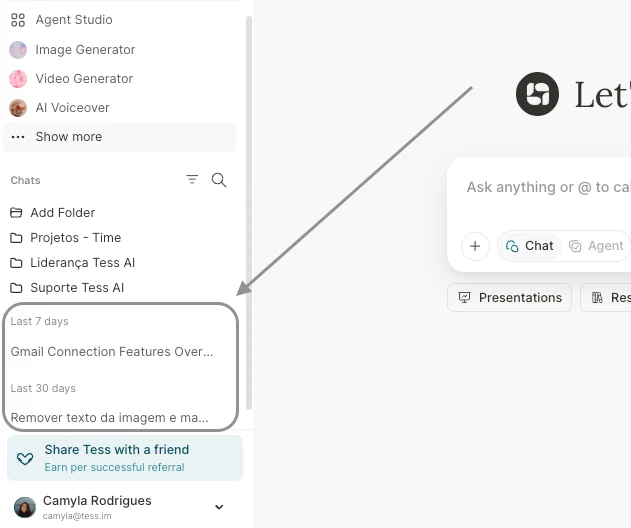 This way, you can:
1. Reopen previous conversations: click on any conversation in the list to open the full history. You can continue the conversation exactly from where you left off, reusing all the context already built.
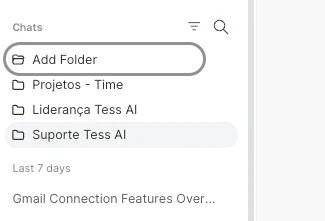
2. Organize in folders: to keep everything organized, you can create folders and group conversations, for example, by theme (e.g.: "Marketing", "Legal", "Internal Support"), by project (e.g.: "Q3 Launch", "Client Onboarding"), by client, etc.
This way, you can:
1. Reopen previous conversations: click on any conversation in the list to open the full history. You can continue the conversation exactly from where you left off, reusing all the context already built.
2. Organize in folders: to keep everything organized, you can create folders and group conversations, for example, by theme (e.g.: "Marketing", "Legal", "Internal Support"), by project (e.g.: "Q3 Launch", "Client Onboarding"), by client, etc.
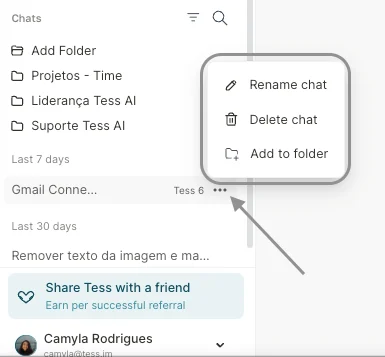
 3. Rename or delete chats: If any assigned name is not ideal, or if it is following a specific pattern, you can rename it. Or, if a chat has no relevance and you want to delete it, you can do so. Remember that this process is not reversible.
 4. Reuse contents: By revisiting conversations, you can copy important excerpts already produced, turn old answers into documents, or use previous conversations as a base for new prompts.
Take advantage of the Conversation History, as it is your memory panel within Tess AI: everything is recorded, organized, and easy to find.
####
4. Reuse contents: By revisiting conversations, you can copy important excerpts already produced, turn old answers into documents, or use previous conversations as a base for new prompts.
Take advantage of the Conversation History, as it is your memory panel within Tess AI: everything is recorded, organized, and easy to find.
####