> ## Documentation Index
> Fetch the complete documentation index at: https://docs.tess.im/llms.txt
> Use this file to discover all available pages before exploring further.
# Image Generation
Generate images directly in Tess chat using the leading visual AI models on the market. You enable the Images tool, choose the model, and describe what you want to see. The LLM helps you write the prompt and triggers the image AI — the result appears in the chat itself, integrated with the context of the conversation.
### **What is it?**
The Images tool in chat allows you to:
1. Create images from text (prompt)
2. Recreate the same image in different models
3. Apply quick functions such as:
* Remove background (remove background)
* Upscale image (improve resolution)
* SVG vectorize (convert to vector)
 All of this without leaving the conversation: the previous context (brand, visual reference, persona, post objective, etc.) is used by the LLM to suggest better prompts and faster adjustments.
### **How to use it?**
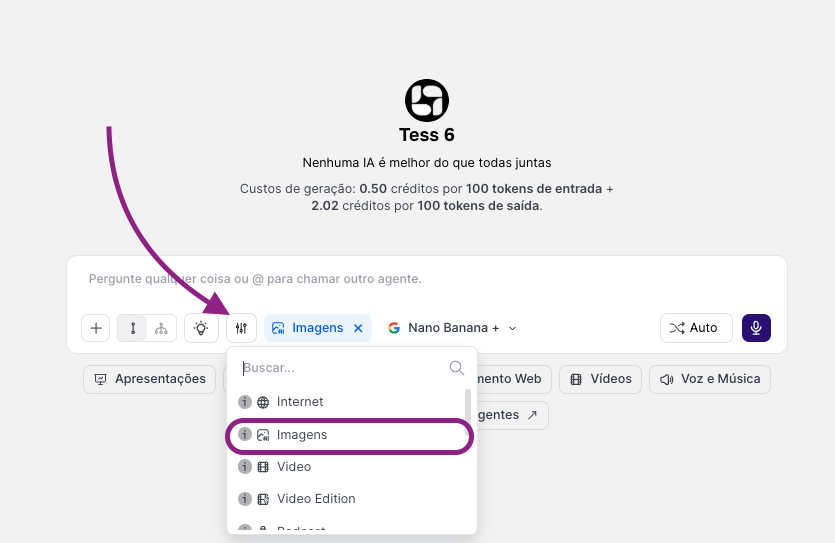
Locate the tools button and the images option.
All of this without leaving the conversation: the previous context (brand, visual reference, persona, post objective, etc.) is used by the LLM to suggest better prompts and faster adjustments.
### **How to use it?**
Locate the tools button and the images option.
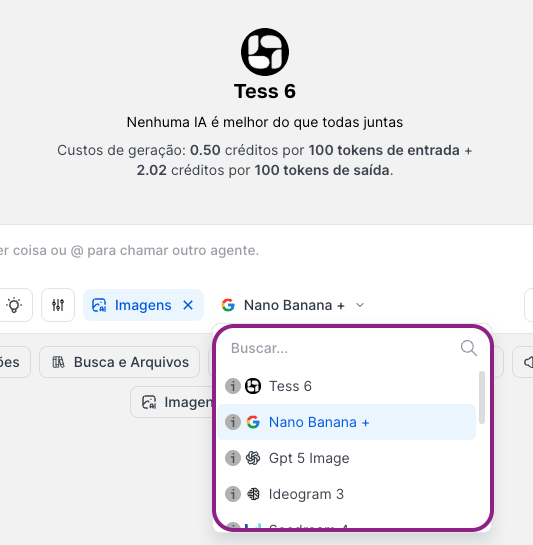
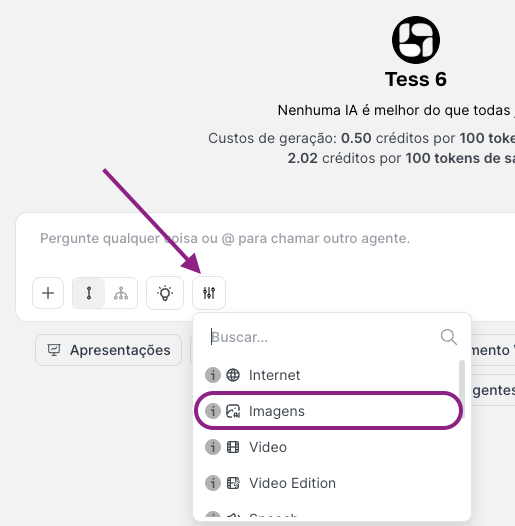 Another button will open where we will see the AIs and other features available for selection. You can test the same prompt across different models to compare styles and quality.
 Write in natural language what you want:
"I want a minimalist Instagram post about mental health, light background, female character, flat style"
Write in natural language what you want:
"I want a minimalist Instagram post about mental health, light background, female character, flat style"
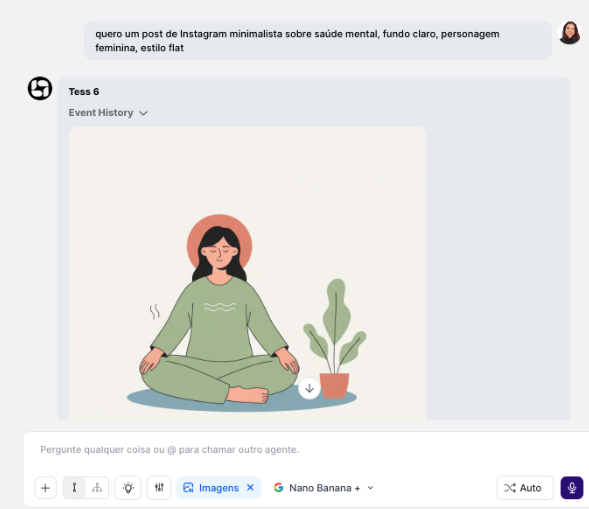 Depending on your request, the selected text model (LLM) may ask you quick questions about colors, format, and audience to build an optimized prompt for your needs. Share your ideas and let the LLM do the rest. It will write the prompt and trigger the image AI automatically; you don’t need to leave the chat or access another panel. That’s the power of multi-model collaboration!
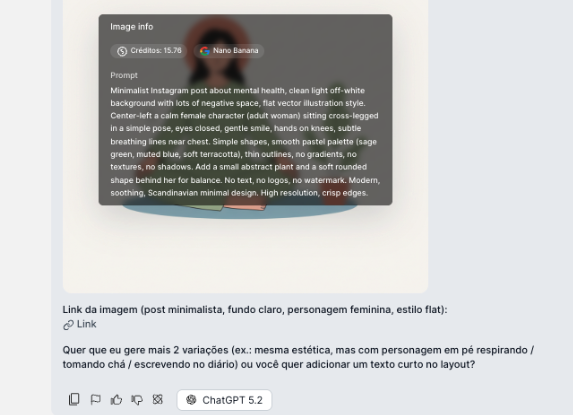 In the example above, ChatGPT 5.2 helped us structure the prompt:
> *Minimalist Instagram post about mental health, clean light off-white background with lots of negative space, flat vector illustration style. Center-left a calm female character (adult woman) sitting cross-legged in a simple pose, eyes closed, gentle smile, hands on knees, subtle breathing lines near chest. Simple shapes, smooth pastel palette (sage green, muted blue, soft terracotta), thin outlines, no gradients, no textures, no shadows. Add a small abstract plant and a soft rounded shape behind her for balance. No text, no logos, no watermark. Modern, soothing, Scandinavian minimal design. High resolution, crisp edges.*
Notice that the prompt asks for the image with no logos, text, or watermark. In other words, whenever you want images with specific details or text, share it in the chat so the text model can help you!
The generated image appears directly in the conversation.
You can comment on it, ask for variations, change colors, adjust style, etc.
In the example above, ChatGPT 5.2 helped us structure the prompt:
> *Minimalist Instagram post about mental health, clean light off-white background with lots of negative space, flat vector illustration style. Center-left a calm female character (adult woman) sitting cross-legged in a simple pose, eyes closed, gentle smile, hands on knees, subtle breathing lines near chest. Simple shapes, smooth pastel palette (sage green, muted blue, soft terracotta), thin outlines, no gradients, no textures, no shadows. Add a small abstract plant and a soft rounded shape behind her for balance. No text, no logos, no watermark. Modern, soothing, Scandinavian minimal design. High resolution, crisp edges.*
Notice that the prompt asks for the image with no logos, text, or watermark. In other words, whenever you want images with specific details or text, share it in the chat so the text model can help you!
The generated image appears directly in the conversation.
You can comment on it, ask for variations, change colors, adjust style, etc.
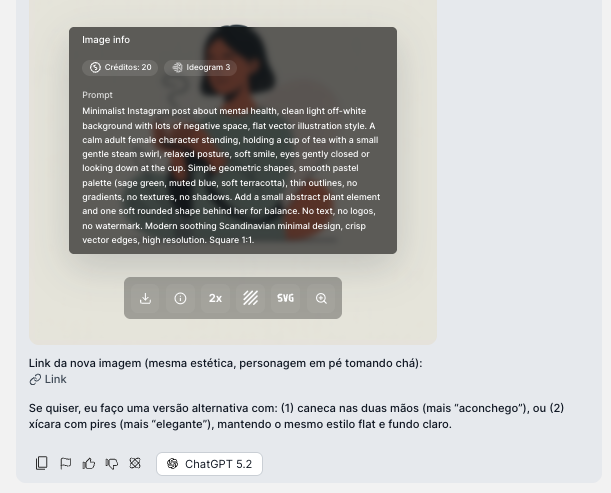 When you hover your mouse over the image, icons appear. From left to right, they represent:
1. Download: download the generated image to your device
2. Information: see the prompt, model, and image generation cost
3. Upscale: improve the image quality by 2x
4. Remove background: remove the background with AI, generating a PNG version
5. Vectorization: generate a vector of this image in SVG
6. Open image: to view it better, open it and see the details of your image
One of the differentiators is being able to:
* Generate the image with one model (e.g., Nano Banana).
* Then choose another model (e.g., Ideogram 3 or Runway Gen4).
* Ask: "recreate it with the same aesthetic, but with the character standing up drinking tea".
When you hover your mouse over the image, icons appear. From left to right, they represent:
1. Download: download the generated image to your device
2. Information: see the prompt, model, and image generation cost
3. Upscale: improve the image quality by 2x
4. Remove background: remove the background with AI, generating a PNG version
5. Vectorization: generate a vector of this image in SVG
6. Open image: to view it better, open it and see the details of your image
One of the differentiators is being able to:
* Generate the image with one model (e.g., Nano Banana).
* Then choose another model (e.g., Ideogram 3 or Runway Gen4).
* Ask: "recreate it with the same aesthetic, but with the character standing up drinking tea".
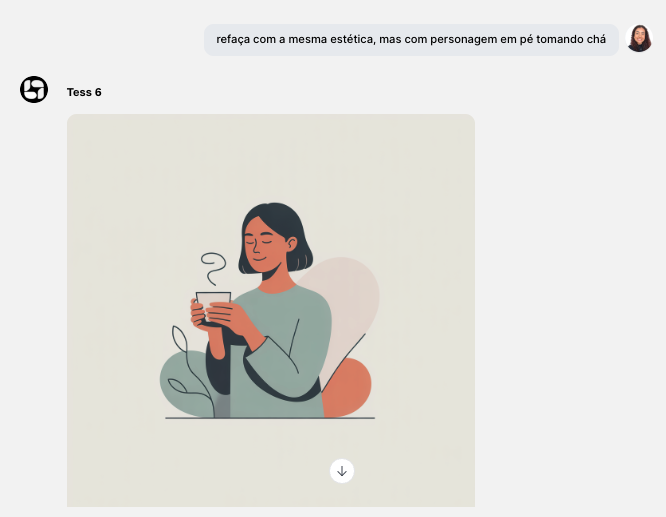 The LLM reviews the prompt and the context and calls the new model automatically to generate the image.
### **Extra functions (after image processing)**
In addition to generating images from scratch, you can use specific functions directly through the chat:
Automatically removes the background from an image. Useful for cutting out products, creating stickers, building compositions in social media templates
Upscale increases the resolution and improves image sharpness. Useful for preparing assets for printing, making images sharper in presentations, avoiding pixelation in video crops.
Converts logos, icons, or simple drawings into vector format (SVG). Useful for responsive logos, icons in interfaces, and adjustments in vector design tools.
### **Quick usage examples in chat**
1. Instagram post
"I want an image for an Instagram post about anxiety, minimalist style, light background, with an illustration of a person taking a deep breath, in blue and lilac colors."
2. Image with readable text
"Create an e-book cover in Portuguese with the title 'Guia Prático de IA para Negócios', modern style, purple and white colors, no photos of people."
### \\
Advantages of creating images directly in chat
* Continuous context: the LLM remembers the conversation (brand, persona, campaign) and uses it to improve prompts.
* Fast iteration: you adjust text, color, style, model — all in the same thread.
* Real multimodality: text, image, video, music, and audio in the same flow.
* Model testing: generate with one model, switch to another, and compare styles.
* Integrated post-processing: remove background, upscale, and vectorize without leaving the chat.
Tips!
Always indicate:
* image objective (feed, story, thumb, slide)
* style (realistic, illustrated, flat, 3D, minimalist)
* main colors
* whether you need text in the image (and what text)
When testing different models:
* keep the same base prompt
* ask explicitly: "use the same prompt, but generate it with model X"
The LLM reviews the prompt and the context and calls the new model automatically to generate the image.
### **Extra functions (after image processing)**
In addition to generating images from scratch, you can use specific functions directly through the chat:
Automatically removes the background from an image. Useful for cutting out products, creating stickers, building compositions in social media templates
Upscale increases the resolution and improves image sharpness. Useful for preparing assets for printing, making images sharper in presentations, avoiding pixelation in video crops.
Converts logos, icons, or simple drawings into vector format (SVG). Useful for responsive logos, icons in interfaces, and adjustments in vector design tools.
### **Quick usage examples in chat**
1. Instagram post
"I want an image for an Instagram post about anxiety, minimalist style, light background, with an illustration of a person taking a deep breath, in blue and lilac colors."
2. Image with readable text
"Create an e-book cover in Portuguese with the title 'Guia Prático de IA para Negócios', modern style, purple and white colors, no photos of people."
### \\
Advantages of creating images directly in chat
* Continuous context: the LLM remembers the conversation (brand, persona, campaign) and uses it to improve prompts.
* Fast iteration: you adjust text, color, style, model — all in the same thread.
* Real multimodality: text, image, video, music, and audio in the same flow.
* Model testing: generate with one model, switch to another, and compare styles.
* Integrated post-processing: remove background, upscale, and vectorize without leaving the chat.
Tips!
Always indicate:
* image objective (feed, story, thumb, slide)
* style (realistic, illustrated, flat, 3D, minimalist)
* main colors
* whether you need text in the image (and what text)
When testing different models:
* keep the same base prompt
* ask explicitly: "use the same prompt, but generate it with model X"