> ## Documentation Index
> Fetch the complete documentation index at: https://docs.tess.im/llms.txt
> Use this file to discover all available pages before exploring further.
# AI Step | Media Converter
The Media Converter step allows you to convert audio and video files between different formats directly within Tess. It ensures compatibility across platforms, reduces file size, and enables transformations such as extracting audio from video.
### What is the Step?
Media Converter acts as a universal media converter, integrated into the agent workflow.
In practice, it:
* Receives an audio or video file via URL or from a previous step
* Converts it to a new format
* Returns a URL of the converted file
This enables automating multimedia processes without relying on external tools.
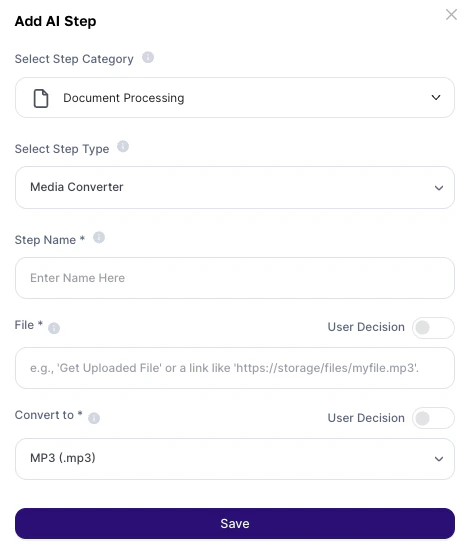
### Where to find it
1. Go to AI Studio
2. Click on Add AI Step
3. Select Document Processing
4. Choose Media Converter
 ***
## How to use?
### Configuration fields
| Field | Required | Description |
| :--------- | :------- | :-------------------------------------------------------------------------- |
| Step Name | Yes | Internal step name (alphanumeric). Used as a reference in the agent |
| File URL | Yes | Direct URL of the audio or video file, or output variable from another step |
| Convert To | Yes | Desired output format (e.g.: `.mp3`, `.mp4`, `.wav`) |
## Supported formats
`.mp3`
`.wav`
`.aac`
`.flac`
`.ogg`
`.wma`
`.m4a`
`.opus`
`.mp4`
`.avi`
`.mkv`
`.mov`
`.wmv`
`.flv`
`.webm`
`.mpeg`
`.3gp`
`.ogv`
`.m4v`
### About the Output
The result is:
* A direct URL of the converted file
* Preserved content (same audio/video, new format)
* Ready for: download; sharing and/or use in other steps
### Deeper explanation
This step works as a media transformation stage within the workflow.
Original file (audio/video) → Format conversion
↓
New URL generated → Used in next steps
It does not analyze content — it only transforms the format.
## Practical examples
* Receive videos in `.mov` or `.mkv`
* Convert to `.mp4`
* Ensure compatibility with social platforms
* Convert `.mp4` → `.mp3`
* Use for:
* transcription
* internal podcasts
* training
* Convert `.avi` → `.mp4`
* Reduce size and improve compatibility
Example flow:
Video → Media Converter → MP3 → Transcription → Text
* Extract audio
* Generate automatic summaries with AI
**Best practices**
* Use standard formats: `.mp4` (video) or `.mp3` (audio)
* Ensure direct URLs: preview links may fail
* Combine with other steps: Media Converter → Transcription → Analysis
* Standardize formats in the workflow: avoids downstream issues
* Use clear Step Names: e.g., `video_to_mp3`
## Important notes
* The step does not analyze content, it only converts
* The URL must be public and accessible
* Large files may impact processing time
* Conversion quality may vary slightly depending on the format
Media Converter removes compatibility issues and prepares multimedia files for automation. It is essential for workflows involving audio and video, enabling you to transform, standardize, and chain media within Tess in a simple and scalable way.
***
## How to use?
### Configuration fields
| Field | Required | Description |
| :--------- | :------- | :-------------------------------------------------------------------------- |
| Step Name | Yes | Internal step name (alphanumeric). Used as a reference in the agent |
| File URL | Yes | Direct URL of the audio or video file, or output variable from another step |
| Convert To | Yes | Desired output format (e.g.: `.mp3`, `.mp4`, `.wav`) |
## Supported formats
`.mp3`
`.wav`
`.aac`
`.flac`
`.ogg`
`.wma`
`.m4a`
`.opus`
`.mp4`
`.avi`
`.mkv`
`.mov`
`.wmv`
`.flv`
`.webm`
`.mpeg`
`.3gp`
`.ogv`
`.m4v`
### About the Output
The result is:
* A direct URL of the converted file
* Preserved content (same audio/video, new format)
* Ready for: download; sharing and/or use in other steps
### Deeper explanation
This step works as a media transformation stage within the workflow.
Original file (audio/video) → Format conversion
↓
New URL generated → Used in next steps
It does not analyze content — it only transforms the format.
## Practical examples
* Receive videos in `.mov` or `.mkv`
* Convert to `.mp4`
* Ensure compatibility with social platforms
* Convert `.mp4` → `.mp3`
* Use for:
* transcription
* internal podcasts
* training
* Convert `.avi` → `.mp4`
* Reduce size and improve compatibility
Example flow:
Video → Media Converter → MP3 → Transcription → Text
* Extract audio
* Generate automatic summaries with AI
**Best practices**
* Use standard formats: `.mp4` (video) or `.mp3` (audio)
* Ensure direct URLs: preview links may fail
* Combine with other steps: Media Converter → Transcription → Analysis
* Standardize formats in the workflow: avoids downstream issues
* Use clear Step Names: e.g., `video_to_mp3`
## Important notes
* The step does not analyze content, it only converts
* The URL must be public and accessible
* Large files may impact processing time
* Conversion quality may vary slightly depending on the format
Media Converter removes compatibility issues and prepares multimedia files for automation. It is essential for workflows involving audio and video, enabling you to transform, standardize, and chain media within Tess in a simple and scalable way.