> ## Documentation Index
> Fetch the complete documentation index at: https://docs.tess.im/llms.txt
> Use this file to discover all available pages before exploring further.
# Members and Permissions
Think of the "Members" area as your team's control room in Tess. This is where you have visibility and control to manage who is part of your workspace, each person's teams, how they use the platform, and what permissions and restrictions they have.
This complete guide will show you how to add, manage, and define permissions for your team members.
But before you start, for a better experience, make sure your workspace is already customized. If you haven’t done this yet, check out our article on how to set up your workspace.
### **Default User Types and Permission Levels**
In Tess, there are different default roles you can assign to members, each with a specific set of permissions. Understanding these roles is essential for effective and secure management.
Current Plans - GO, PRO, Business and Enterprise Plans
| User Type | Access and Permissions | Notes |
| :-------- | :-------------------------------------------------------------------------------------------------------------------------------------------------------------------------------------------- | :------------------------------------------------------------------------------------------------------------------------------ |
| Owner | Full access to all features: member management,
usage history, data, and full control over subscription and billing. | Usually the workspace creator.
Has the highest responsibility and control. |
| Manager | Can invite/manage members and access execution history
and credit consumption for everyone. Cannot change or view
subscription/billing information. | Ideal for team leaders who need
to manage the team and usage, but not
financial aspects. **(Legacy Business Plan)** |
| Guest | Free access to use all AI models, access all areas of the
platform, create agents, and access agents already created in the workspace.
Does not have management permissions. | To scale AI usage in the company without seat
license cost.
**(New Plans: Basic, PRO, Team and Enterprise)** |
Legacy Plans - Beginner, Individual and Business Plans
| User Type | Access and Permissions | Notes |
| :--------------------------- | :------------------------------------------------------------------------------------------------------------------------------------------------------------------------------------------------------------------------------------------------------------------------------------------------ | :------------------------------------------------------------------------------------------------------------------------------ |
| Owner | Full access to all features: member management,
usage history, data, and full control over subscription and
billing. | Usually the workspace creator.
Has the highest responsibility and control. |
| Manager (Full or Lite) | Can invite/manage members and access execution
history and credit consumption for everyone. Cannot change or
view subscription/billing information. | Ideal for team leaders who need to manage
the team and usage, but not financial aspects.
**(Legacy Business Plan)** |
| User (Full) | Standard access to use the platform and create agents. Does not have
permissions to monitor history, manage other members,
or view team usage data. | Intended for employees who will use Tess AI
to create and run daily tasks.
**(Legacy Business Plan)** |
| User Lite | Free access to use all AI models, access Chat
and use agents already created in the workspace. Cannot create
their own agents and has no management permissions. | Role equivalent to "Guest" for older plans.
**(Legacy Plans, e.g., Business)** |
| User Lite (Text Only) | A subcategory of User Lite. In this case, users
have access only to text AIs (not images, videos, etc.). | Role equivalent to "Guest" for older plans.
**(Legacy Plans, e.g., Business)** |
| User Lite (Team Agents Only) | Another subcategory of User Lite. This role allows
companies with agents in the workspace to offer controlled access
to specific external users. This user will have access
exclusively to the workspace team board with agents
that have public or workspace visibility. | Role equivalent to "Guest" for older plans.
**(Legacy Plans, e.g., Business)** |
### **Advanced Access Control (Teams and Permissions)**
In addition to default roles (Owner, Manager, User/Guest), Tess also allows more granular access control through:
* Custom permissions
* Teams
* Restrictions by team or user
These features are ideal for companies that need to:
* Control which AI models each group can use
* Limit credit consumption by team or user
* Restrict access to connectors or specific features
* Organize users by department (e.g., Marketing, Sales, Operations)
* What you can control
With these settings, it is possible to define:
* Access to AI models (e.g., allow only text models)
* Use of connectors (e.g., Google Drive, Notion, etc.)
* Monthly credit limit
* Specific rules per team or per user
The structure follows this logic:
1. Teams → group users (e.g., “Marketing”)
2. Team policies → define default rules for everyone in that group
3. Individual restrictions → can override team rules for specific cases
> Example:
>
> Marketing Team → access allowed to image models
>
> Specific user → restricted to text only
>
> *In this case, the individual rule takes priority.*
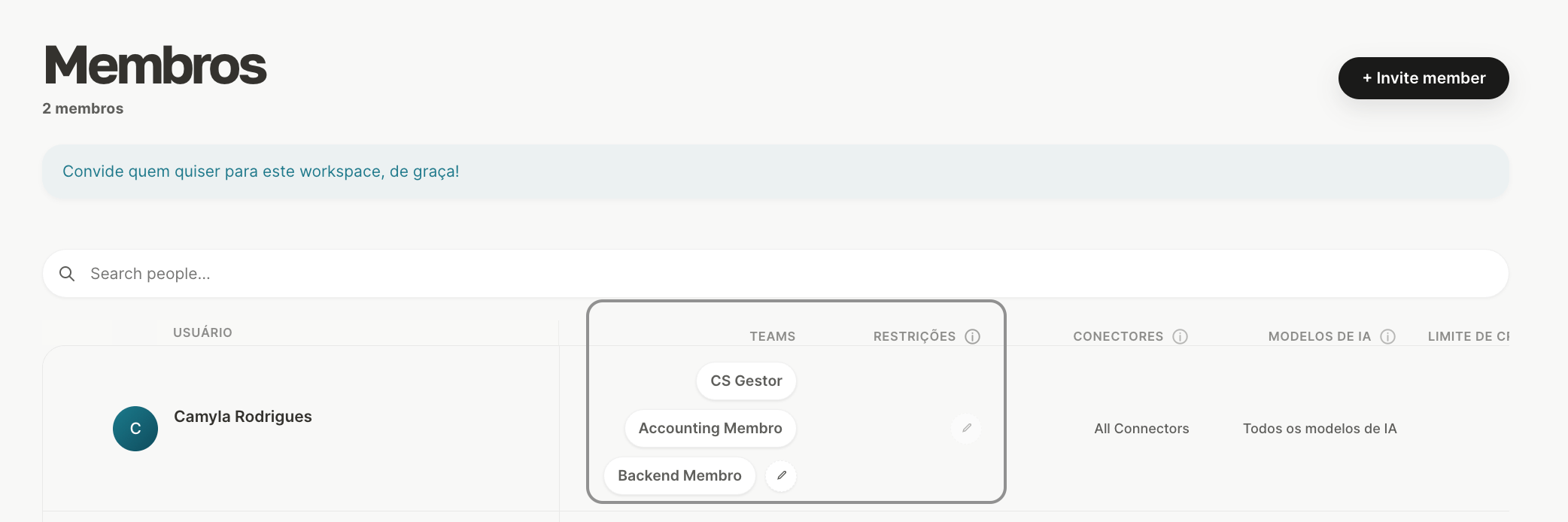
All these settings can be configured within the workspace member management area:
 ### **Ways to Invite New Members**
You have two options to invite people:
\
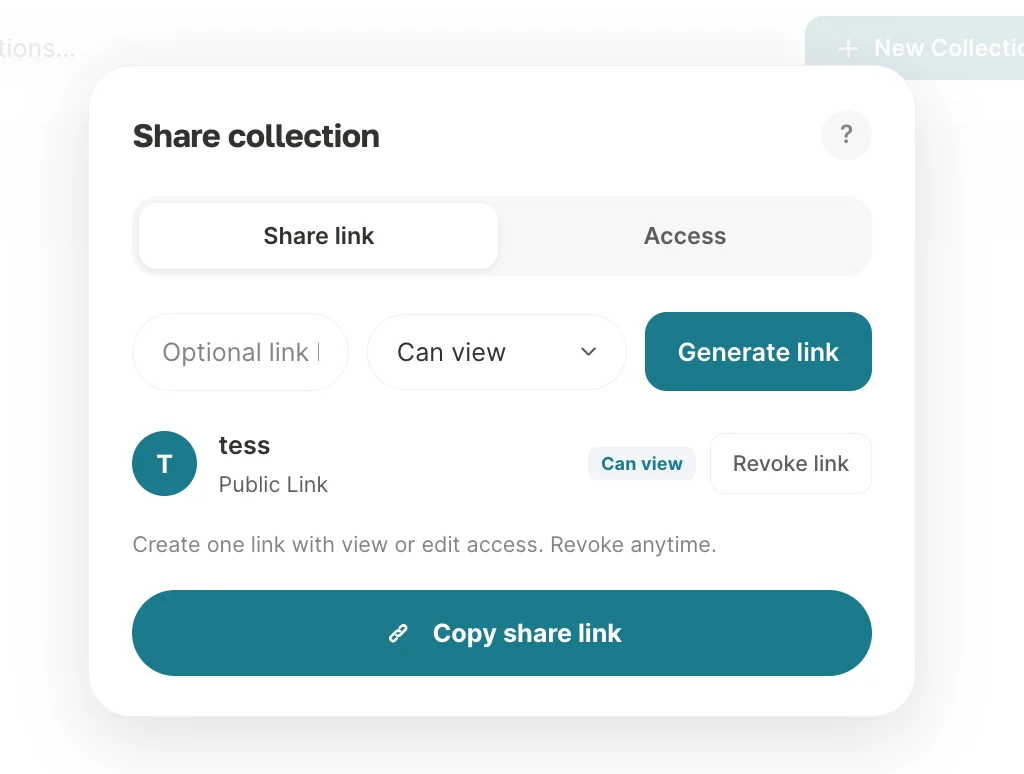
This is the simplest and fastest way to invite multiple people at once, especially for the Guest role.
1. On the Members screen, click the icon to generate a Secret Link.
2. Choose the access level that users invited through this link will have.
3. Activate and copy the generated link to share with your team.
### **Ways to Invite New Members**
You have two options to invite people:
\
This is the simplest and fastest way to invite multiple people at once, especially for the Guest role.
1. On the Members screen, click the icon to generate a Secret Link.
2. Choose the access level that users invited through this link will have.
3. Activate and copy the generated link to share with your team.
 Security Tip: Share this link only in private company channels (such as Slack or internal email). Avoid posting it in public places to prevent unauthorized access.
\
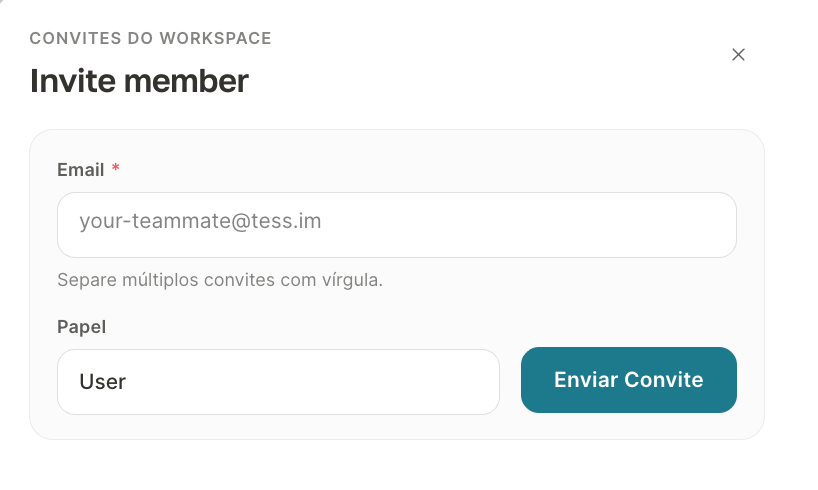
Ideal for inviting specific people, especially for higher-permission roles such as Manager or User.
1. Click "Add new member".
2. Enter the person's email (or a list of emails separated by commas).
3. Define the member's role.
4. Send the invitation.
Security Tip: Share this link only in private company channels (such as Slack or internal email). Avoid posting it in public places to prevent unauthorized access.
\
Ideal for inviting specific people, especially for higher-permission roles such as Manager or User.
1. Click "Add new member".
2. Enter the person's email (or a list of emails separated by commas).
3. Define the member's role.
4. Send the invitation.
 **Important:** The invitation sent by email is valid for 3 days (72 hours). After this period, you will need to revoke the expired invitation and send a new one.
### **Managing Members Day to Day**
The "Members" screen is your hub for ongoing team management:
If an employee leaves the team, you can revoke their access immediately by clicking the "X" icon next to their name.
Track each member's credit consumption to understand how resources are being used. To do this, go to the "Usage" tab in your workspace settings menu, where you can filter executions by user and get a detailed view of consumption.
Keep a clear view of paid seats (User) and free seats (Guest / User Lite) to ensure your team is sized intelligently and cost-effectively.
If you have any questions, our team is available at: [support@tess.im](mailto:support@tess.im).
**Important:** The invitation sent by email is valid for 3 days (72 hours). After this period, you will need to revoke the expired invitation and send a new one.
### **Managing Members Day to Day**
The "Members" screen is your hub for ongoing team management:
If an employee leaves the team, you can revoke their access immediately by clicking the "X" icon next to their name.
Track each member's credit consumption to understand how resources are being used. To do this, go to the "Usage" tab in your workspace settings menu, where you can filter executions by user and get a detailed view of consumption.
Keep a clear view of paid seats (User) and free seats (Guest / User Lite) to ensure your team is sized intelligently and cost-effectively.
If you have any questions, our team is available at: [support@tess.im](mailto:support@tess.im).