> ## Documentation Index
> Fetch the complete documentation index at: https://docs.tess.im/llms.txt
> Use this file to discover all available pages before exploring further.
# AI Step | Microsoft OneDrive
The Microsoft OneDrive step allows your agent to download files from both OneDrive and SharePoint using shared links. This makes it possible to use corporate documents as a basis for analysis, automation, and intelligent responses within Tess.
### **What is the Step?**
This integration allows the agent to access files hosted in the Microsoft ecosystem and bring that data into the context.
Available actions:
* Download OneDrive File → files via `1drv.ms` link
* Download SharePoint File → files via `sharepoint.com` link
Both work the same way: they download the file and make the content available to the agent.
## How to use (Quickstart)
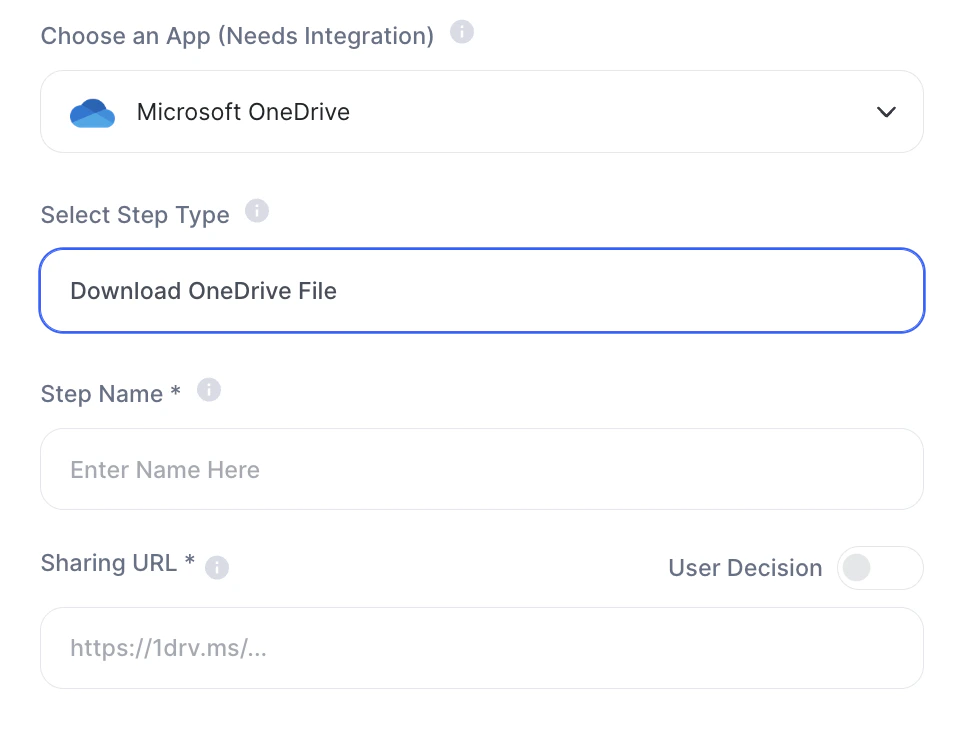
### Download OneDrive File
Fields:
* Step Name
* Sharing URL \*\
Ex: `https://1drv.ms/...`
 ***
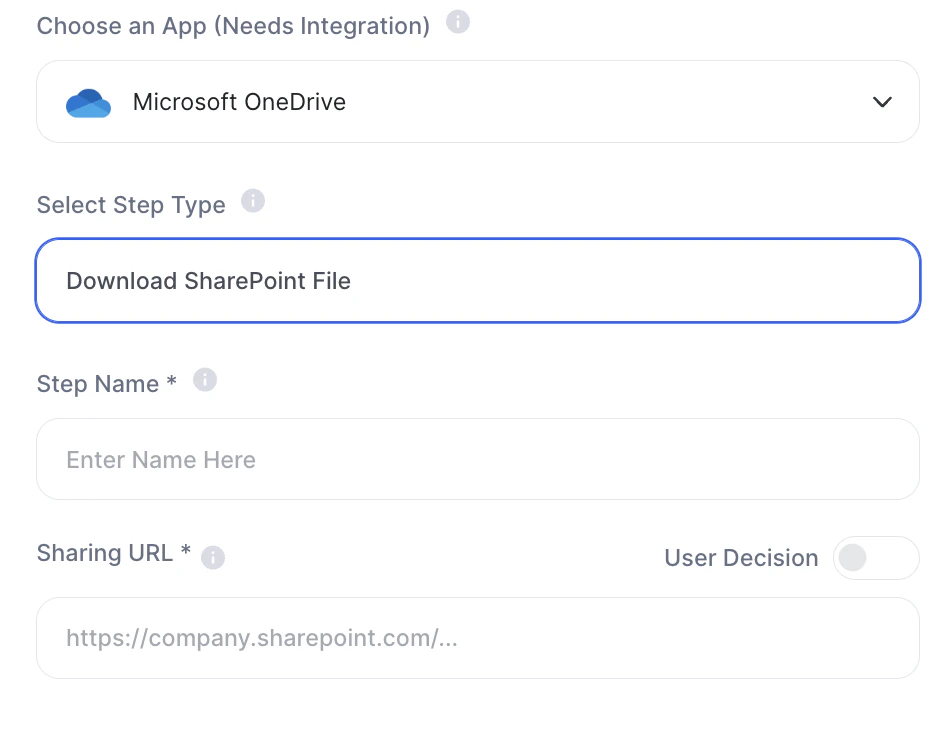
### **Download SharePoint File**
Fields:
* Step Name
* Sharing URL\
Ex: `https://company.sharepoint.com/...`
***
### **Download SharePoint File**
Fields:
* Step Name
* Sharing URL\
Ex: `https://company.sharepoint.com/...`
 ### How to configure the URL
You can use:
* Fixed URL - pre-configured in the step
* User Input (text field)
* User Decision (collected before execution)
Both steps work as external data inputs (file ingestion).
URL provided → File is downloaded
↓
Content enters the context → Agent uses it to respond or process
### **Practical examples**
**1. Corporate document analysis (SharePoint)**
* contract, proposal, internal policy
* agent extracts risks, clauses, or a summary
**2. Reading files sent by customers**
* customer shares a OneDrive link
* agent processes it automatically
**3. Dynamic knowledge base**
* use SharePoint files as an up-to-date source
* avoid manual RAG maintenance
**4. Processing commercial attachments**
* proposals, briefings, presentations
* transform into insights or structured data
***
**Best practices**
* Ensure correct permissions: especially in SharePoint (more restrictive)
* Use direct links: invalid or protected links may fail
* Standardize file sources: avoids inconsistency in the workflow
* Combine with clear prompts: defines what will be done with the content
## Important notes
* Microsoft integration is required
* SharePoint requires appropriate organization-level permissions
* The step only reads files (does not edit)
With support for OneDrive and SharePoint, this step allows your agents to work directly with real operational documents, whether at an individual or corporate level. This eliminates manual uploads and enables automations based on up-to-date files.
### How to configure the URL
You can use:
* Fixed URL - pre-configured in the step
* User Input (text field)
* User Decision (collected before execution)
Both steps work as external data inputs (file ingestion).
URL provided → File is downloaded
↓
Content enters the context → Agent uses it to respond or process
### **Practical examples**
**1. Corporate document analysis (SharePoint)**
* contract, proposal, internal policy
* agent extracts risks, clauses, or a summary
**2. Reading files sent by customers**
* customer shares a OneDrive link
* agent processes it automatically
**3. Dynamic knowledge base**
* use SharePoint files as an up-to-date source
* avoid manual RAG maintenance
**4. Processing commercial attachments**
* proposals, briefings, presentations
* transform into insights or structured data
***
**Best practices**
* Ensure correct permissions: especially in SharePoint (more restrictive)
* Use direct links: invalid or protected links may fail
* Standardize file sources: avoids inconsistency in the workflow
* Combine with clear prompts: defines what will be done with the content
## Important notes
* Microsoft integration is required
* SharePoint requires appropriate organization-level permissions
* The step only reads files (does not edit)
With support for OneDrive and SharePoint, this step allows your agents to work directly with real operational documents, whether at an individual or corporate level. This eliminates manual uploads and enables automations based on up-to-date files.