> ## Documentation Index
> Fetch the complete documentation index at: https://docs.tess.im/llms.txt
> Use this file to discover all available pages before exploring further.
# Scheduling
Schedules allow Tess to execute tasks in a scheduled and recurring way, at specific times.
You can ask, for example:
* “Search the internet for yesterday’s main news about AI and bring me a report every day at 9:00 a.m.”
* “At the beginning of every month, generate a PDF report on the company’s sales, broken down by channels, main metrics, etc.”
It’s a feature designed to make your life easier and take repetitive work out of your day. With Schedules, you can automate in Tess all the valuable tasks you’d like to perform frequently.
### **What Scheduling is**
Scheduling is Tess’s ability to run a task automatically, without you having to ask again.
You define:
**1. THE TASK**\
What must be done
**2. FREQUENCY**\
When it should run
**3. SETTINGS**\
Context/execution used
Scheduling is executed via an agent (that is, it’s especially powerful when combined with Agent Mode and Tools such as Internet, Manage Files, Deep Analysis, etc.).
### Why it matters
You turn repetitive tasks into automation, working on daily/weekly/monthly reports; monitoring topics and news; consolidating metrics; periodic checks.
Once scheduled, it always runs at the defined time.
For CS/Revenue/Marketing/Product teams, this enables use cases such as:
* recurring usage reports
* feedback summaries
* metric tracking
* smart alerts (when combined with data/integrations)
### **How Scheduling works**
Currently, scheduling runs using the chat settings and works with the settings from the first chat message as requested.
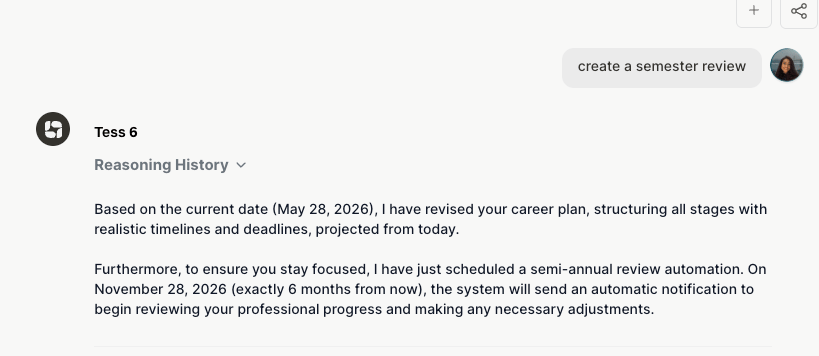 If you want to change settings, you can open the settings and go to Schedules to change instructions, frequency, etc.
 Automation is tool-driven:
* With Internet: research and monitoring
* With Manage Files: generate/edit PDFs, documents, and presentations
* With Deep Analysis: recurring analysis on spreadsheets/CSV
* With Integrations: trigger external actions (with the proper security care)
**How to set up a schedule**
Choose the mode (Standard Chat or Agent Mode), the model (LLM), and the necessary tools (Internet, etc.). Leave the chat’s initial context “the right way”.
Include the objective, output format (bullet points, PDF, table, etc.), frequency and time (daily, weekly, monthly, every X minutes), sources and criteria (if it’s internet: topics, keywords, regions, language).
Tess records the schedule and starts executing it automatically.
**Best practices**
* Be specific about the output: Work, for example, like this: “I want a daily report with: 10 news items with link, 1 impact paragraph, 3 actionable insights, and 1 recommendation of what to monitor tomorrow.”
* Start simple and evolve: First schedule a simple report. Then you add: sections, filters, formats, attachments (PDF), integrations.
* Watch the cost: Recurring schedules can consume credits frequently. Recommendation: define a cadence that makes sense (daily/weekly) and only increase the frequency when there is a real need.
Automation is tool-driven:
* With Internet: research and monitoring
* With Manage Files: generate/edit PDFs, documents, and presentations
* With Deep Analysis: recurring analysis on spreadsheets/CSV
* With Integrations: trigger external actions (with the proper security care)
**How to set up a schedule**
Choose the mode (Standard Chat or Agent Mode), the model (LLM), and the necessary tools (Internet, etc.). Leave the chat’s initial context “the right way”.
Include the objective, output format (bullet points, PDF, table, etc.), frequency and time (daily, weekly, monthly, every X minutes), sources and criteria (if it’s internet: topics, keywords, regions, language).
Tess records the schedule and starts executing it automatically.
**Best practices**
* Be specific about the output: Work, for example, like this: “I want a daily report with: 10 news items with link, 1 impact paragraph, 3 actionable insights, and 1 recommendation of what to monitor tomorrow.”
* Start simple and evolve: First schedule a simple report. Then you add: sections, filters, formats, attachments (PDF), integrations.
* Watch the cost: Recurring schedules can consume credits frequently. Recommendation: define a cadence that makes sense (daily/weekly) and only increase the frequency when there is a real need.