> ## Documentation Index
> Fetch the complete documentation index at: https://docs.tess.im/llms.txt
> Use this file to discover all available pages before exploring further.
# SharePoint
The **SharePoint** connector integrates Tess with Microsoft's document management and intranet platform. Once connected, the AI can consult and work with your SharePoint content inside chats and agents, without switching tabs.
SharePoint is part of the Tess [Connectors](/en/connectors) ecosystem and uses **OAuth 2.0** authentication.
## Prerequisites
* Any user can connect SharePoint — you just need an account.
* You must have a **tenant** configured in SharePoint.
* You will need to provide the **Tenant Name** and, optionally, the **SharePoint Subsite**.
## How to connect
Before you begin, make sure your SharePoint administrator has already configured and validated the connector permissions. Tess only reflects the permissions defined in SharePoint — without that prior validation, the connection will not complete successfully.
**Tess will NEVER ask you for administrative permissions.** It only follows what was configured in SharePoint. If any screen requests administrative access on Tess's behalf and it does not match what was previously configured, contact our team for further guidance.
The permissions Tess can access are directly determined by what is configured in your SharePoint. The connector only reflects those permissions — it does not create or expand access.
A common configuration that can restrict access is the **Site access** section within SharePoint. If a user or group has limited access to a site, the connector will respect that restriction and will not be able to access content beyond what is permitted.
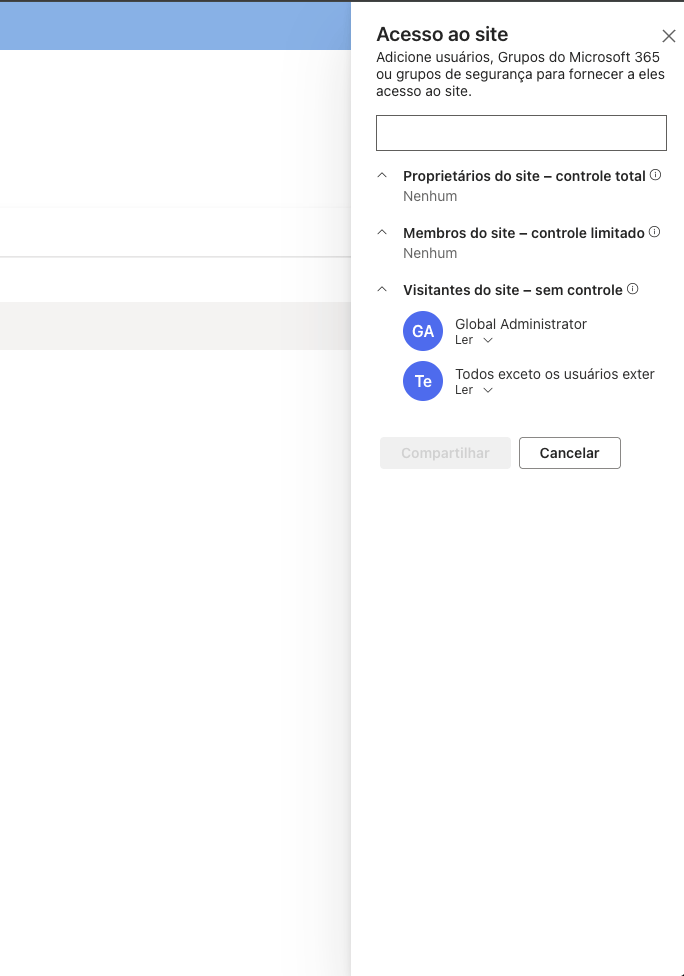 To review or adjust who has access, open SharePoint, navigate to the desired site, and go to **Site settings** → **Site permissions**.
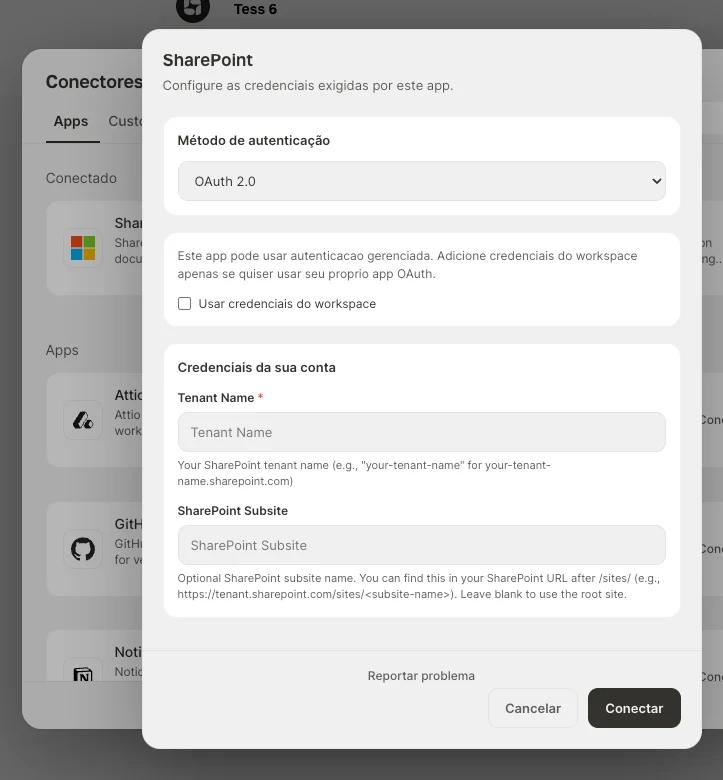
In the **Connectors** panel, locate SharePoint and click to connect. The credentials form opens.
* Keep the **Authentication method** as `OAuth 2.0`.
* In **Tenant Name**, enter only the tenant name (for example, `your-company` for `your-company.sharepoint.com`). Do not paste the full URL.
* In **SharePoint Subsite** (optional), enter the subsite name that appears in the URL after `/sites/` (for example, `https://tenant.sharepoint.com/sites/`). Leave it blank to use the root site.
Click **Connect**.
To review or adjust who has access, open SharePoint, navigate to the desired site, and go to **Site settings** → **Site permissions**.
In the **Connectors** panel, locate SharePoint and click to connect. The credentials form opens.
* Keep the **Authentication method** as `OAuth 2.0`.
* In **Tenant Name**, enter only the tenant name (for example, `your-company` for `your-company.sharepoint.com`). Do not paste the full URL.
* In **SharePoint Subsite** (optional), enter the subsite name that appears in the URL after `/sites/` (for example, `https://tenant.sharepoint.com/sites/`). Leave it blank to use the root site.
Click **Connect**.
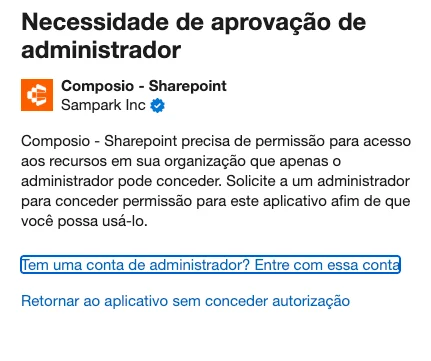
 If the account is **not an administrator**, Microsoft displays an **Admin approval required** screen. In that case, sign in with an administrator account or ask an administrator to grant permission to the application.
 If the account **is an administrator** (or already has the permission), Microsoft shows the **Permissions requested** screen. Review the listed permissions and confirm to authorize access.
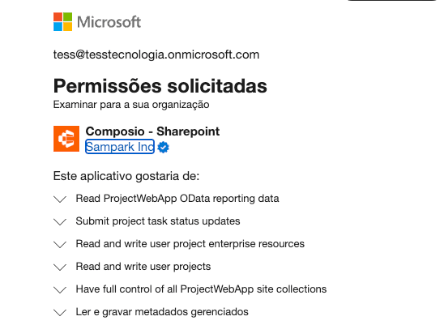 The permissions shown on this screen are defined by your organization's SharePoint configuration — Composio acts as a bridge and simply reflects the permissions already set in your tenant. You are not granting new permissions; you are authorizing Composio to use the ones already defined.
The access scope can also be limited by the **Site access** settings within SharePoint. If certain users or groups have restricted access to a site, that restriction is respected by the connector — Composio cannot access content beyond what SharePoint allows for that account.
To review or adjust site access permissions, open SharePoint, go to **Site settings** → **Site permissions**, and check the configured groups and permission levels.
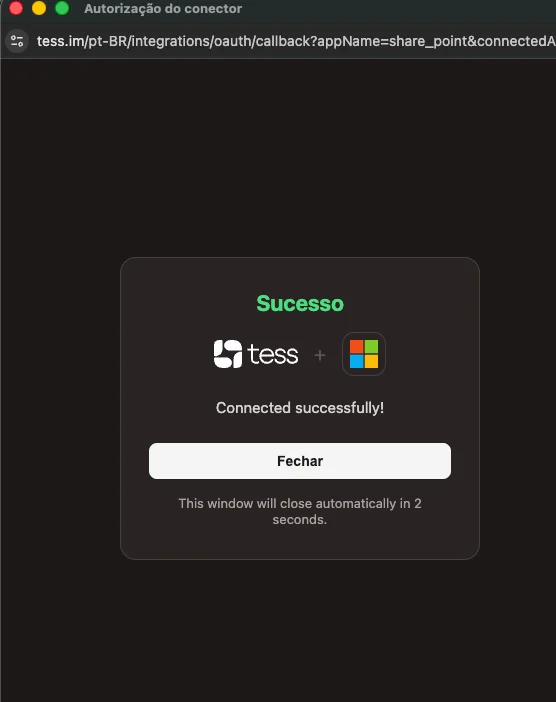
After authorizing, the Tess callback window shows the **Connected successfully!** message and closes automatically after a few seconds.
The permissions shown on this screen are defined by your organization's SharePoint configuration — Composio acts as a bridge and simply reflects the permissions already set in your tenant. You are not granting new permissions; you are authorizing Composio to use the ones already defined.
The access scope can also be limited by the **Site access** settings within SharePoint. If certain users or groups have restricted access to a site, that restriction is respected by the connector — Composio cannot access content beyond what SharePoint allows for that account.
To review or adjust site access permissions, open SharePoint, go to **Site settings** → **Site permissions**, and check the configured groups and permission levels.
After authorizing, the Tess callback window shows the **Connected successfully!** message and closes automatically after a few seconds.
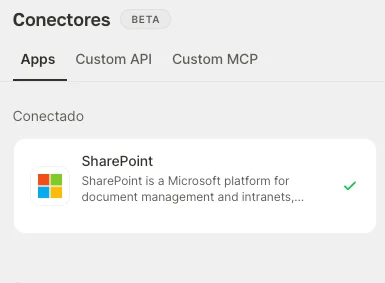
 Back in the **Connectors** panel, SharePoint appears under the **Connected** section, with a green check mark indicating it is active and ready to use in chats and agents.
 ## Troubleshooting
Check that **Tenant Name** was filled in with only the tenant name (for example, `your-company`) and **not** the full URL (`your-company.sharepoint.com`). An incorrect value can cause Microsoft to return an invalid resource error during OAuth.
The application needs permissions that only an administrator can grant. Ask the SharePoint administrator to sign in first through the connector and grant authorization; after that, other users can connect.
In organizations with an additional federated domain after SSO (with IP blocks or a client certificate requirement on the device), the connection may fail due to corporate environment restrictions. In these cases, a technical alignment with the infrastructure team is required to validate the IdP, federated domains, IP allowlist, and certificates.
Connectors involve access to external systems. Only connect accounts and apps that are appropriate to the usage context, and review permissions carefully.
## Troubleshooting
Check that **Tenant Name** was filled in with only the tenant name (for example, `your-company`) and **not** the full URL (`your-company.sharepoint.com`). An incorrect value can cause Microsoft to return an invalid resource error during OAuth.
The application needs permissions that only an administrator can grant. Ask the SharePoint administrator to sign in first through the connector and grant authorization; after that, other users can connect.
In organizations with an additional federated domain after SSO (with IP blocks or a client certificate requirement on the device), the connection may fail due to corporate environment restrictions. In these cases, a technical alignment with the infrastructure team is required to validate the IdP, federated domains, IP allowlist, and certificates.
Connectors involve access to external systems. Only connect accounts and apps that are appropriate to the usage context, and review permissions carefully.