> ## Documentation Index
> Fetch the complete documentation index at: https://docs.tess.im/llms.txt
> Use this file to discover all available pages before exploring further.
# Team Board
Imagine having a profile page dedicated to showcasing the best creations from your workspace, sharing your knowledge, and building a brand within the Tess AI community. This place exists and is called the Team Panel.
This panel is your public showcase, a space where other users can discover, follow, and interact with the agents and content you choose to share.
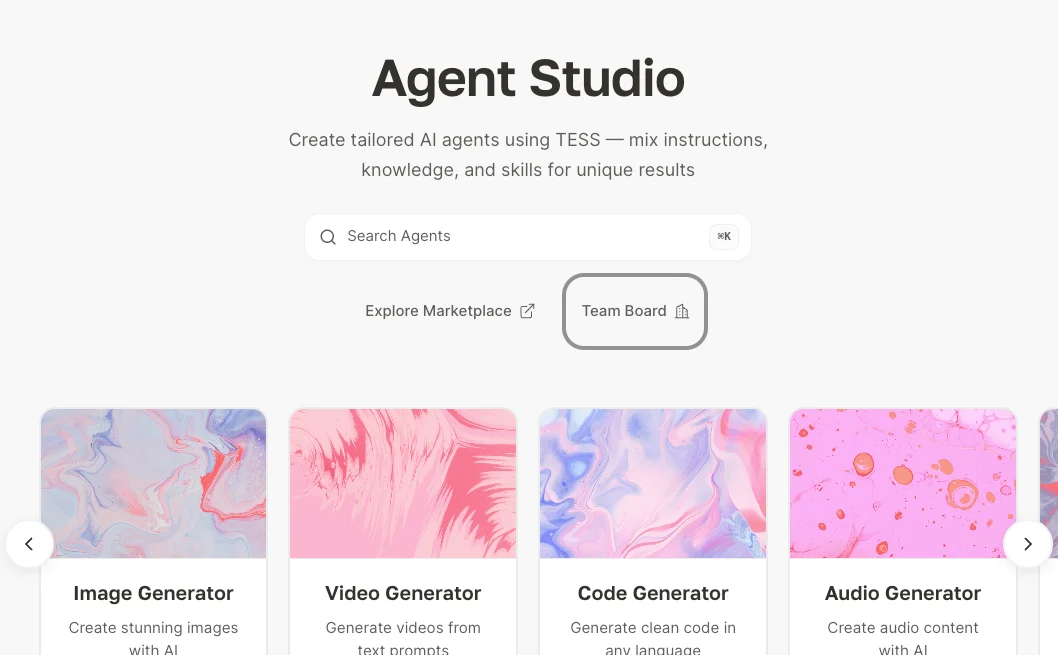
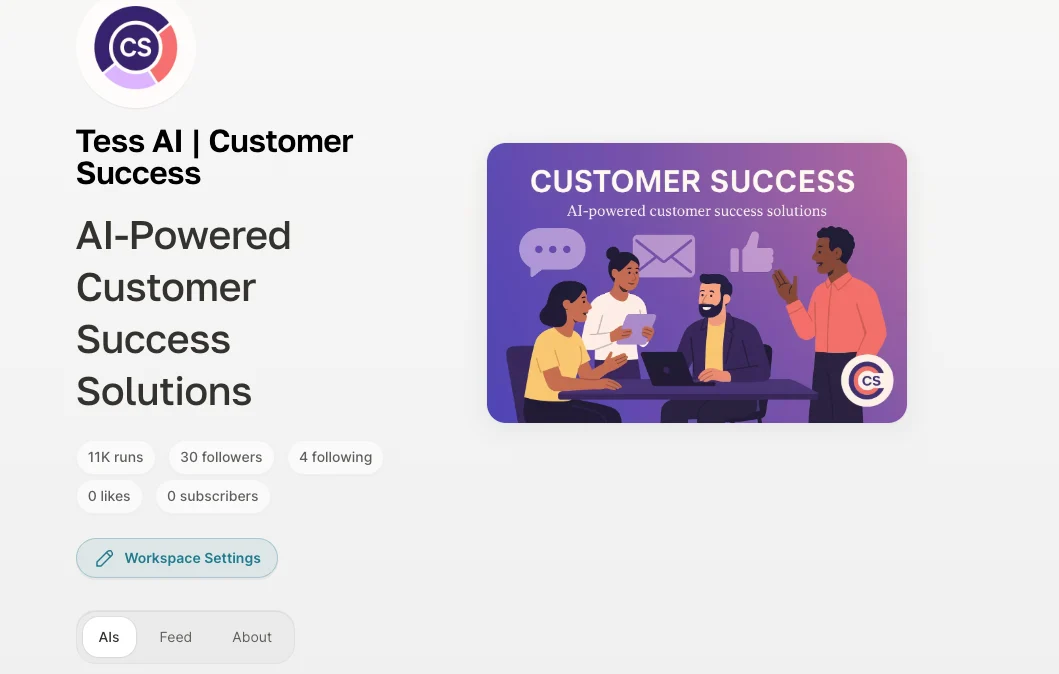 *(Example: Tess AI CS team panel)*
### **Navigating the Team Panel**
Your panel is composed of a visual identity and engagement metrics, followed by tabs that organize your public content.
At the top of your panel, users see the essential information that defines your team:
* Workspace Logo and Name: The visual identity and name you defined in the settings.
* Title and Cover Image: An impactful phrase and an image that represent your team’s mission.
* Executions: The total number of times your workspace’s public agents have been executed by the entire Tess community.
* Followers: How many Tess AI users have chosen to follow your workspace to keep up with your updates.
* Following: The number of other workspaces your team follows.
* Likes: The total number of "likes" your public agents and images have received.
The content of your panel is organized into three main sections:
* Tab "IAs":\
This is your agent gallery. All agents that you or your team created and set as "Workspace" will appear here. It is the best way to share created agents with your entire team and with the Tess AI community, if you want to monetize your workspace.
* Tab "Feed":\
Works like a visual portfolio. All images generated by members of your workspace and shared publicly are displayed here.
* Tab "About":\
This is where you tell your story. This section displays your workspace bio, a description of your mission, and links to your social media or website that you added in the settings.
### **How to Set Up Your Panel**
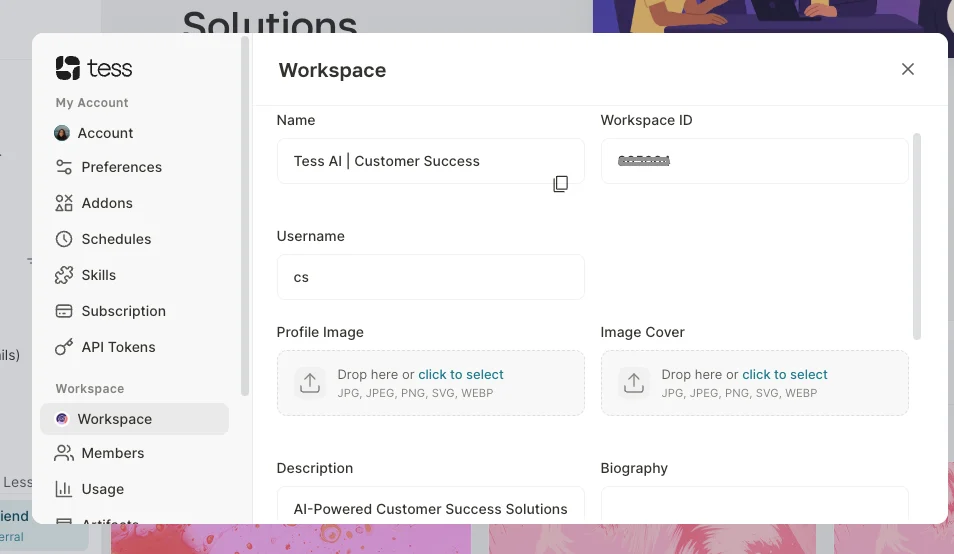
Customizing your panel is done directly in your workspace settings.
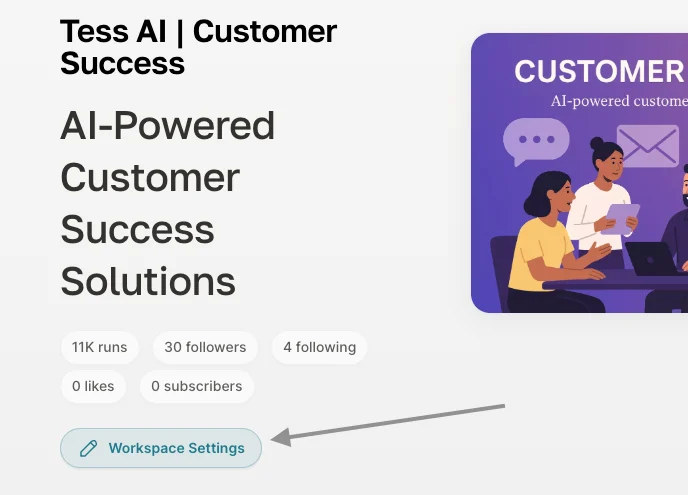
Access your Team Panel and click the "Workspace Settings" button.
*(Example: Tess AI CS team panel)*
### **Navigating the Team Panel**
Your panel is composed of a visual identity and engagement metrics, followed by tabs that organize your public content.
At the top of your panel, users see the essential information that defines your team:
* Workspace Logo and Name: The visual identity and name you defined in the settings.
* Title and Cover Image: An impactful phrase and an image that represent your team’s mission.
* Executions: The total number of times your workspace’s public agents have been executed by the entire Tess community.
* Followers: How many Tess AI users have chosen to follow your workspace to keep up with your updates.
* Following: The number of other workspaces your team follows.
* Likes: The total number of "likes" your public agents and images have received.
The content of your panel is organized into three main sections:
* Tab "IAs":\
This is your agent gallery. All agents that you or your team created and set as "Workspace" will appear here. It is the best way to share created agents with your entire team and with the Tess AI community, if you want to monetize your workspace.
* Tab "Feed":\
Works like a visual portfolio. All images generated by members of your workspace and shared publicly are displayed here.
* Tab "About":\
This is where you tell your story. This section displays your workspace bio, a description of your mission, and links to your social media or website that you added in the settings.
### **How to Set Up Your Panel**
Customizing your panel is done directly in your workspace settings.
Access your Team Panel and click the "Workspace Settings" button.
 **Important**
*Only workspace Owners and Managers have permission to perform this action.*
**Important**
*Only workspace Owners and Managers have permission to perform this action.*