> ## Documentation Index
> Fetch the complete documentation index at: https://docs.tess.im/llms.txt
> Use this file to discover all available pages before exploring further.
# Tess Pages
We have made the process of publishing your website on the web simpler and faster than ever. With Tess Pages, you can create and publish your page on the platform (whether it's a landing page, a form, a dashboard, a presentation, etc.), using the chat itself.
Tess Pages is Tess's instant cloud feature, a solution for publishing pages with a single command.
### **What is Instant Cloud?**
Instant Cloud is the tool that transforms your files into active, accessible web pages, which we call Tess Pages. With a simple command, you can host your documents directly on the Tess infrastructure, generating a public link to share with whoever you want.
It is the fastest and easiest way to get your content online, with no technical knowledge required. The complexity of hosting a website has been reduced to a simple request.
### **What can I publish?**
The possibilities are vast. You can use Instant Cloud to publish:
Create the HTML of your page and publish it instantly.
Share slides from a project or a class.
Make forms available to your audience and use the API to send responses anywhere.
Create a static website with photos or products and put it online in seconds.
### User Safety and Content Guidelines
These guidelines rest on three pillars:
* **Responsible freedom of creation:** Tess exists to expand the human capacity to create, automate, and publish. We respect the diversity of expression - whether for commercial, educational, artistic, or professional use - within legal limits and the bounds of these guidelines.
* **Safety first:** The Safety of users, visitors to published pages, clients of embedded agents, and our team is a priority. Content or conduct that puts people at risk is not tolerated.
* **Fair treatment:** Rules apply consistently to all users, regardless of plan, usage volume, or location - subject to specific legal obligations by jurisdiction.
Use of Tess is intended for individuals "18 years of age or older"; if you use the platform on behalf of a minor, you must be a parent or legal guardian and agree to these guidelines on your own behalf and on behalf of the minor.
You must not submit, generate, publish, or make available content that:
* Infringes upon the copyrights, trademarks, patents, trade secrets, or other intellectual property rights of third parties;
* Reproduces protected works without authorization or a valid license;
* Uses the visual identity, name, or content of third parties confusingly or misleadingly.
Tess does not mandate an absolute ban on adult content when shared lawfully and within an appropriate context (e.g., for educational, artistic, medical, or journalistic purposes), provided it complies with the laws applicable to both the publisher and the target audience.
However, we maintain a Zero-Tolerance Policy regarding:
* CSAM (Child Sexual Abuse Material), in any form - whether real, simulated, or fictional.
* NCII (Non-Consensual Intimate Imagery);
* Grooming and the sexual exploitation of minors;
* Sexual content directed at minors or that sexualizes minors.
Upon identifying or receiving a report of CSAM, we will immediately remove the content and report it to the competent authorities, including - where applicable - channels provided by SaferNet and other relevant Brazilian agencies.
It is prohibited to use Tess — including Tess Pages, Artifacts, embedded agents, and automations — for:
* phishing, social engineering, or the fraudulent acquisition of credentials, financial data, or personal information;
* spam, unsolicited bulk messaging, or abusive marketing practices;
* pyramid schemes, Ponzi schemes, chain letters, or misleading promises of financial returns;
* pages or agents designed primarily to deceive visitors or end-users;
* impersonating financial institutions, governments, companies, or individuals.
You must not use Tess to:
* create, distribute, or execute viruses, malware, ransomware, Trojans, worms, or malicious code;
* conduct denial-of-service attacks, system intrusions, or vulnerability exploits;
* publish pages or agents that collect visitor data without transparency or an appropriate legal basis;
* bypass security measures, rate limits, authentication, or platform usage controls.
It is prohibited to:
* publish third-party personal data without express and informed consent, when required by law;
* impersonate living or deceased individuals, companies, or public entities;
* create synthetic, manipulated, or out-of-context content (deepfakes, altered audio/video, fabricated documents) intended to deceive people and cause harm—especially regarding public health, safety, elections, or crises;
* falsely claim that Tess, Meta, or third parties endorse your content, representative, or published page.
Tess was not designed to facilitate harassment campaigns against private individuals.
It is prohibited to:
* humiliate, threaten, stalk, or publicly expose individuals without a legitimate basis and consent, where applicable;
* publish content with the primary purpose of degrading or abusively exposing someone;
* coordinate mass harassment attacks via agents, automation, or published pages.
**Legitimate criticism, opinion, and feedback**—including negative reviews of products or services—are permitted provided they are honest and do not violate other sections of these guidelines. Fake, repetitive, paid, or manipulated reviews are not permitted.
Content or conduct that does the following is prohibited:
* makes **credible calls for violence** against individuals or protected groups;
* incites hatred, discrimination, or systematic degradation based on race, ethnicity, national origin, religion, gender, gender identity, sexual orientation, disability, or other characteristics protected by law;
* glorifies, promotes, or provides instructions for violent or terrorist acts;
* represents or supports terrorist organizations, violent extremist groups, or groups that systematically target civilians.
We recognize that the boundaries between legitimate opinion and prohibited speech can be complex and sensitive to cultural and legal contexts. We will evaluate each case based on this Policy, applicable law, and the potential for harm.
It is prohibited to use Tess to offer, sell, buy, facilitate, or promote:
* illicit drugs or controlled substances outside of legal channels;
* human trafficking or human exploitation;
* products derived from endangered species or of illicit origin;
* weapons, ammunition, or explosives in violation of applicable laws, or instructions for illegal manufacturing;
* unauthorized gambling, betting, or online casinos;
* unregulated financial services, money laundering, or tax evasion;
* any product or service the sale of which is illegal in the jurisdiction of the publisher or the target audience.
To protect users and visitors, we do not allow content that:
* promotes, glorifies, or encourages suicide, self-harm, or eating disorders;
* provides detailed instructions on methods of self-harm, suicide, or concealing disorders;
* is part of "pro-ana" movements or the like;
* targets minors with self-harm content.
**Educational, prevention, or support content** — published in good faith to raise awareness or provide help — will be evaluated based on context and intent.
If you or someone you know is in crisis:
* **CVV (Life Appreciation Center):** call **188** (24h, toll-free) or visit [cvv.org.br](http://cvv.org.br))
* **Emergency:** call **192** (SAMU/Ambulance) or **190** (Police)
It is prohibited to input, process, publish, or expose the following via Tess:
* **sensitive personal data** without a legal basis, adequate security measures, and access controls, in accordance with the LGPD;
* **protected health information** (including identifiable clinical data) in contexts requiring specific regulatory safeguards, unless covered by an enterprise contract with applicable clauses;
* **financial, biometric, or minors' data** on public pages, embedded agents, or Tess Pages without adequate consent and protection;
* **state secrets, classified information, or data subject to legal confidentiality** without authorization.
### **How It Works: A Step-by-Step Guide**
The workflow is incredibly straightforward. Follow these steps:
The first step is to have your .html file ready and available in the conversation context. You can do this in two ways:
* Creating the file on the spot: Use the Manage Files tool to write the HTML code for a website directly in the chat.
* Uploading an existing file: Upload your ready-made HTML file when using one of the tools that allow attachments, such as Manage Files or Deep Analysis.
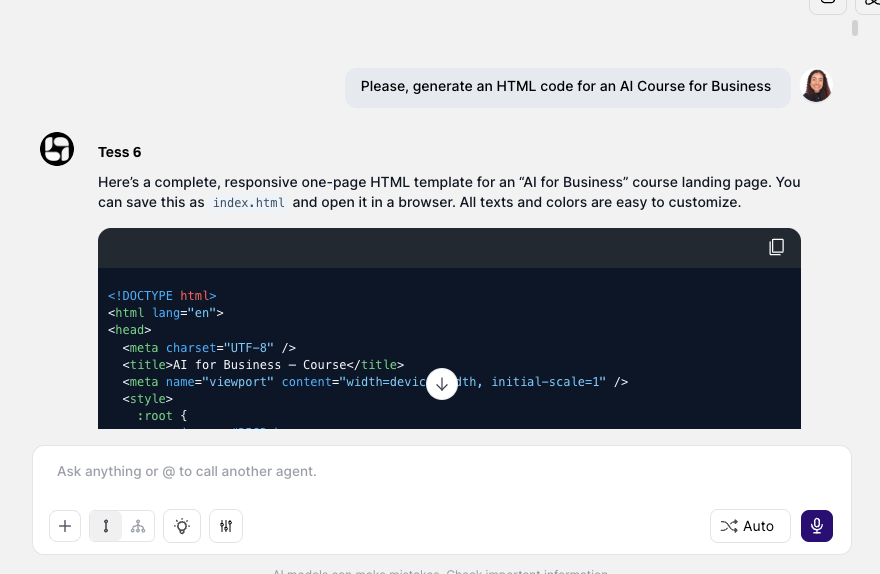 In the "Tools" menu, select the "Manage Files" or "Deep Analysis" option
 Ask for the HTML file to be generated as a preview in Tess, so you can see the result as a preview and make any necessary adjustments.
With the file available in the chat, simply give the AI a clear command. No complex configurations needed. Just ask.
Command Examples:
* "Publish this HTML file as a website."
* "Create a Tess Page with the file my-site.html."
* "I want to publish this website. Generate the link for me."
Ask for the HTML file to be generated as a preview in Tess, so you can see the result as a preview and make any necessary adjustments.
With the file available in the chat, simply give the AI a clear command. No complex configurations needed. Just ask.
Command Examples:
* "Publish this HTML file as a website."
* "Create a Tess Page with the file my-site.html."
* "I want to publish this website. Generate the link for me."
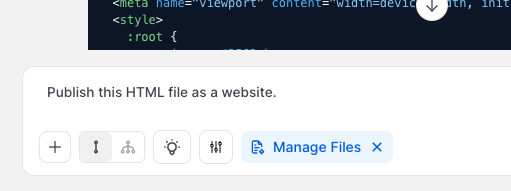 **Done! Your Website Is Live!**
The AI will process your request and provide the public link to your new Tess Page. Simple as that! Your content will be instantly accessible to the world.
**Important Information:**
To ensure the best experience, keep two simple rules in mind:
* Custom Subdomain: You are free to choose a custom subdomain for your website (e.g.: [my-amazing-project.tess.page](http://my-amazing-project.tess.page)). However, the chosen name cannot already be in use on the platform. Be creative!
* One Website per Chat: Each chat conversation is limited to publishing a single website. If you publish a new file in the same chat, it will replace the previous website. To publish a second website, simply start a new chat.
See an Example in Action
Want to see how it looks? Check out this example page, published directly from the platform with this new feature:
**Done! Your Website Is Live!**
The AI will process your request and provide the public link to your new Tess Page. Simple as that! Your content will be instantly accessible to the world.
**Important Information:**
To ensure the best experience, keep two simple rules in mind:
* Custom Subdomain: You are free to choose a custom subdomain for your website (e.g.: [my-amazing-project.tess.page](http://my-amazing-project.tess.page)). However, the chosen name cannot already be in use on the platform. Be creative!
* One Website per Chat: Each chat conversation is limited to publishing a single website. If you publish a new file in the same chat, it will replace the previous website. To publish a second website, simply start a new chat.
See an Example in Action
Want to see how it looks? Check out this example page, published directly from the platform with this new feature:
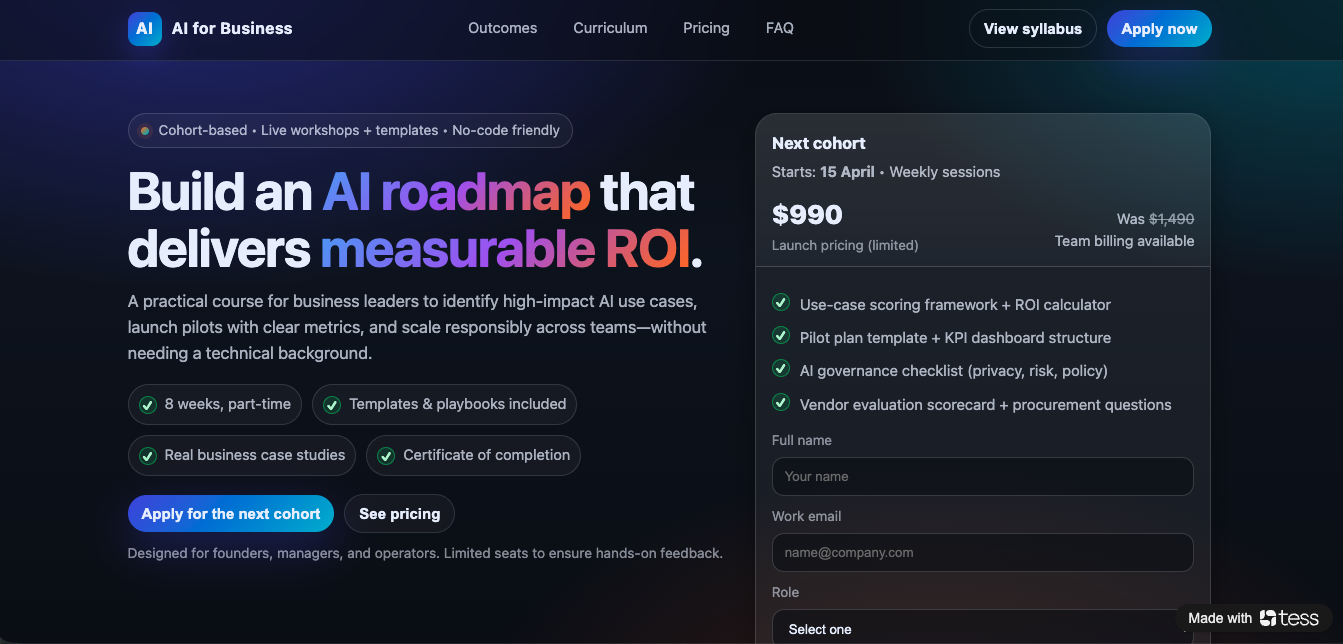 Page Link: [https://ai-course.tess.page](https://ai-course.tess.page)
This new feature removes technical barriers and makes web publishing a fast and intuitive task, integrated into your workflow on Tess. Create, publish, and share your ideas with the world in just a few minutes.
Page Link: [https://ai-course.tess.page](https://ai-course.tess.page)
This new feature removes technical barriers and makes web publishing a fast and intuitive task, integrated into your workflow on Tess. Create, publish, and share your ideas with the world in just a few minutes.