> ## Documentation Index
> Fetch the complete documentation index at: https://docs.tess.im/llms.txt
> Use this file to discover all available pages before exploring further.
# AI Step | Extract Text from Docx
The Extract Text from DOCX step isolates and extracts textual content from Microsoft Word (.docx) files, delivering a clean block of text ready to be processed by AI agents. With it, complex documents become accessible data without the need for specific software or manual intervention.
### What is it
This step belongs to the Document Processing group — a category dedicated to transforming file formats into content usable by AI.
In practice, Extract Text from DOCX:
* Reads the internal structure of the .docx file
* Extracts text from paragraphs, tables, lists, headers, and footers
* Discards visual elements (images, charts, formatting)
* Delivers a block of plain text in the agent’s context
### Where to find it
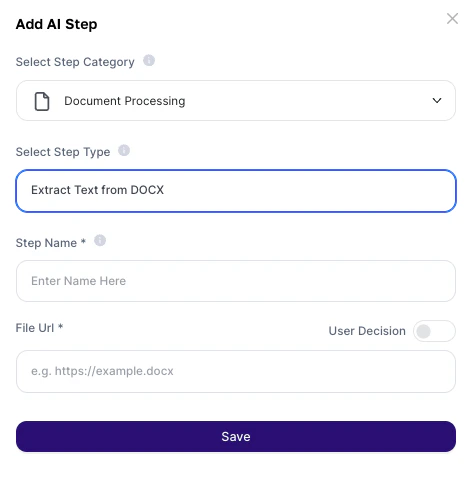
1. Go to AI Studio
2. Click on Add AI Step
3. In Select Step Category, choose Document Processing
4. Select Extract Text from DOCX
 ### How to use?
Configuration fields:
| Field | Required | Description |
| :-------- | :------- | :----------------------------------------------------------------------------------------------------------- |
| Step Name | Yes | Internal step name. Use only alphanumeric characters. Used to reference the result in other steps or prompts |
| File URL | Yes | Direct public URL of the .docx file or a user file input variable (e.g.: `{{docxfile}}`) |
### About the Output
The generated result is a continuous block of plain text containing all content extracted from the document.
* Paragraphs
* List items
* Table data (linearized)
* Headers and footers
* Images and photos
* Charts and elements
* Visual formatting (colors, bold, italics, fonts)
Important:
Tables are read in a linear format, following the order of the cells. A well-structured prompt helps the agent correctly interpret tabular data extracted this way.
### Deeper explanation
The step works as a document decoding layer.
.docx file (URL or variable) → Step extracts plain text
↓
Content enters the context → Agent uses it to analyze, summarize, or extract data
The output should be treated as raw data injected into the prompt. The quality of the analysis depends directly on:
* Organization of the original document
* Clarity of the prompt that uses the result
***
### Practical examples
Prompt:\
"Analyze the extracted contract. Identify risk clauses, summarize payment terms, and extract client data."
Usage:
* Legal contracts or commercial proposals in .docx
* Agent identifies critical points without manual reading
Prompt:\
"Extract the candidate's skills, experience, and education. Compare with the job requirements below and evaluate the fit."
Usage:
* CVs submitted in .docx
* Agent classifies and summarizes profiles automatically
Prompt:\
"Summarize the main points of this report in up to 5 executive bullet points."
Usage:
* Monthly reports, meeting notes, or management documents
Prompt:\
"Extract from the document: company name, tax ID, total value, delivery deadline, and technical lead."
Usage:
* Standardized documents with fixed fields
* Feed CRM or spreadsheets automatically
**Best practices**
* Prefer well-structured documents: clear headings, paragraphs, and organized tables improve extraction accuracy
* Reference the step in the prompt: use the Step Name to indicate where the data comes from. Example: *"Based on the data from step *`extracao_contrato`*..."*
* Guide the agent about tables: mention in the prompt that tables may appear linearized so the model interprets them correctly
* Combine with other steps: e.g., Extract Text → analysis → Google Drive (save result)
* Avoid very long documents: files with many pages may exceed the agent’s context window
### Important notes
* The step runs before user interaction
* The file URL must be public and accessible
* Visual elements are completely ignored during extraction
* The output is raw text, without visual formatting
Extract Text from DOCX removes the barrier between Word documents and artificial intelligence. With it, contracts, resumes, reports, and manuals become processable data in seconds, enabling analysis, summarization, and automated extraction without any manual intervention.
### How to use?
Configuration fields:
| Field | Required | Description |
| :-------- | :------- | :----------------------------------------------------------------------------------------------------------- |
| Step Name | Yes | Internal step name. Use only alphanumeric characters. Used to reference the result in other steps or prompts |
| File URL | Yes | Direct public URL of the .docx file or a user file input variable (e.g.: `{{docxfile}}`) |
### About the Output
The generated result is a continuous block of plain text containing all content extracted from the document.
* Paragraphs
* List items
* Table data (linearized)
* Headers and footers
* Images and photos
* Charts and elements
* Visual formatting (colors, bold, italics, fonts)
Important:
Tables are read in a linear format, following the order of the cells. A well-structured prompt helps the agent correctly interpret tabular data extracted this way.
### Deeper explanation
The step works as a document decoding layer.
.docx file (URL or variable) → Step extracts plain text
↓
Content enters the context → Agent uses it to analyze, summarize, or extract data
The output should be treated as raw data injected into the prompt. The quality of the analysis depends directly on:
* Organization of the original document
* Clarity of the prompt that uses the result
***
### Practical examples
Prompt:\
"Analyze the extracted contract. Identify risk clauses, summarize payment terms, and extract client data."
Usage:
* Legal contracts or commercial proposals in .docx
* Agent identifies critical points without manual reading
Prompt:\
"Extract the candidate's skills, experience, and education. Compare with the job requirements below and evaluate the fit."
Usage:
* CVs submitted in .docx
* Agent classifies and summarizes profiles automatically
Prompt:\
"Summarize the main points of this report in up to 5 executive bullet points."
Usage:
* Monthly reports, meeting notes, or management documents
Prompt:\
"Extract from the document: company name, tax ID, total value, delivery deadline, and technical lead."
Usage:
* Standardized documents with fixed fields
* Feed CRM or spreadsheets automatically
**Best practices**
* Prefer well-structured documents: clear headings, paragraphs, and organized tables improve extraction accuracy
* Reference the step in the prompt: use the Step Name to indicate where the data comes from. Example: *"Based on the data from step *`extracao_contrato`*..."*
* Guide the agent about tables: mention in the prompt that tables may appear linearized so the model interprets them correctly
* Combine with other steps: e.g., Extract Text → analysis → Google Drive (save result)
* Avoid very long documents: files with many pages may exceed the agent’s context window
### Important notes
* The step runs before user interaction
* The file URL must be public and accessible
* Visual elements are completely ignored during extraction
* The output is raw text, without visual formatting
Extract Text from DOCX removes the barrier between Word documents and artificial intelligence. With it, contracts, resumes, reports, and manuals become processable data in seconds, enabling analysis, summarization, and automated extraction without any manual intervention.