> ## Documentation Index
> Fetch the complete documentation index at: https://docs.tess.im/llms.txt
> Use this file to discover all available pages before exploring further.
# Upgrade and Downgrade
At Tess AI, we want you to have full control and flexibility over your subscription. That’s why we implemented a self-service feature for plan upgrades and downgrades.
We’ll explain the process and which rules apply to each case.
### **Understanding the Concepts: Upgrade vs. Downgrade**
It’s essential to understand the difference in when each change takes effect:
* The change is immediate.
As soon as you confirm the change, the new benefits and limits of your higher plan are already available to use.
* The change is scheduled.
The new plan, naturally being lower than the current one, will only take effect at the end of your current billing cycle.
If your plan is monthly, the downgrade will happen on the date of the next monthly renewal. If it’s annual, the downgrade will happen on the date of the next annual renewal. Until the renewal date, you will continue enjoying all the benefits of your current plan that has already been paid for.
### **Rules by Payment Method**
The rules for changing plans vary depending on your subscription’s payment method.
This is the most flexible scenario compared to the annual option. If your subscription is paid monthly via credit card, you can:
* Upgrade to any plan (monthly or annual) at any time.
* Downgrade to any plan (monthly or annual) at any time. Remembering that it will activate at the end of the current cycle.
For the annual plan (installments or not) there are specific rules:
* Upgrade: You can do it at any time, but only to other annual plans.
* Downgrade: This option is not available in self-service for this payment model.
* Billing Period Migration: It is not possible to change from an annual plan to a monthly plan.
Important Note:
In exception situations, downgrades for installment plans can be reviewed and processed by our support team. If you need it, please contact our team by email: [support@tess.im](mailto:support@tess.im).
### **Where to Change Your Plan**
You can start the plan change process simply and quickly in two areas of the platform:
1. By accessing the Upgrade option after clicking your user icon

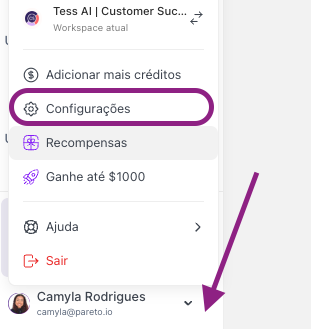 2. Or by clicking settings, subscription, and finally the "Update Plan" button
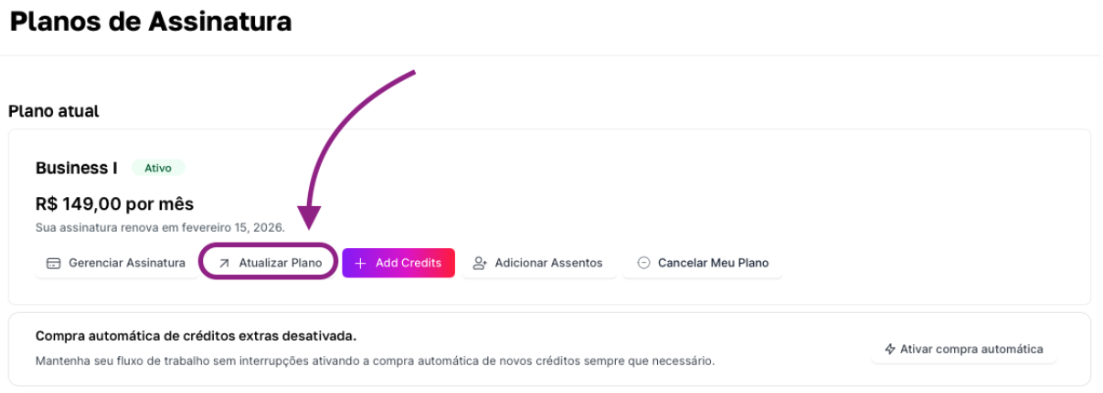 Both paths will take you to the same page, where you can view all available plans and make your choice autonomously.