

Agent Mode
Getting started with Tess Agent Computer is straightforward. There’s no complex setup, no special configuration — just describe what you need, and Tess takes it from there. Simply open the Agent Computer, write a single prompt with your instructions, and let Tess handle the rest. It will plan the work, break it into steps, execute everything autonomously, and deliver the final result directly to you. That’s it. Naturally, the better your prompt, the better the agent’s output. So try to describe what you want researched, the desired delivery format, the context in which the work will be used, and other key elements of a well-structured prompt.What can you do with Tess Agent Computer?
Here are some examples of what Tess Agent can handle for you across different types of work.Webpage and dashboard creation
- Webpage building: structure an entire website with multiple pages using Tess Agent — simply describe the content and layout of each page and let it handle the rest.
- Dashboard creation: transform unstructured data into a clean, professional dashboard view — ready to present or share with your team.
Document creation
- Spreadsheets with formulas: generate complete Excel files with working functions like VLOOKUP, conditional formatting, and multiple organized tabs — not just raw CSVs that still need editing.
- Presentations: turn rough notes or meeting transcripts into ready-to-use slide decks.
- Reports from scattered inputs: convert voice memos, bullet points, and disorganized notes into polished, well-structured documents.
Research and analysis
- Research synthesis: combine information from web searches, articles, papers, and personal notes into structured reports or clear, cohesive summaries.
- Transcript analysis: extract themes, key points, and action items from meeting notes, interviews, or lecture recordings — no manual reading required.
- Personal knowledge synthesis: ask Tess to go through your notes, journals, or research files and surface patterns, connections, and insights you might have overlooked.
Data and analysis
- Statistical analysis: run outlier detection, cross-tabulation, and time-series analysis directly on your data files.
- Data visualization: generate charts and visual representations from your data — ready to use or share.
- Data transformation: clean, restructure, and process datasets so they’re ready for whatever comes next.
Chat Mode
Chat Mode is the simplest way to interact with Tess. We offer a unified interface where you can collaboratively use text, image, video, audio, narration, avatar creation models, as well as a variety of professional tools. Tess orchestrates all of this work for you, turning the use of multiple types of AI into an integrated, conversational, and frictionless experience.Starting a Conversation
To get started, simply type your command (prompt) in the text box. You can ask questions, ask the AI to perform tasks, request text creation, analyze data, and much more.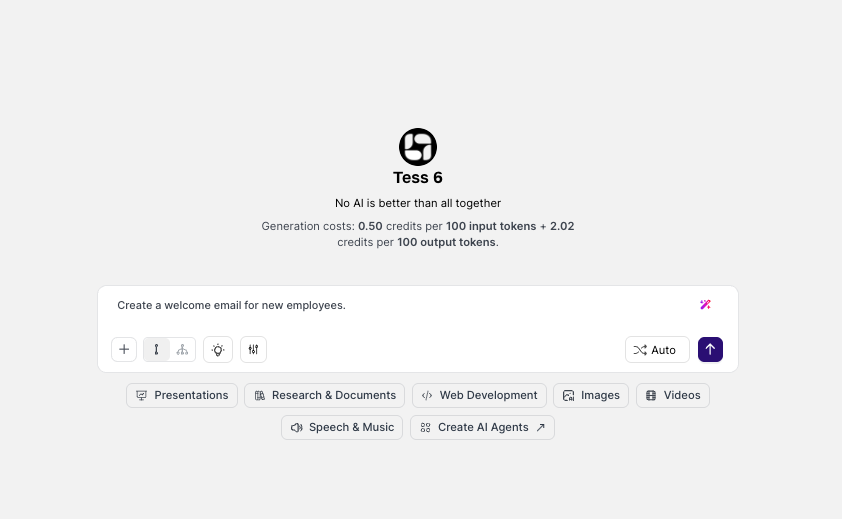
- Clear Commands and Instructions: The clearer and more detailed your request, the better the result. Instead of saying “create a text”, try being more specific: “create a text for a LinkedIn post about the impact of artificial intelligence on the financial market, with a professional tone and a call-to-action for a webinar”.
- Tess Micro Playbooks: Just below the chat box, you have several “ice breaker” options to help you think of use cases and generate the corresponding prompts. All of these themes are available to help you get started with quality — Presentations, Search and Files, Web Development, Videos, Voice and Music, Images, Create Agents.
Choosing the AI Model
Tess AI offers the flexibility to choose the most suitable AI model for each task. You can manually select a specific model (such as Claude 4.5 Opus or ChatGPT 5.2) at the bottom of the chat window, or work with Auto Mode. In Auto Mode, Tess analyzes your request and automatically selects the model with the best balance between cost and performance for that specific task, optimizing the use of your credits.Activating Your Agents in Chat Mode
You can call a specific agent to respond in the conversation at any time by using ”@” followed by the agent’s name. For example: @MarketingAgent, create three slogan options for my new campaign. This option is not available for private agents.Adding a Knowledge Base
The Knowledge Base allows you to upload files (such as PDFs, DOCX, TXT, etc.) so that the chosen model can consult that information before responding. It means training the chat with greater accuracy. Imagine asking the AI to create a summary of a report or to answer specific questions about your own product manual. Simply attach the file to the chat and make your request to ensure accurate and relevant answers.When you add a knowledge base in the chat, only that conversation is trained. If you need to use that knowledge base regularly, create an agent and train it with the documentation. In that case, the agent will always activate the added knowledge base.