

What is Max Mode?
Think of Max Mode as the “sport mode” of a car: it prioritizes power and depth, even if that comes at a higher cost. As a rule, Tess uses a context window of 32,000 tokens (~24,000 words). In practice, when you activate Max Mode, the AI starts using the largest context window available for the chosen model. The context window corresponds to the model’s “short-term memory”. With Max Mode, the AI’s performance will not be affected in long conversations and extensive content, reducing the chance of hallucination or forgetting information in large projects.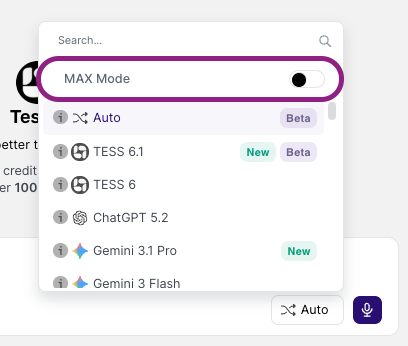
- More context: the AI considers more information from the conversation and attached materials.
- More consistency: improvement in tasks that require continuity (decisions, rules, characters, criteria, code).
- More depth: increases the capacity for analysis and synthesis in large texts.
When to use Max Mode (ideal cases)?
- Analysis of long documents: Use it when you are working with extensive PDFs (reports, manuals, proposals), complex contracts, documents with many details, attachments, or sections. This way, you will improve information retention and cross-referencing throughout the chat.
- Code and debugging: In this case, it is ideal when there are multiple files, snippets, and dependencies, or you are fixing bugs with accumulated context, or you need to maintain the architecture and style standards of the project.
- Long and consistent content: Use it when writing book chapters, long scripts, theses, dense articles, or training materials. This will give you more consistency in concepts, style, and structure across many pages.
When NOT to use it? For quick and everyday tasks, the standard mode is usually better — these include simple questions, short emails, small summaries, quick text adjustments, operational support responses, among others.Therefore, use Max Mode strategically: turn it on when you need depth or continuity, and turn it off when you go back to simple tasks. See in detail how to activate and deactivate the tool in the Tess chat below: