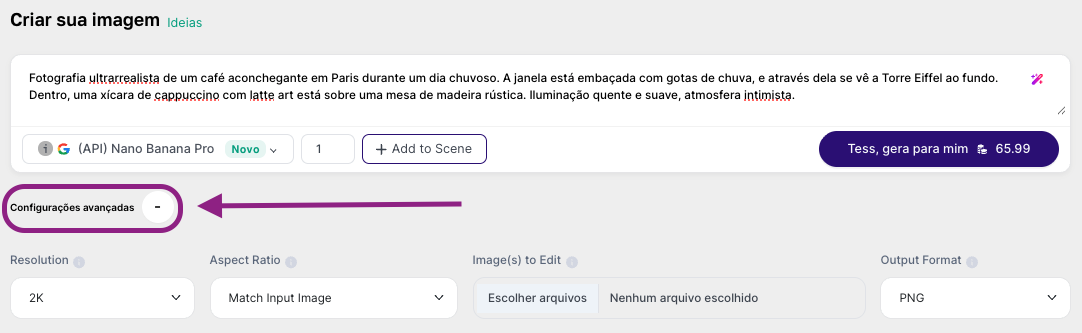
Tess’s Image Generator is the dedicated environment for generating images using all the models available on the platform. Here, you transform text descriptions (prompts) into unique and personalized images.You can create everything from ultra-realistic photographs to artistic illustrations, logos, graphics, and concept art — all without relying on generic stock image libraries.
In the Image Generator (visual creation interface)
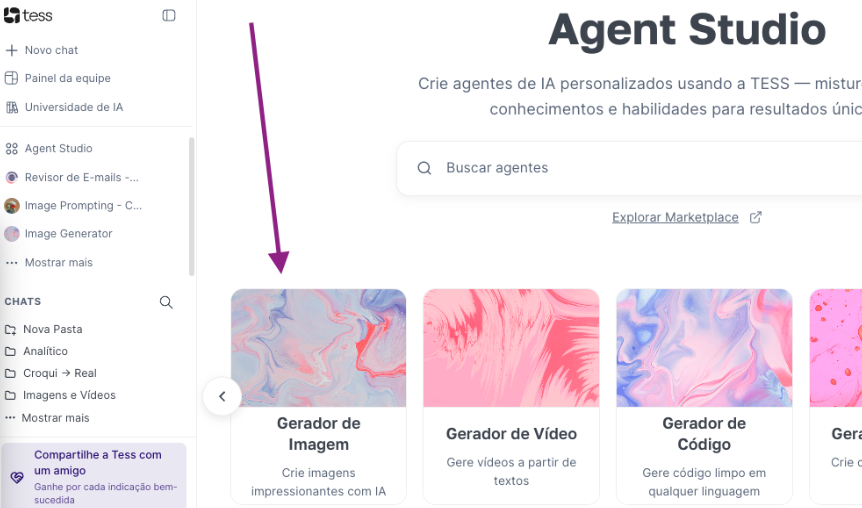
For this option, go to Agent Studio in the left side menu and then select Image Generator.
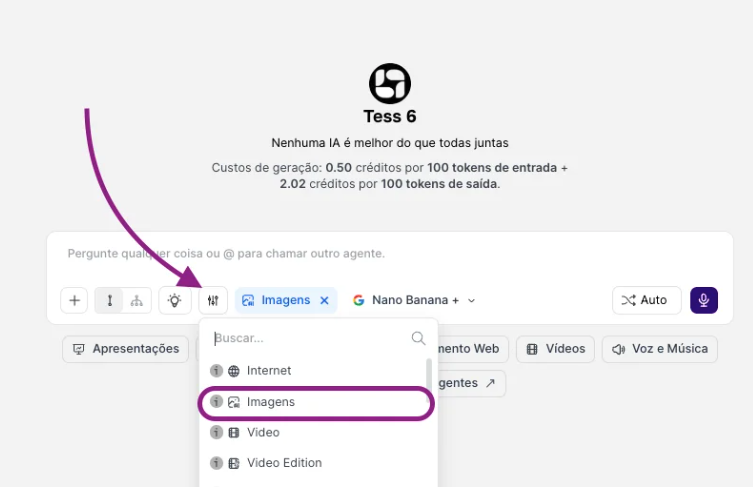
In the Chat (via Tools)
Here, after opening the chat, activate the Images tool in the Tools menu and request image generation in natural language.
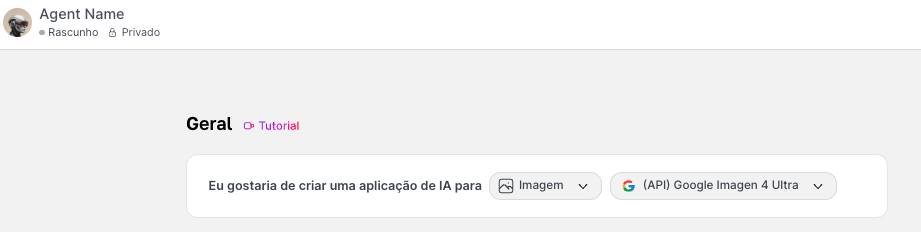
Via Image Agent (in Agent Studio)
After creating an agent specialized in generating images with a fixed style, format, and rules. Ideal for maintaining visual consistency across series (posts, ads, banners).
What is it and how to use the Image GeneratorIn this article, we will focus on image generation in the Generator, whose interface will work as your digital art studio within Tess AI. In it, you describe what you want to see, choose the AI model, adjust technical details (aspect ratio, resolution, style), and generate the image.To work with image generation in the Generator, think carefully about the prompt, the model to be used, and the other advanced settings, which vary depending on the chosen model.
The Prompt
The chosen model
Advanced Settings
This is the heart of AI image creation. The prompt is where we describe, in as much detail as possible, the image we want to generate. The more specific, the better — the AI creates the image based on the composition elements of each description.Think about elements such as:
Subject: who or what is the main focus? E.g.: “a vintage robot made of rusty metal”
Action: what is the subject doing? E.g.: “reading a book lit by a candle”
Setting: where does the scene take place? E.g.: “in an old and dusty library, with tall bookshelves”
Style and atmosphere: what is the aesthetic? E.g.: “oil painting, dramatic lighting, baroque style”
Technical details (when applicable): camera angle, lighting, composition. E.g.: “close-up, soft side lighting, shallow depth of field”Full prompt example:
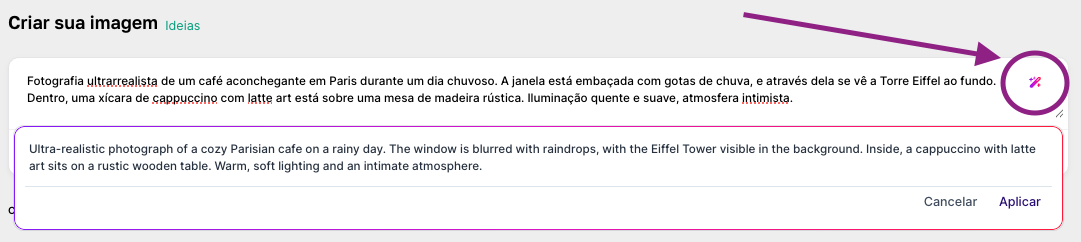
“Ultra-realistic photograph of a cozy café in Paris on a rainy day. The window is fogged with raindrops, and through it the Eiffel Tower can be seen in the background. Inside, a cappuccino with latte art sits on a rustic wooden table. Warm and soft lighting, intimate atmosphere.”
Tip: Take advantage of the Magic Prompt feature to enhance your prompt and translate it to English (which performs better) — after all, there is no LLM to support you here, unlike what happens in the chat!
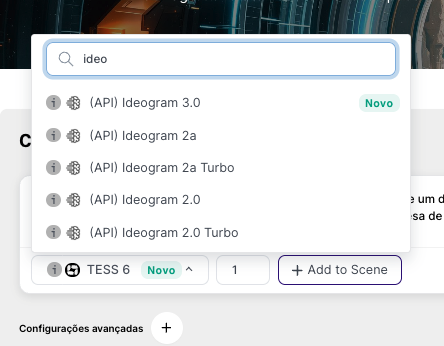
In addition to the prompt, it is important to choose a model that will be responsible for generating your image. In Tess AI, we have a list with dozens of available models, each with its own training and strong results for different image contexts.To explore the options and search for one, you can type the name or scroll down:
Each model has its own characteristics — some are better for photographic realism, others excel in fantasy art, illustration, or artistic style, and some offer greater technical control (pose, composition, details).The best way to find out which one works best for you is to experiment or check the specifications of each one on their official release pages.
Each model provides some advanced configuration options, so when you expand this section in the image generator you will see options that vary and overlap between models. The main settings are:
Seed: to reproduce or iterate over a specific image
In some cases, you will also see the negative prompt option. Just as important as the main prompt, the negative prompt is used to refine the result by eliminating unwanted elements.Use it to avoid:
Styles you don’t want. E.g.: “cartoon, 3D render, vector illustration”
Once everything is configured, just click to generate, view the results, and refine the parameters!You will see the credit consumption next to the generate button!
Your first image may not be perfect — use it as a starting point. Then adjust the main prompt, generate variations, and combine with post-processing (upscale, editing, background removal).
The Image Generator opens a creative universe of virtually unlimited possibilities. Whether you want to create content for social media, illustrate an article, develop visual concepts, or simply bring your imagination to life, this tool puts the power of a design studio directly in your hands — guided only by your description and creativity.