

What is Cowork
Cowork is Tess’s visual collaboration space where you hire, monitor, and guide autonomous Digital Employees on business work. You operate from the Mesh Canvas (Mission Control): agents, teammates, documents, and squads appear as live nodes you can interact with.Why Cowork?
Traditional automation handles one-off tasks. Cowork supports ongoing team-level work:- Digital Employees run on a schedule (Work Cycle) or when you trigger them
- Live collaboration with teammate presence on the same canvas
- Documents on the canvas capture outputs you can open and share
- Squads group employees that work together
- Human oversight via plan approvals, input requests, and connector action reviews
The Mesh Canvas
Open Cowork in the Tess sidebar. You land on the Mesh Canvas — your Mission Control view.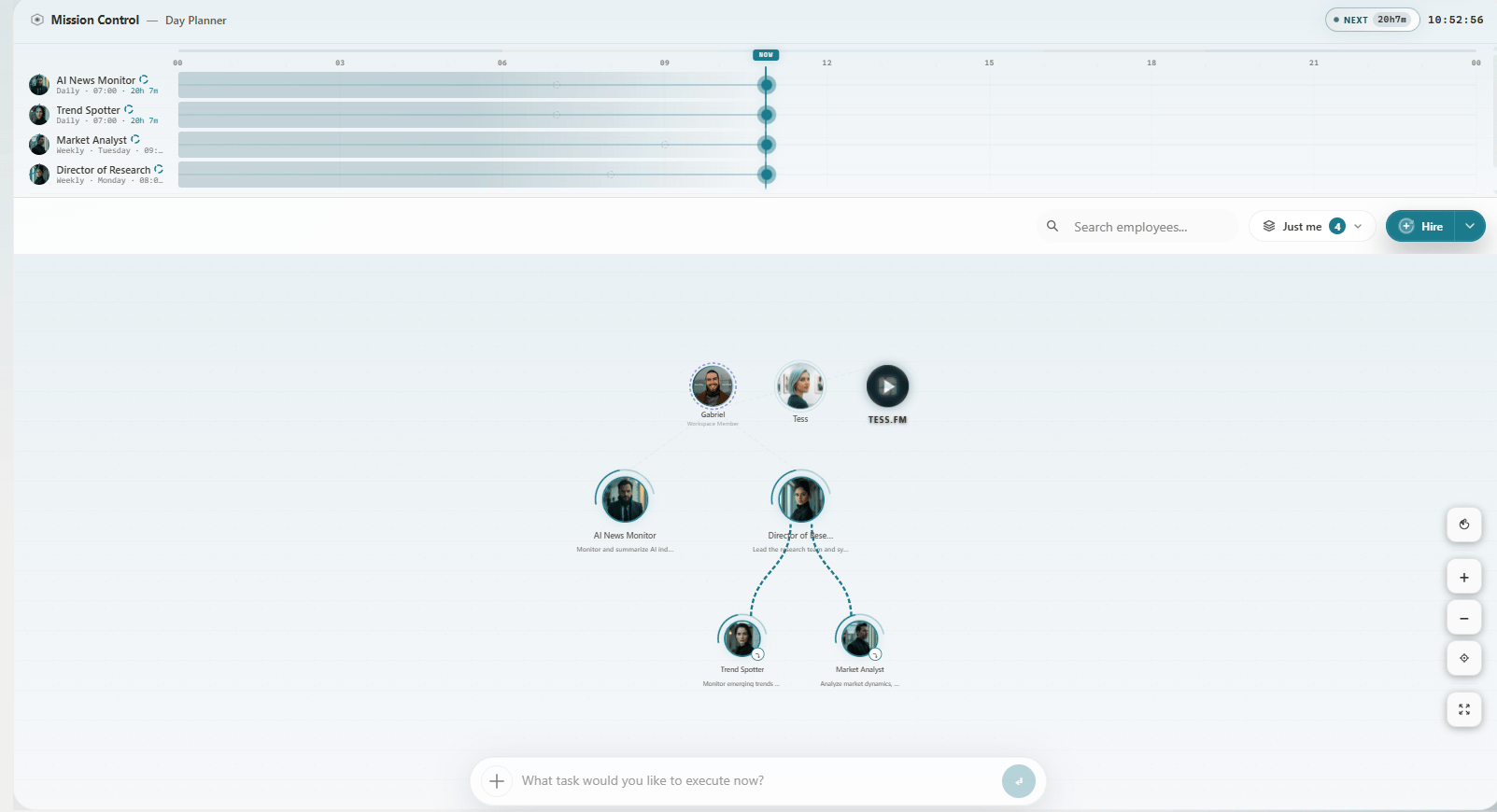
Cowork Mesh Canvas with Digital Employees and the omnibar
What you see
- Employee nodes — hired Digital Employees with avatar and status; click to open the detail drawer
- Teammate presence — colleagues currently on Cowork
- Document nodes — files and outputs linked to employees
- Squad nodes — teams of employees working together
- Omnibar — bottom input for tasks or
/hire - Hire — dropdown to create employees (Open position, Talent Pool, and related options)
- Mission Control / Day Planner — upcoming wake-ups and pending items
Core concepts
Digital Employees
Agents you hire once and run repeatedly. In the Hire / Edit Employee form you set:- Identity — name, avatar, voice, optional Goal
- Work instructions — how the employee should operate
- Work Mode — Supervised vs Autonomous
- Work Cycle — when the employee wakes (Time / Day / Week / Month / Interval / None)
- Advanced settings — personality, timezone, knowledge base, model, tools, Credits/day and Credits/month
/hire in the Omnibar (natural language; no field-by-field form).
Documents & outputs
When employees produce files, they show up as document nodes on the canvas and in the employee drawer. Open a node to review or download workspace files.Squads
A Squad is how you assemble several Digital Employees (and shared files) around one initiative. Create and manage squads from Cowork — not from a separate “Project Rooms” product screen.Approvals & input
During a run, the employee may pause for plan approval, input needed, or connector action review. Those requests appear on the employee drawer and on the live run view — there is no separate approvals inbox.Getting started
1
Open Cowork
In the Tess sidebar, click Cowork. You land on the Mesh Canvas (Mission Control).
2
Hire your first employee
Use Hire → Open position for the full form, or type
/hire … in the Omnibar for a fast natural-language hire.3
Watch the first run
The employee appears on the mesh. Open its drawer to see status, schedule, and timeline. Approve the first plan if prompted.
4
Review outputs
Open document nodes or the drawer’s files section to collect results.
5
Scale with Squads
Create a Squad when several employees should share context and work together.