

Overview
The Mesh Canvas is Cowork’s main screen — Tess labels it Cowork / Mission Control. Digital Employees, squads, documents, and teammates appear as interactive nodes on a shared canvas at/cowork.
What you see
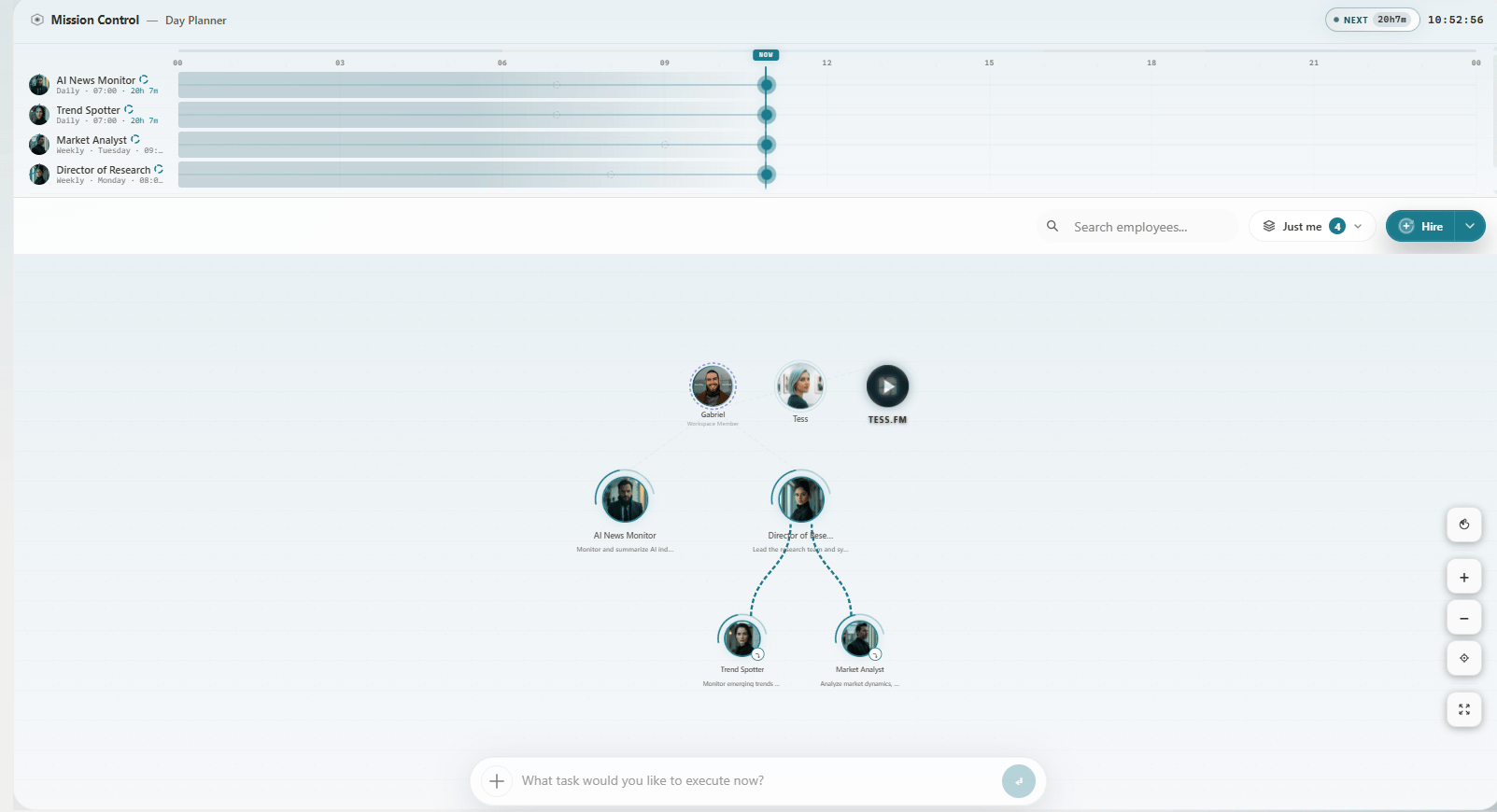
Cowork Mesh Canvas — Mission Control
Node types
- Employee nodes — hired Digital Employees with avatar and status badge (Running, Paused, Error, etc.)
- Squad nodes — groups of employees working on a shared initiative
- Document nodes — files and outputs linked to employees; open to review or download
- Teammate presence — colleagues currently on Cowork
Mission Control chrome
- Header — Cowork / Mission Control label, credits cues, presence
- Search employees — find and highlight nodes by name
- Cowork Layers — My area / Direct reports / Their employees / Full org
- Hire — dropdown: Open position, Talent Pool, Assemble Team, and related options
- Day Planner — upcoming wake-ups and pending approvals (see Mission Control monitoring)
- Omnibar — bottom input for tasks and
/hire(see Omnibar)
Employee status on nodes
Each employee node reflects live status. Click a node to open the detail drawer with stats, timeline, and actions (invoke, pause, resume, terminate). Full state reference: Agent Lifecycle.Visibility layers
Who appears on your canvas depends on Cowork Layers and your workspace permissions — not decorative filters. Your own employees always show; teammates’ employees appear only when your role allows. Details: Navigation & Interaction.Tips
- Use Search to focus one employee in a busy org view
- Resolve Pending approval nodes from the drawer or Day Planner promptly
- Prefer Hire → Open position for full form control; use
/hirein the Omnibar for fast natural-language hiring