

Overview
The Omnibar is the text field at the bottom of the Mesh Canvas. Use it to:- Route a task — type work in plain language and submit to the right employee or flow
- Hire with
/hire— describe a new role; Tess configures a Digital Employee for you

Omnibar on the Mesh Canvas
Route a task
Type what you need done — for example, “Summarize yesterday’s support tickets for the weekly standup” — and submit. Cowork routes the request based on context (selected employee, squad, or workspace rules)./hire slash command
Start the command
- Click the Omnibar
- Type
/ - Choose
/hirefrom the floating menu (visible when you can create employees) - Add a plain-language description — e.g.
/hire someone to monitor competitor pricing weekly - Submit
/hire in the Omnibar
What happens next
Cowork runs a short recruiting sequence, then places the new employee on the Mesh. The first run often starts immediately; in Supervised mode you may need to approve the initial plan in the drawer. Full walkthrough: Creating a Digital Employee.Hire dropdown (alternative)
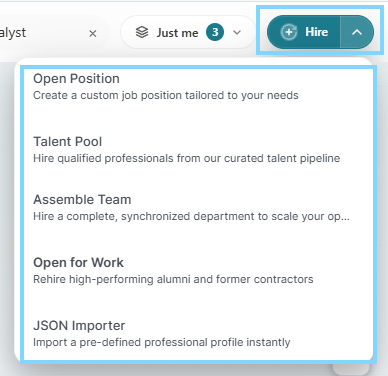
For full control over identity, Work Mode, Work Cycle, and Advanced settings, use Hire → Open position instead of/hire. Other menu options include Talent Pool (ready digital employees with app connections preconfigured) and Assemble Team when available in your workspace.
Screenshot placeholder — Talent Pool: Capture Hire → Talent Pool showing a ready digital employee card with connectors already configured.
Permissions
/hire and Hire require permission to create and invoke Digital Employees in the workspace. If options are missing, ask your workspace admin.