

Workspace
Available only to members of your workspace. This is the ideal mode to maintain control over internal agents.
Private
Visible to the creator and, when the workspace policy allows, to profiles with governance permissions to audit private agents from other members — being a workspace member alone is not enough to view others’ private agents.
Public
Available for use by the entire Tess user community and listed in the Marketplace.
Unlisted
Does not appear in the Marketplace, but anyone on Tess who receives the link can access it.
Why is it important?
- Security and confidentiality: agents with sensitive data should be private or limited to the workspace.
- Controlled sharing: experimental agents can be unlisted, accessible only via link.
- Distribution and community: mature agents can be made public and shared with the entire Tess base.
Understanding Visibility Levels in detail
Workspace
All workspace members can access the agent. It is great for creating agents within companies so that other colleagues can use them.
Private
By default, only the creator can see the agent in the listing. To audit or access a private agent from another member, explicit governance permission in the workspace is required (simply being an Owner does not automatically grant access to others’ private agents). Ideal for drafts, tests, or personal agents.
Public
In this case, any Tess user can find and use the agent, making it available and listed in the Marketplace. These are used for agents ready for reuse by others (more generic and broad), market templates, showcases, etc.
Unlisted
They cannot be found in the Marketplace and only people with the direct link can open them. It is used when you want to share with specific clients, partners, or in beta phases for testing by others.
Governance and private content in the workspace
The platform reinforces that visibility (public, workspace, private, unlisted) is not the only control: for private agents and results of other members within the same workspace, an explicit governance model applies:- Same rules across all flows: AI Studio, chat, usage history, access to linked documents, and template/execution APIs apply the same authorization. There is no “shortcut” in the API that exposes another user’s private content without proper permission.
- No role-based bypass: having an Owner or administrator role does not replace, by itself, governance permission to read or audit private agents and private sessions/results from others — when the policy requires explicit permission, access is clearly denied.
- Denial experience: unauthorized attempts lead to a private content experience (access denied), instead of ambiguous messages that do not make it clear whether the resource exists.
- Usage history: items you cannot open due to lack of permission appear as restricted, without any link that simulates improper access.
Who can audit private content and under which conditions depends on the workspace permissions and the governance features of your plan (often in Enterprise scenarios). Also check Members and Permissions.
How to adjust agent visibility
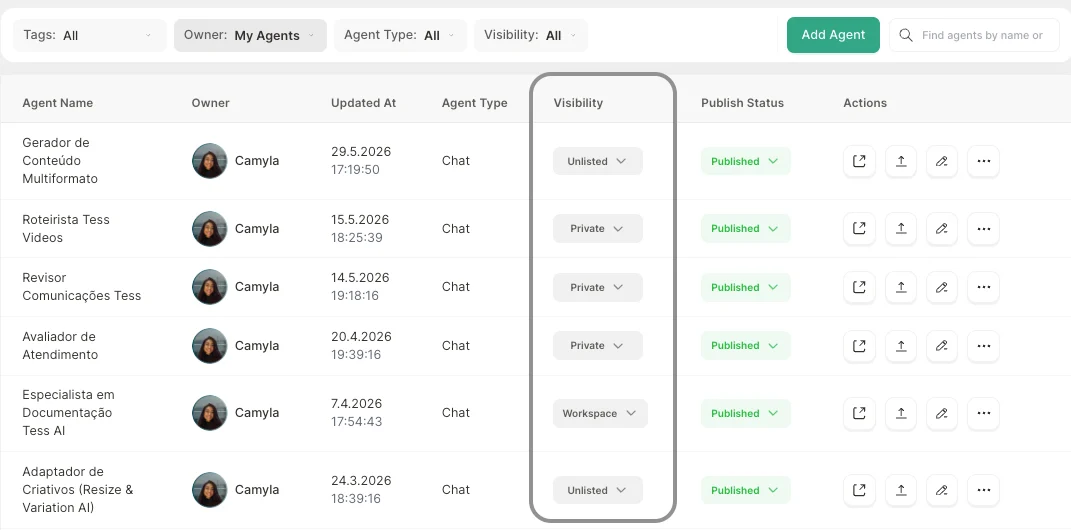
When creating the Agent, you can define visibility within Agent Studio by selecting your preferred option. The agent will be created with that setting.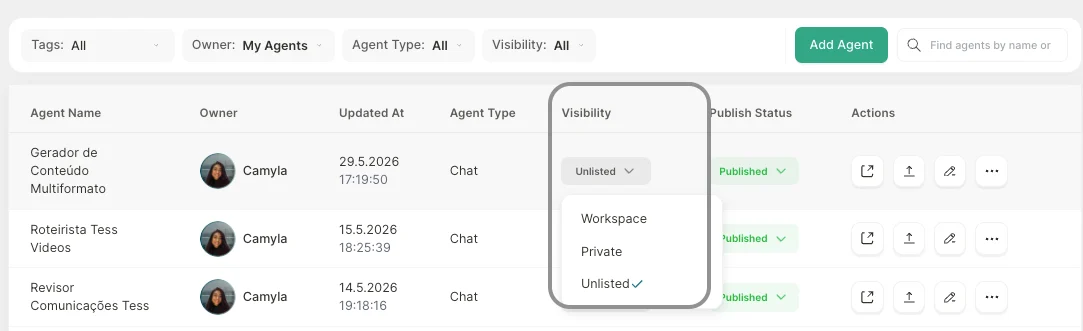
- Open Agent Studio
- Locate the agent you want to configure. You can search by name, type, visibility, or owner.
- Check the Visibility column and choose the desired level
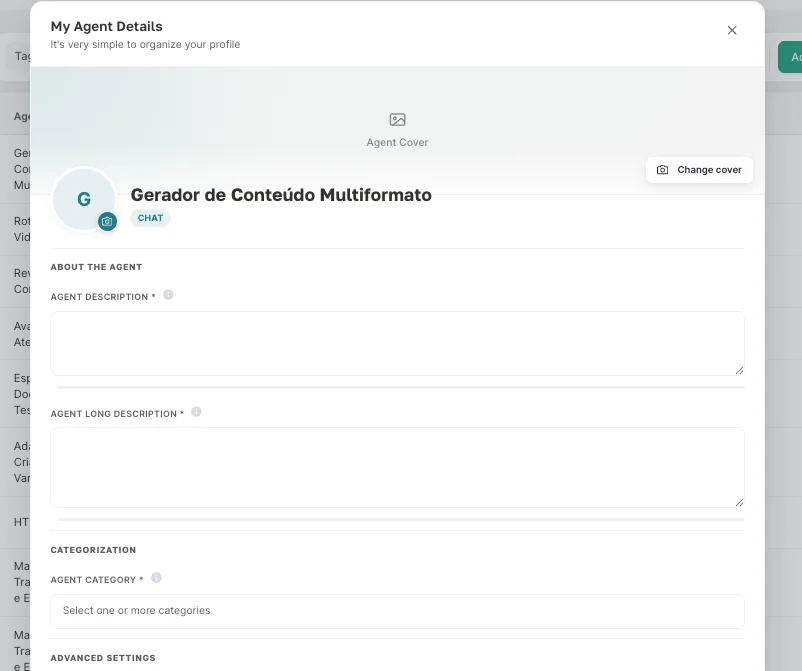
Detailed Agent Information (to make it public)
To access it, just hover next to the status and click the pencil icon.
Required fields for public publishing
Before publishing an agent publicly, make sure these fields are filled. They will be highlighted on the Publishing Settings screen if missing.- Short Description: What the agent does, in one paragraph
- Long Description: Detailed use cases and benefits
- Category: Area of activity (e.g.: Marketing, HR, Sales)
- Cover image and avatar: Recommended — improves presentation in the marketplace
How to resolve a rejection
1
Check the reason in the tooltip
Hover over the red icon next to the visibility badge to see which area failed (text, avatar, or cover).
2
Fix the indicated content
Open the agent settings and adjust the indicated field — replace the image or revise the text according to the tooltip guidance.
3
Save — review restarts automatically
No additional action is required. When you save, the agent returns to Under review and the automatic analysis is re-executed.
Required fields for public publishing
Before publishing an agent publicly, make sure these fields are filled. They will be highlighted on the Publishing Settings screen if missing.- Short Description: What the agent does, in one paragraph
- Long Description: Detailed use cases and benefits
- Category: Area of activity (e.g.: Marketing, HR, Sales)
- Cover image and avatar: Recommended — improves presentation in the marketplace
How to resolve a rejection
1
Check the reason in the tooltip
Hover over the red icon next to the visibility badge to see which area failed (text, avatar, or cover).
2
Fix the indicated content
Open the agent settings and adjust the indicated field — replace the image or revise the text according to the tooltip guidance.
3
Save — review restarts automatically
No additional action is required. When you save, the agent returns to Under review and the automatic analysis is re-executed.