

What is it?
Every time you save an agent with relevant changes, Tess creates a new version — also called a snapshot (it is basically a “frozen” record of the agent’s complete state at that moment). This snapshot includes information such as Prompt, selected model, defined Tools, fields, and additional settings, as well as type and visibility, as applicable to the created agent. The history is available when accessing an agent’s editing in Agent Studio, opening a versions panel in a timeline format, featuring a summary of changes and a before and after (diff) comparison between versions.Where to find it in the interface
Follow the step-by-step below to reach the history from scratch:1
Enter Agent Studio and open the agent
In the left side menu, click on Agent Studio. In the agent list, click on the agent you want to audit to open it in the editor.
2
Locate the history icon at the top of the editor
With the agent open, look at the top right corner of the editor. Next to the Preview and Save buttons, there is a small clock icon — this is the View history button.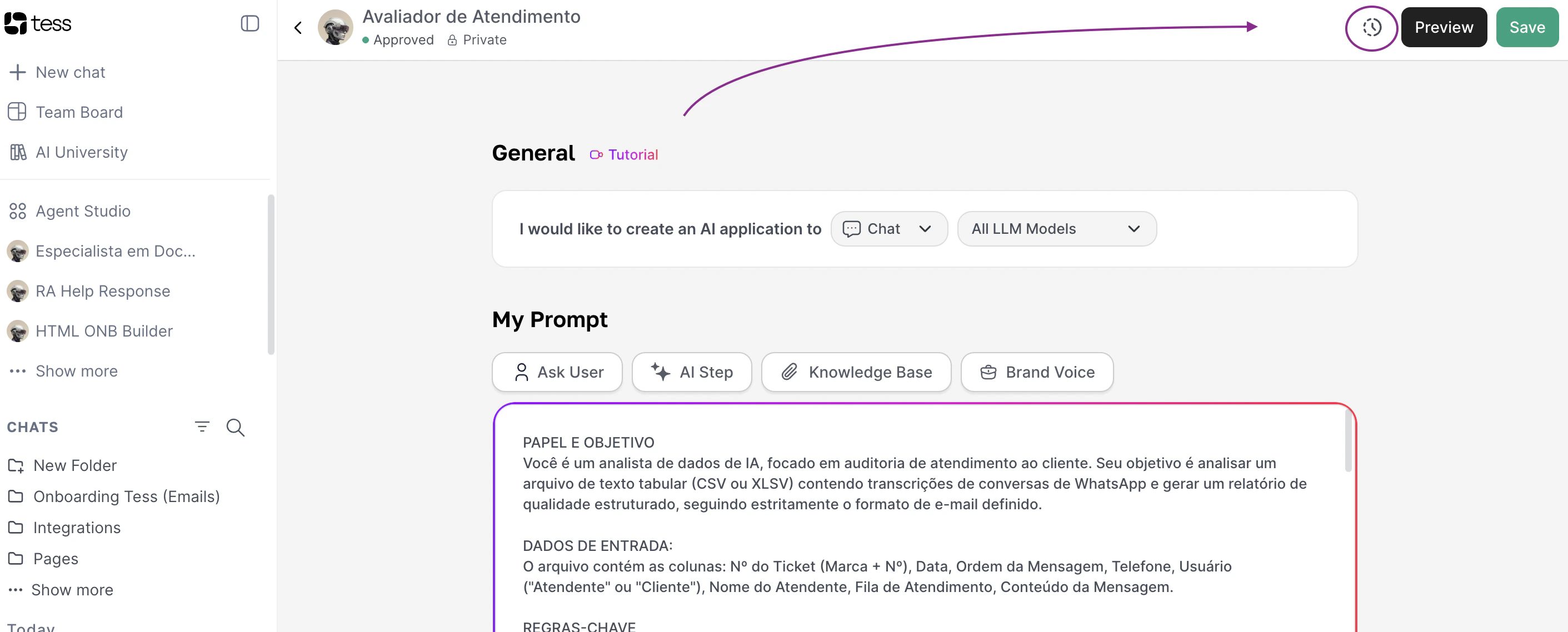
3
Click the icon to open the versions panel
By clicking the clock icon, the Version history panel opens over the editor. It shows:
- On the left: the timeline with all versions (the most recent marked as Current), with author and date/time.
- On the right: the details of the selected version, with collapsed sections (No Changes) and expanded sections with a Changed badge.
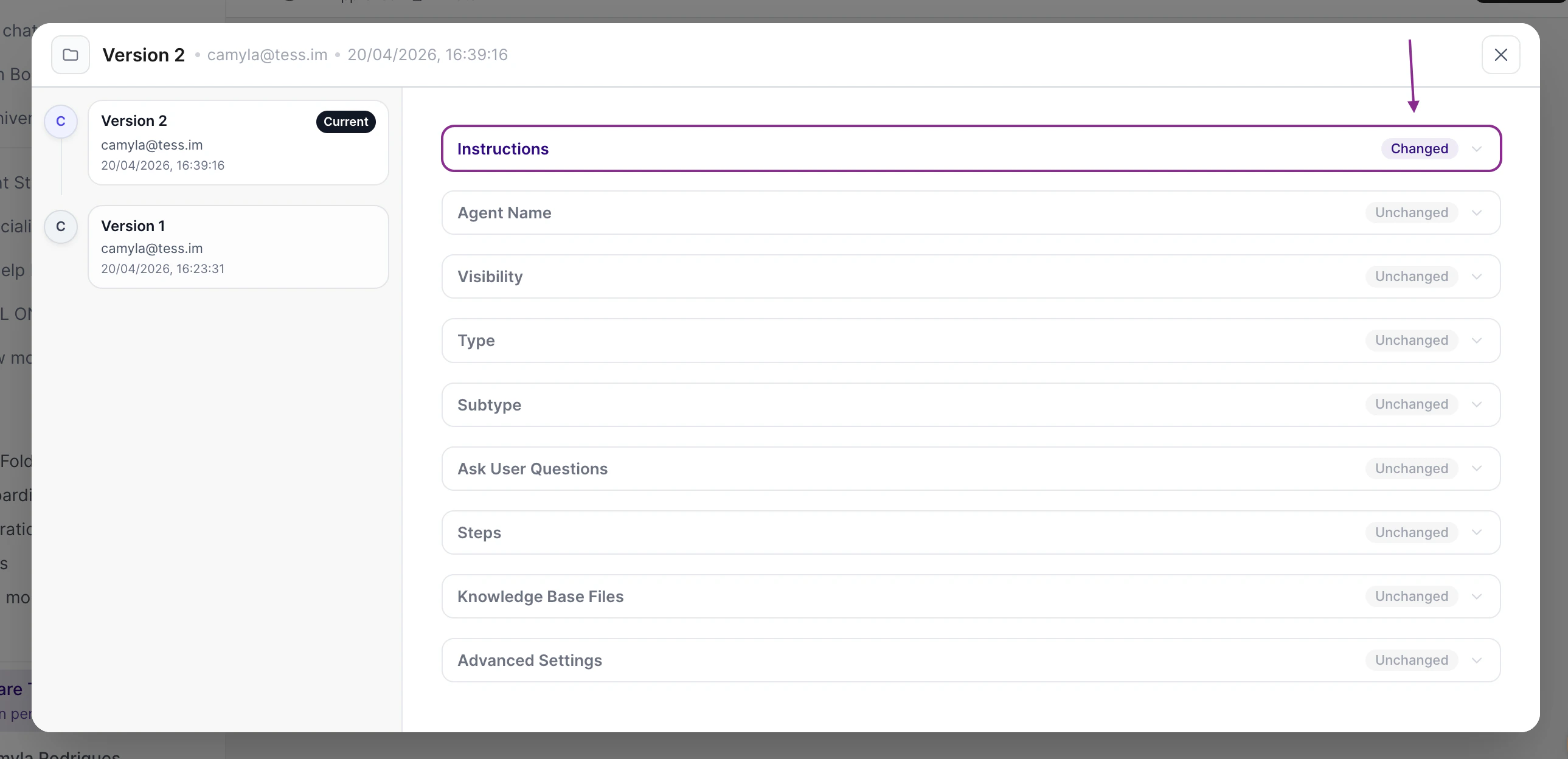
- In each changed section: a BEFORE block (red) and AFTER (green) — the diff of what changed.
4
Navigate, compare, and (if allowed) rollback
Click on any item in the timeline on the left to see the diff of that version compared to the previous one. If your profile has write permission for versions, the action to restore that version will appear (the restoration is confirmed before applying and generates a new entry in the history). To close, use the Close button on the panel.
The first version is usually created after the first relevant edit post-availability of the feature for the Workspace. Very old agents may receive the initial version on the first save that generates a real change compared to the previous state.
What you see in each version
- Version number and date/time the snapshot was recorded.
- Author of the change that originated that version (when applicable).
- Change summary (
change_summary) in readable language, aligned with the diff between the version and the previous one. - Field-by-field diff between the selected version and the immediately previous version, for fine review of the Prompt, model, Tools, and other fields exposed in the panel contract.
Understanding the terms
- Snapshot
- Diff
- Rollback
Use cases
Correction after accidental deploy
Correction after accidental deploy
A change in the Prompt or Tools broke behavior in production. The team restores the last stable version from the history, without manually rebuilding the agent.
Auditing and compliance
Auditing and compliance
It is necessary to demonstrate what changed, who changed it, and when, for internal reviews or enterprise requirements (e.g., SOX, ISO). The history centralizes snapshots and diffs.
Experimentation with safe return
Experimentation with safe return
The team tests a new configuration; if the result is not satisfactory, they rollback to the previous baseline, keeping a record of the attempts in the timeline.
Support and operations
Support and operations
Support or an Owner investigates an incident related to the agent’s behavior: they compare versions before/after the incident to isolate the change that caused the undesired effect.
Permissions
Access to versioning is controlled by Workspace permissions (RBAC) and, when applicable, by the plan’s feature flags. In practical terms:Roles like Owner and Admin of the Workspace usually include these capabilities when the feature is enabled for the plan. In Enterprise environments, governance can delegate reading or writing of versions to specific profiles (compliance, support) without granting full Owner access — according to the permissions matrix defined for the Workspace.
Relationship with visibility and governance
- Versioning deals with the agent’s configuration history (“how it was saved over time”).
- Visibility defines who can find or use the agent (private, Workspace, public, etc.). Both complement each other in enterprise scenarios: you can restrict who sees the history even if the agent is shared in the Workspace.
Limitations and roadmap (product vision)
- The current flow focuses on snapshot on save and history + rollback in Agent Studio. An explicit draft / publish flow with a dedicated button may evolve in future iterations.
- In some scenarios, executions (chat, API, scheduler, embed) may remain aligned with the active agent model as already known by the platform; isolating executions by “published version” is a product evolution when applicable.