

What is it?
Connectors are native integrations that connect Tess to external applications, enabled when you integrate with the application. After connecting an app, the AI can use that access within chats and agents to help with tasks such as:- retrieving information from connected tools;
- organizing operational routines;
- consulting data and documents;
- triggering actions with simple commands;
- reducing context switching across multiple platforms.
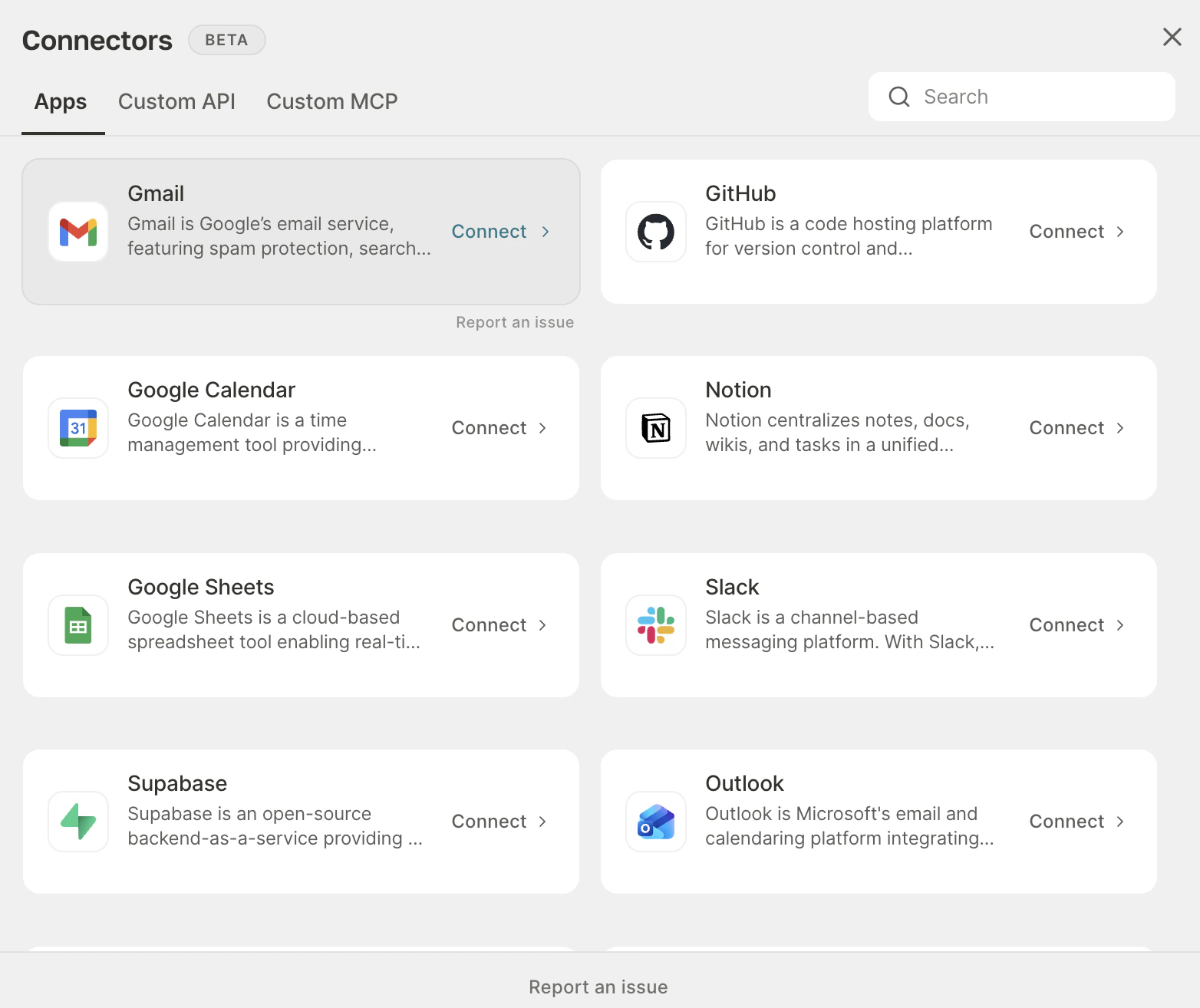
- Apps: ready-made integrations (Gmail, Slack, Notion, etc.)
- [Coming soon] Custom API: connection to your own APIs or third-party APIs
- Custom MCP: connect remote MCP servers (Attio, Gleap, Volt, internal tools) into chat and agents
Where to find it and how to use it?
You can access Connectors directly from the chat or on the agent editing screen:Via Chat
- Click the + in the lower-left corner of the chat box
- Select Connectors
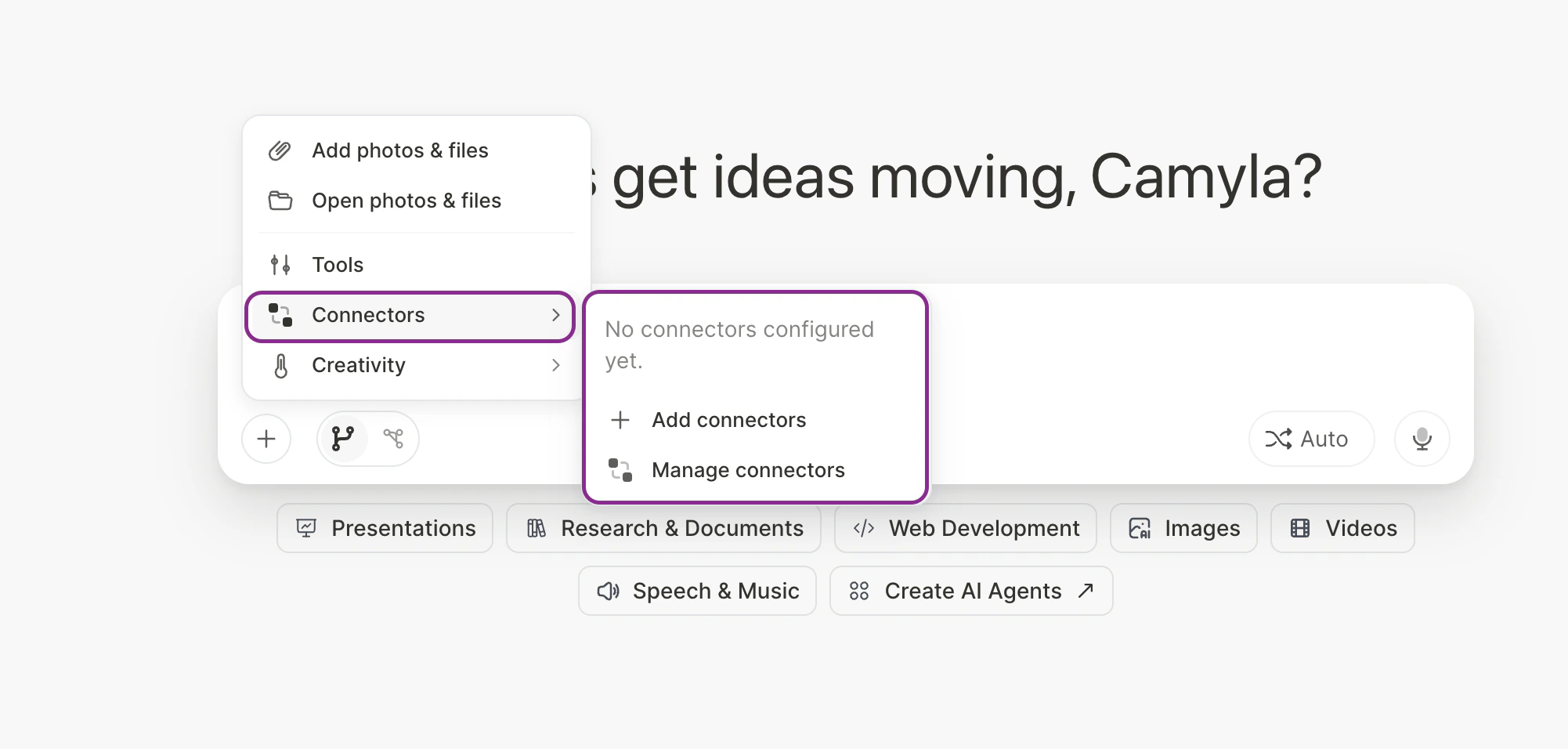
- And click “Add connectors” to add new ones or
- “Manage connectors” to manage existing connections
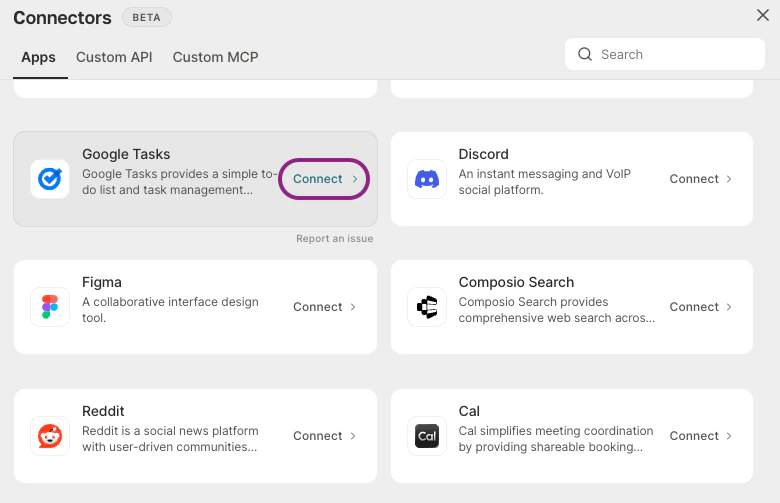
- Locate the desired application.
- Click Connect to start authentication and confirm all permissions in the modal that opens
Agent Editing Screen
- Open Agent Studio and locate the desired agent to adjust, or create a new one
- Find the Connectors button
- To allow use in the agent, keep the gear enabled.
- If you want the end user to also choose whether to use it, keep “User decision” enabled. In this case, you will not be able to choose which connector will be used, as that will be up to the end user
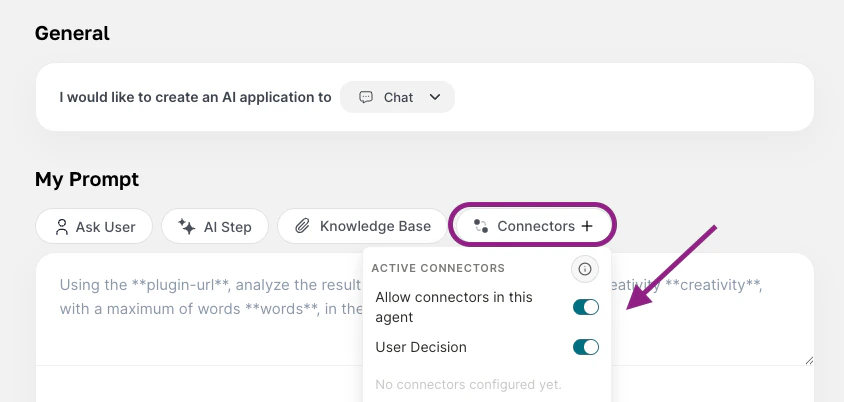
- However, to add the specific connectors the agent will use, you will need to uncheck the user decision option and manually add the connectors.
- Click add to integrate new connectors or manage, if you already have them and want to adjust something
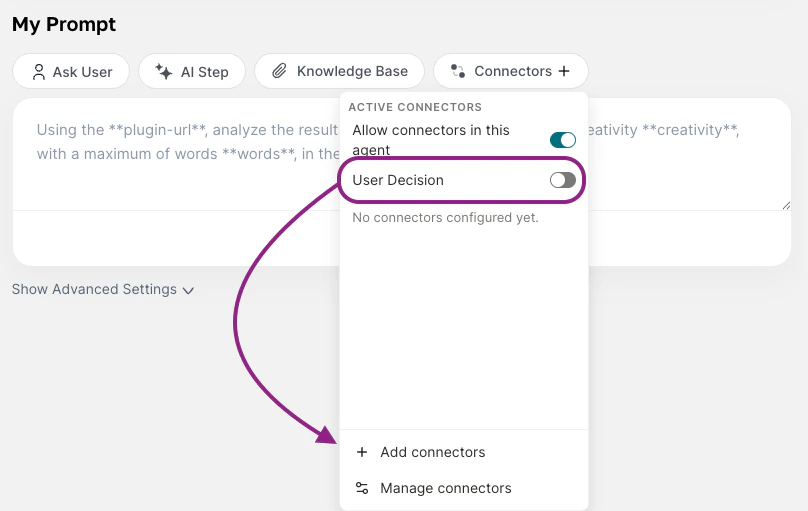
- Locate what you want and proceed with the permission grants
Understanding the proposal
Connectors expand Tess’s role within the Workspace. Instead of acting only as text generation or analysis in the chat, the AI starts interacting with connected external systems. In other words, it goes from assistant to task operator, and this is especially relevant in agents, where behavior can be structured to use connectors automatically within flows. In practice, this means Tess can function as a single interface between user, context, and execution. A simple way to understand it:- without Connectors: the AI guides you on what to do;
- with Connectors: the AI also helps do it.
Practical examples
Below are some usage examples that help show the value of the feature in day-to-day work.- Gmail
Example prompt:2. Google Calendar It allows you to check your schedule; find appointments; and support meeting organization.
- “Look for the most recent emails about contract renewal and bring me a summary with the main points, responsible parties, and next steps.”
- “Find unread messages from client XYZ and organize them by priority.”
- “Check my last 20 emails in Gmail, identify the ones that need an urgent response, and write professional replies for each one. Show them to me before sending.”
Example prompt:3. Google Sheets It makes it possible to consult spreadsheets; cross-reference operational data; and structure reports quickly based on the collected data.
- “Check my appointments this week and highlight free time slots for a 30-minute meeting.”
- “List the upcoming events related to enterprise clients by looking for events with [EN] in the title.”
- “Look at my schedule for tomorrow in Google Calendar and reorganize appointments to prioritize sales meetings. If there are conflicts, suggest new free time slots on the same day.”
Example prompt:4. GitHub It enables consultation of the GitHub repositories you have access to; supports monitoring technical activities; and is useful for supporting product and engineering teams.
- “Analyze the leads spreadsheet and tell me which contacts have had no follow-up in the last 7 days.”
- “Read the monthly metrics spreadsheet and generate an executive summary with the main deviations.”
- “Read this spreadsheet and identify usage drop patterns over the last 30 days.”
Example prompt:5. Slack You can consult channel or direct messages; summarize discussions in a group; and locate decisions in channels.
- “List the most recent pull requests in the project and summarize the purpose of each one.”
- “Look for issues related to the ‘xxxx’ integration and organize them by priority.”
- “List the latest open PRs in the GitHub repository and summarize what changed.”
Example prompt:
- “Summarize what was discussed in the product channel today and highlight decisions, pending items, and responsible parties.”
- “Look for messages about connectors or integrations and consolidate the team’s main feedback.”
- “Send a message in Slack to the #marketing channel saying the live starts in 10 minutes.”
Best practices
To get better results with Connectors, follow these recommendations:- Be specific in the prompt: Instead of writing “check my emails,” prefer: “Look for emails from the last 2 weeks with the subject renewal and summarize the main points.”
- State the objective of the task: Explain the expected result, such as: summarize; list; compare; organize; identify pending items; suggest next steps.
- Use clear filters: Whenever possible and applicable, inform: period; project; client; channel; document; priority.
- Test first with simple tasks: Start with queries and summaries before depending on more complex flows.
- Structure agents with focus: If the connector will be used in an agent, make its role clear in the training and what you expect from using the connector input or what you want to use for some action. Example: support agent; sales agent; operations agent; data analysis agent.
- Review permissions carefully: Connectors involve access to external systems. Although your data is secure and not used in model training, try to connect accounts and apps that are appropriate to the usage context.
If you already use Tess in your day to day, this is one of the most important features for bringing AI closer to your real workflow.