

What is it?
A Memory Collection is a set of structured information (texts, instructions, data, or rules) that you provide to the AI before starting a conversation. In practice:- You write memories (e.g.: client context, tone of voice, internal rules)
- Organize them into thematic collections
- Activate these collections in the chat
- The AI automatically takes this content into account in its responses
What is it?
A Memory Collection is a set of structured information (texts, instructions, data, or rules) that you provide to the AI before starting a conversation. In practice:- You write memories (e.g.: client context, tone of voice, internal rules)
- Organize them into thematic collections
- Activate these collections in the chat
- The AI automatically takes this content into account in its responses
Why is it important?
- Real personalization: Tess responds taking history (memory) into account, not just the current message.
- Less repetition: The user does not need to provide the same data at each interaction.
- Context for the team: Organized memories help both the AI and the human team maintain the same level of service, even when agents change.
- Work organization: you can organize your memories by team, by project, by client, or however you prefer, to bring versatility to your way of working with AI.
Configuring and Managing Memories
- Open the Chat screen
- Locate the Memory Collections icon in the upper right corner\
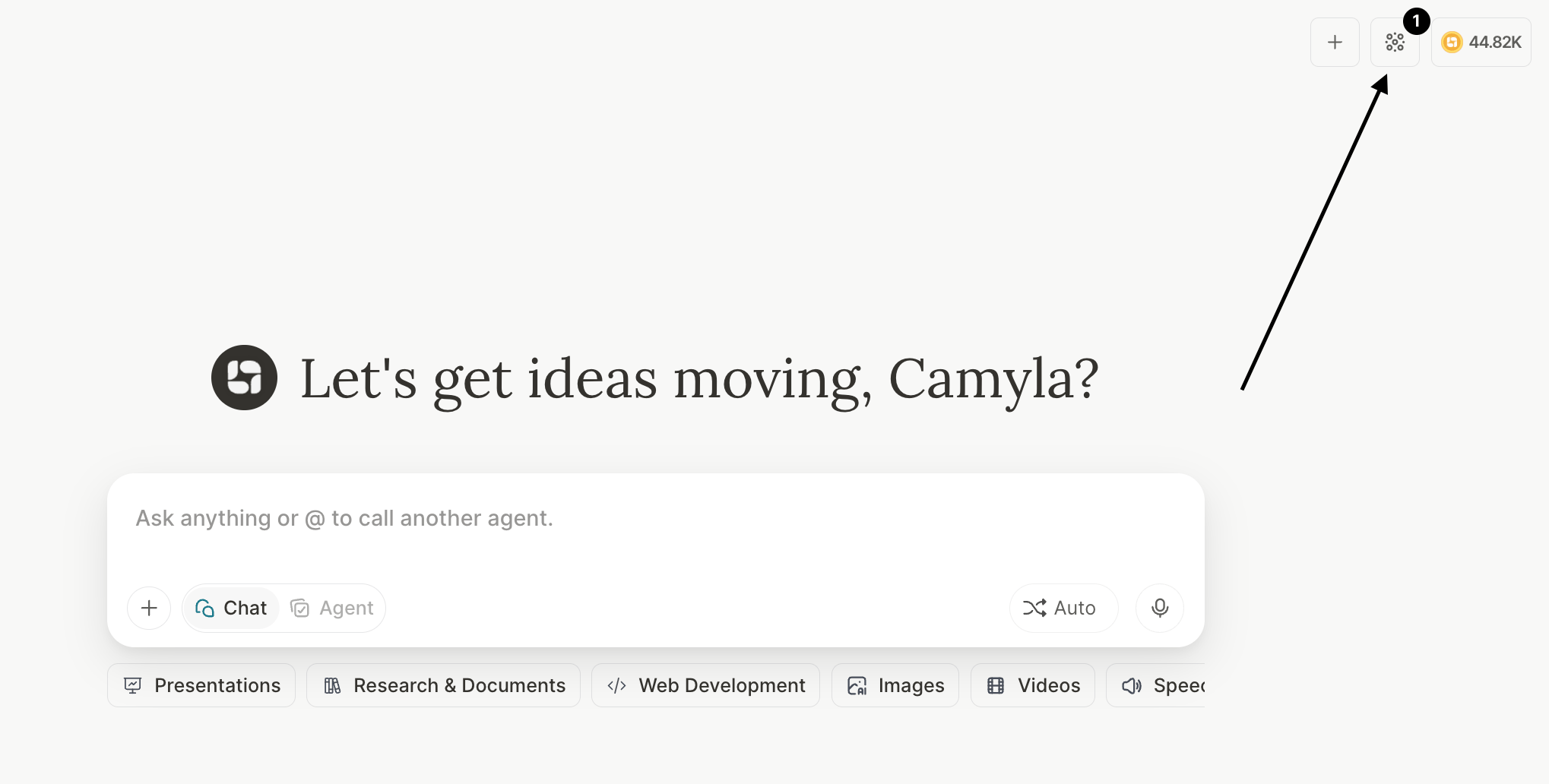
- Select an existing collection or create a new one, according to your needs\
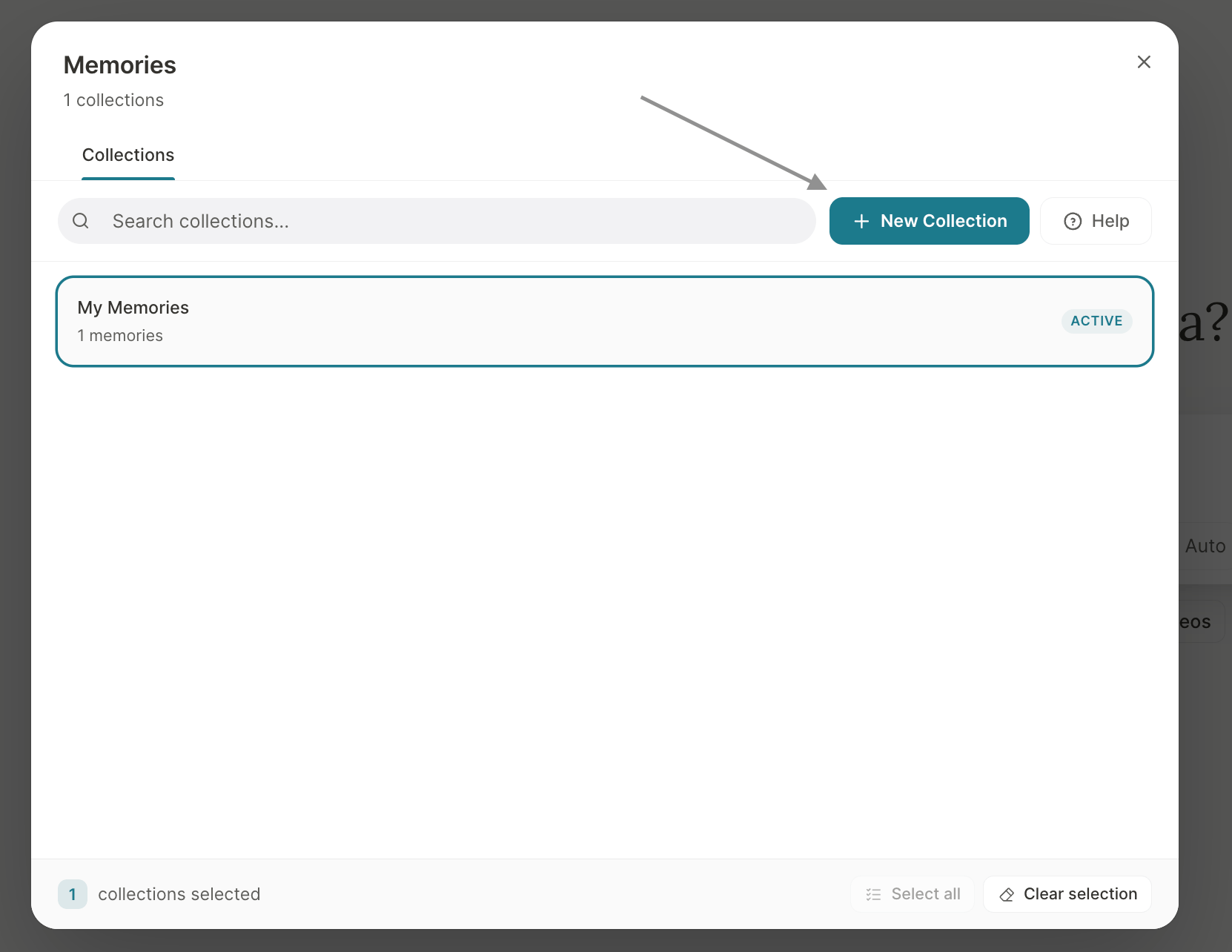
- Create memories and a collection\
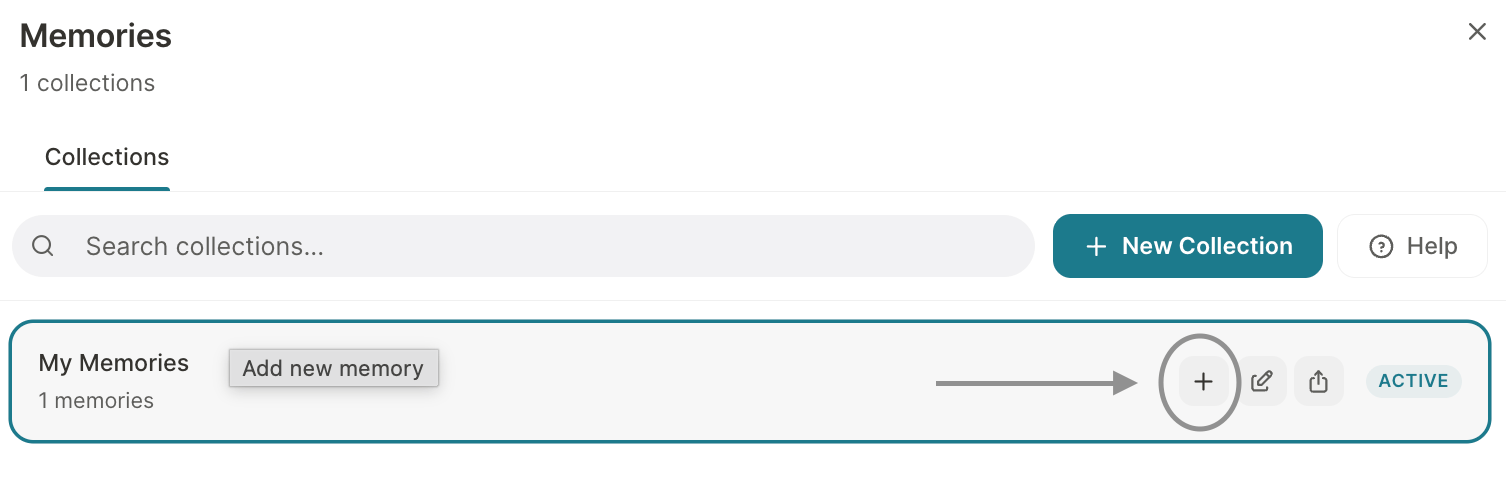
- Remember to activate the collection — a number will appear on the icon and active collections will be marked
In the Memories icon, you can:
- Activate or deactivate memory collections
- Create new collections segmented by use case
- Review, edit, or remove existing memories
Import memories from other AIs
If you already built personalization in ChatGPT, Claude, Gemini, or a similar assistant, you can bring that context into Tess without retyping everything.- Open Personal Settings → Memories (or the optional import step during onboarding, when enabled).
- Start Import memories.
- Copy the guided prompt Tess shows, paste it into your other AI, and export the answer.
- Paste the export back into Tess and run Process.
- Wait for the completion summary (how many memories were created). You can Follow in chat while it runs.
Screenshot placeholder — memory import: Capture (1) the Import card on Personal Settings → Memories, and (2) the two-step modal (copy prompt → paste export) with progress/completion.After activating a collection, you can start or continue the conversation normally in the chat. Notice whether the LLM is using the memory information to complement responses (when it makes sense).
Collection Sharing
Tess offers 4 sharing options, with different levels of control:Individual Collection (Private)
Only you access and editWhen you create a collection without sharing, it is entirely yours. Ideal for personal contexts, your own methodologies, or confidential information.
Sharing via Link
Anyone with the link imports a copyGenerate a public link. Whoever accesses it can import a full copy to their own account. Each person has their own independent version after importing.
Sharing with Team
Live access — permanent connectionAll members have real-time access. Any update by the owner appears immediately for everyone in the next chat. Define who can read and who can edit.
Sharing with Workspace
The entire company has accessIdeal for knowledge that everyone should have: brand values, product manual, internal glossary. The admin controls the permissions.
Sharing management
The sharing flow has been improved with more control and clarity:- Organized management modal to view access
- Granular permissions (view or edit)
- Prevention of duplicate invitations
- Active link control
- Preservation of the origin of shared collections
1
Locate the collection and click the share icon
When you hover over the collection, the buttons will appear — just locate the share button and begin the settings: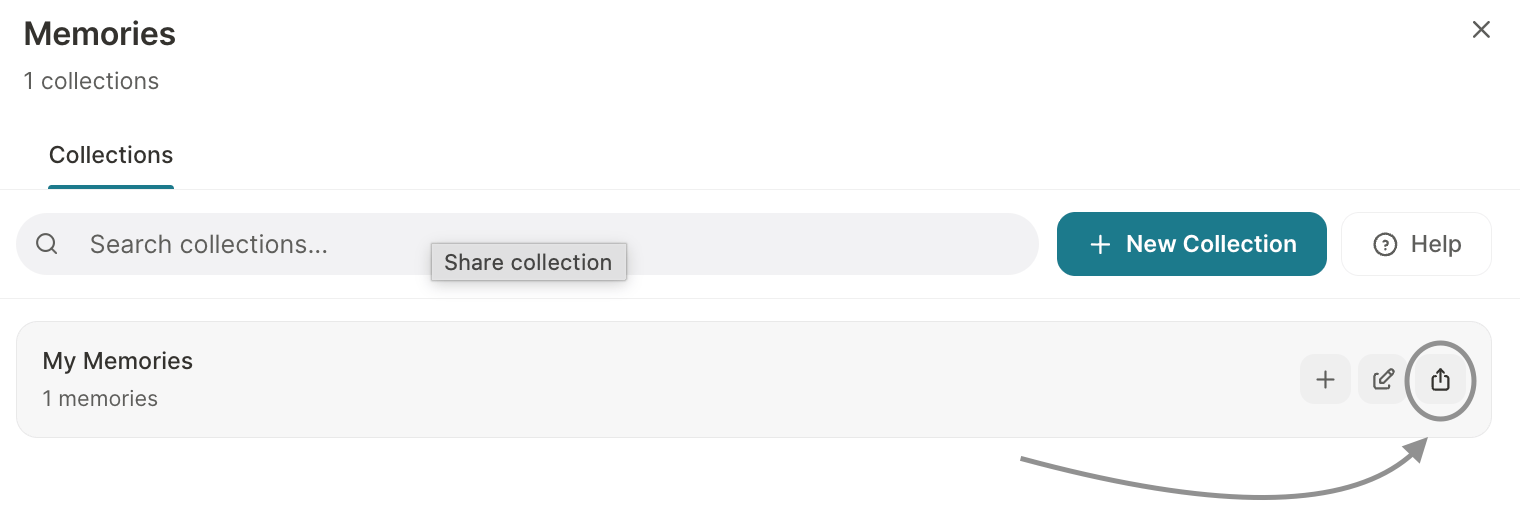
2
Generate a shareable link
If you want to assign a prefix, that is possible, as well as choosing the permission level — view or edit. After configuring this, just generate your link.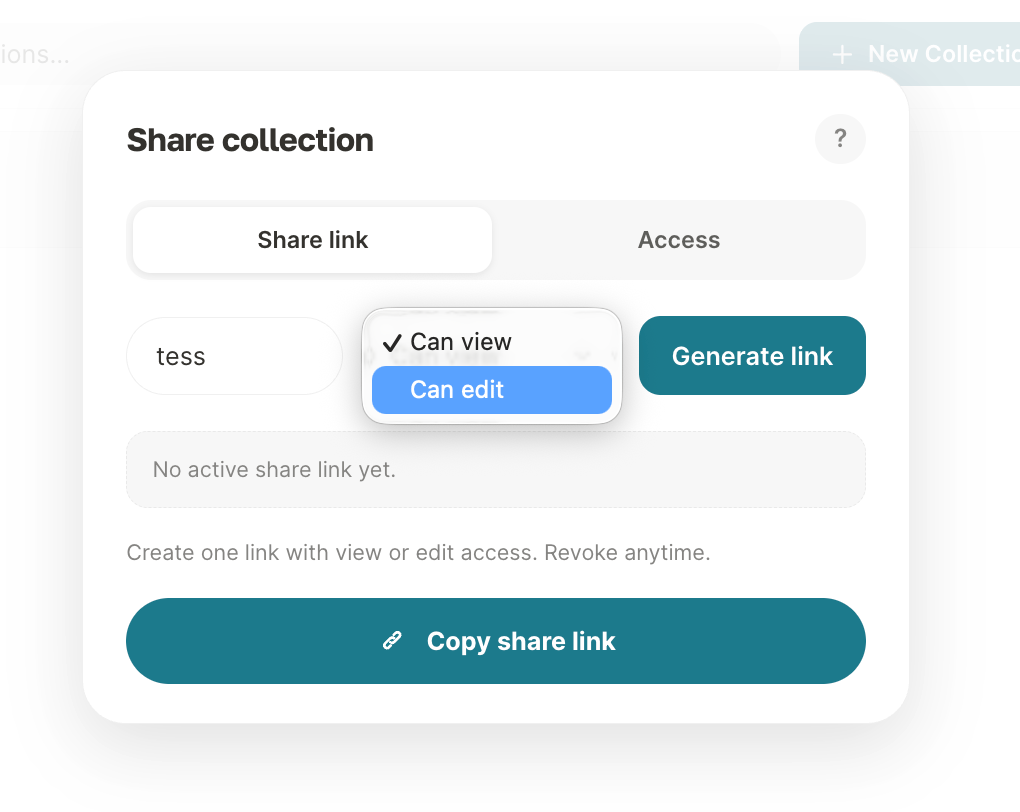
3
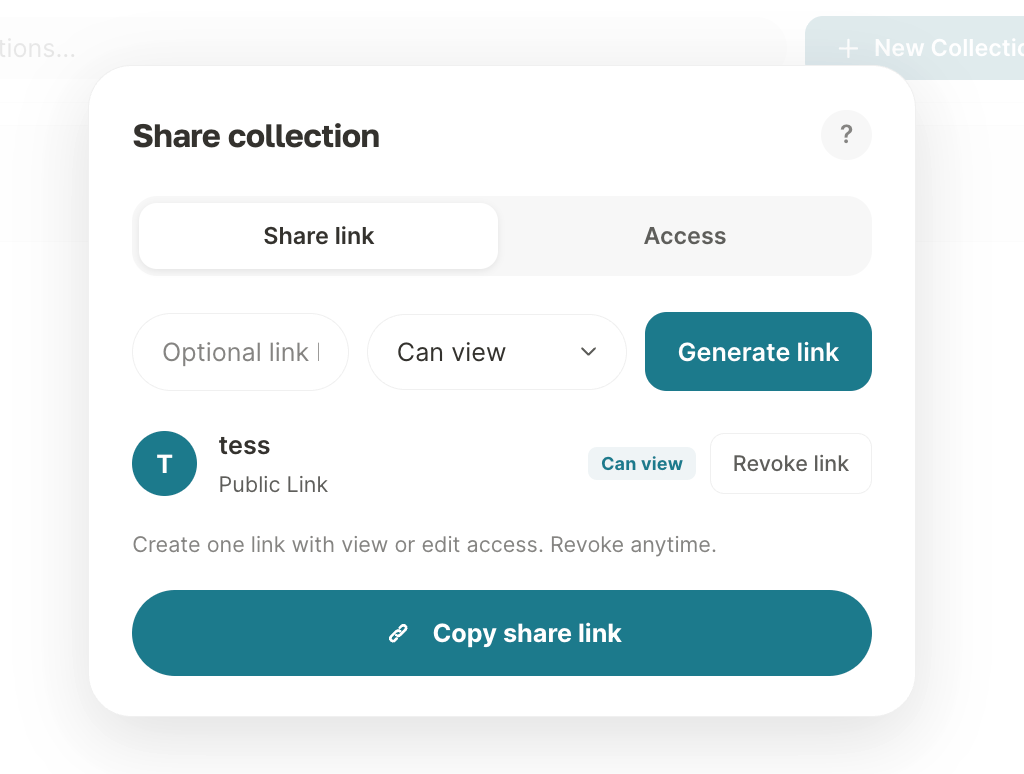
If you want to revoke the link, just click on the existing option
4
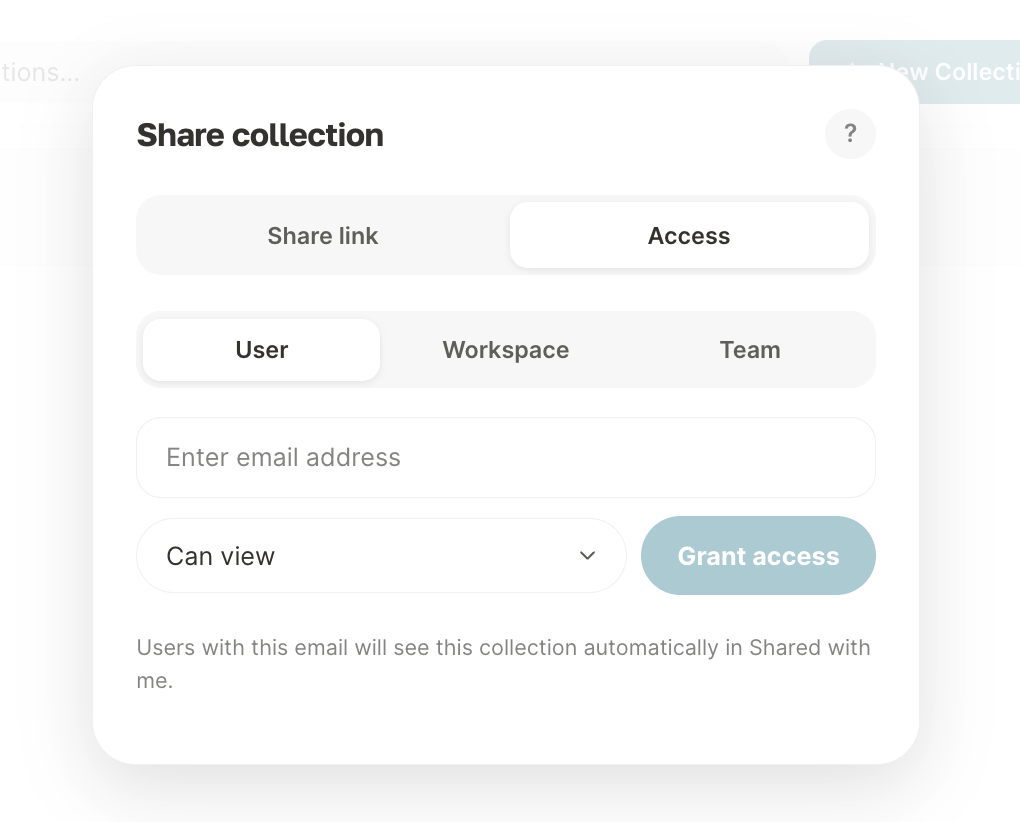
If you prefer, choose the sharing level for your team
Important notes
- Active memories consume tokens (they are part of the context sent to the AI)
- The more active collections, the higher the potential cost
- Avoid storing: Passwords; Sensitive data; or Confidential information without access control
- Team/workspace sharing is synchronized in real time
Collection Sharing
Tess offers 4 sharing options, with different levels of control:Individual Collection (Private)
Only you access and editWhen you create a collection without sharing, it is entirely yours. Ideal for personal contexts, your own methodologies, or confidential information.
Sharing via Link
Anyone with the link imports a copyGenerate a public link. Whoever accesses it can import a full copy to their own account. Each person has their own independent version after importing.
Sharing with Team
Live access — permanent connectionAll members have real-time access. Any update by the owner appears immediately for everyone in the next chat. Define who can read and who can edit.
Sharing with Workspace
The entire company has accessIdeal for knowledge that everyone should have: brand values, product manual, internal glossary. The admin controls the permissions.
Sharing management
The sharing flow has been improved with more control and clarity:- Organized management modal to view access
- Granular permissions (view or edit)
- Prevention of duplicate invitations
- Active link control
- Preservation of the origin of shared collections
1
Locate the collection and click the share icon
When you hover over the collection, the buttons will appear — just locate the share button and begin the settings:
2
Generate a shareable link
If you want to assign a prefix, that is possible, as well as choosing the permission level — view or edit. After configuring this, just generate your link.
3
If you want to revoke the link, just click on the existing option
4
If you prefer, choose the sharing level for your team
Important notes
- Active memories consume tokens (they are part of the context sent to the AI)
- The more active collections, the higher the potential cost
- Avoid storing: Passwords; Sensitive data; or Confidential information without access control
- Team/workspace sharing is synchronized in real time
Using Memories via API
You can manage memories and apply them to agent executions directly through the API. The full flow involves three steps:Step 1 — Create a memory collection
id from the response — you will use it in the next steps.
Step 2 — Create memories in the collection
Add each memory record by passing thecollection_id obtained in the previous step:
The created memory goes through an embedding process (semantic indexing). The
embedding_status field starts as pending and changes to succeeded when it is ready to be queried. Wait for succeeded status before executing the agent to ensure the memory is found.Step 3 — Execute the agent with memory collections
When executing the agent, pass thememory_collections parameter with the IDs of the collections you want to activate:
How memory injection works: Tess uses semantic search (RAG) to automatically select the most relevant memories from the collection based on the conversation content. Only memories with high semantic similarity are injected into the agent context — you do not need to specify which memories to use, just which collection to activate.