

Prerequisites
- Any user can connect SharePoint — you just need an account.
- You must have a tenant configured in SharePoint.
- You will need to provide the Tenant Name and, optionally, the SharePoint Subsite.
How to connect
1
Configure permissions in SharePoint
The permissions Tess can access are directly determined by what is configured in your SharePoint. The connector only reflects those permissions — it does not create or expand access.A common configuration that can restrict access is the Site access section within SharePoint. If a user or group has limited access to a site, the connector will respect that restriction and will not be able to access content beyond what is permitted.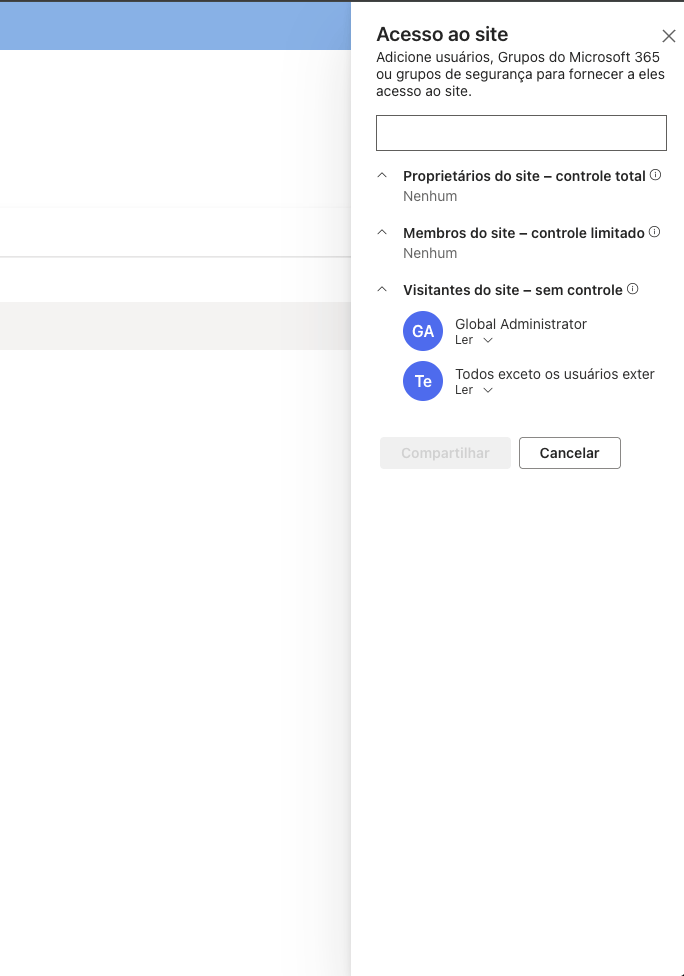
2
Open the connector and enter the credentials
In the Connectors panel, locate SharePoint and click to connect. The credentials form opens.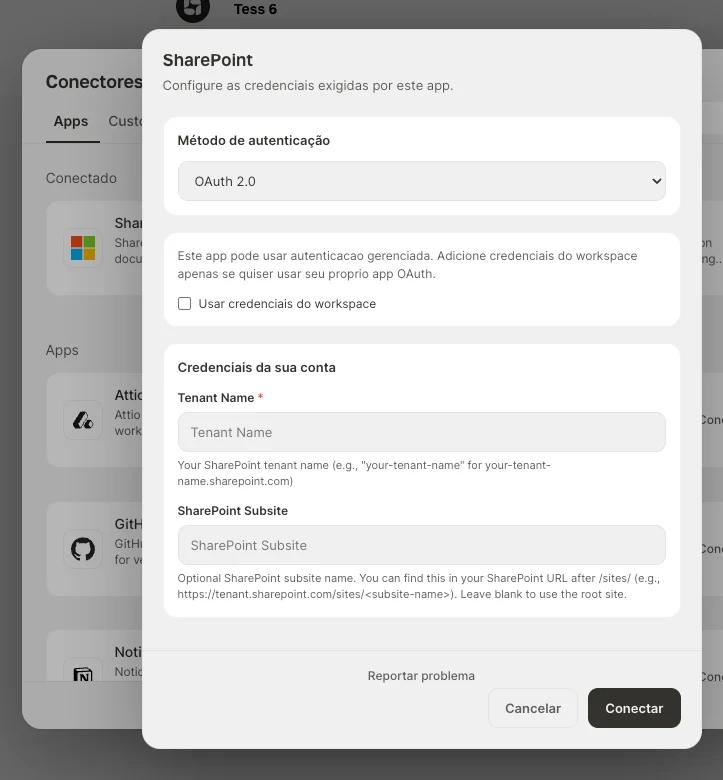
- Keep the Authentication method as
OAuth 2.0. - In Tenant Name, enter only the tenant name (for example,
your-companyforyour-company.sharepoint.com). Do not paste the full URL. - In SharePoint Subsite (optional), enter the subsite name that appears in the URL after
/sites/(for example,https://tenant.sharepoint.com/sites/<subsite-name>). Leave it blank to use the root site.
3
Grant the permissions (admin consent)
If the account is not an administrator, Microsoft displays an Admin approval required screen. In that case, sign in with an administrator account or ask an administrator to grant permission to the application.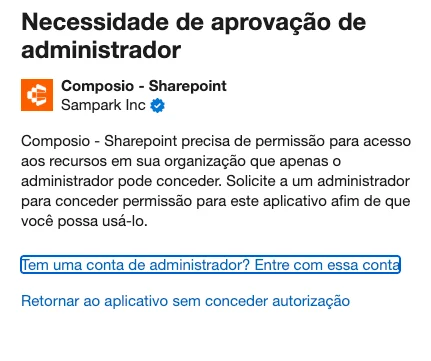
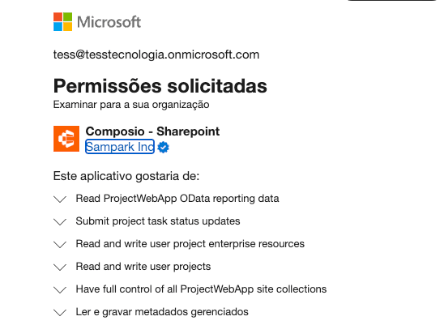
The permissions shown on this screen are defined by your organization’s SharePoint configuration — Composio acts as a bridge and simply reflects the permissions already set in your tenant. You are not granting new permissions; you are authorizing Composio to use the ones already defined.The access scope can also be limited by the Site access settings within SharePoint. If certain users or groups have restricted access to a site, that restriction is respected by the connector — Composio cannot access content beyond what SharePoint allows for that account.To review or adjust site access permissions, open SharePoint, go to Site settings → Site permissions, and check the configured groups and permission levels.
4
Connection confirmation
After authorizing, the Tess callback window shows the Connected successfully! message and closes automatically after a few seconds.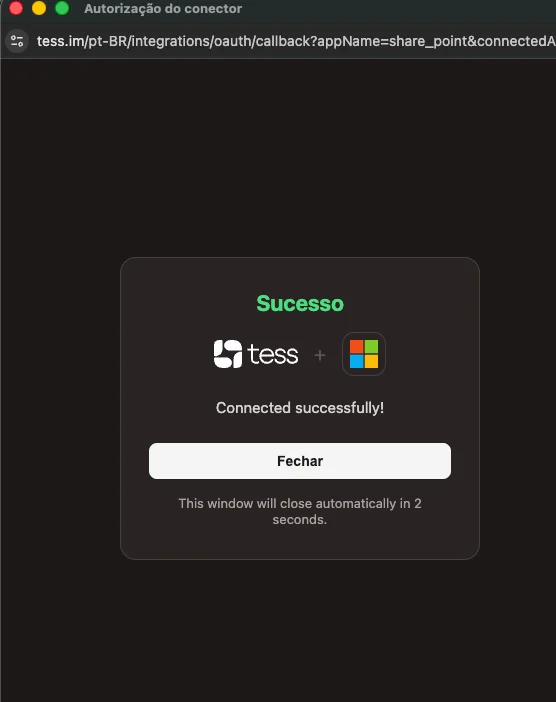
5
Confirm SharePoint is active
Back in the Connectors panel, SharePoint appears under the Connected section, with a green check mark indicating it is active and ready to use in chats and agents.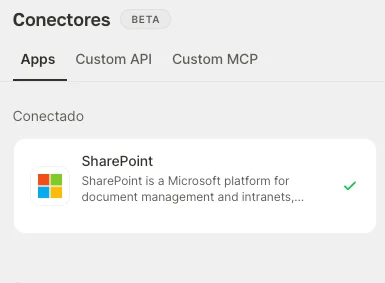
Troubleshooting
The connection keeps loading and ends in a timeout
The connection keeps loading and ends in a timeout
Check that Tenant Name was filled in with only the tenant name (for example,
your-company) and not the full URL (your-company.sharepoint.com). An incorrect value can cause Microsoft to return an invalid resource error during OAuth.The admin approval required screen appears
The admin approval required screen appears
The application needs permissions that only an administrator can grant. Ask the SharePoint administrator to sign in first through the connector and grant authorization; after that, other users can connect.
Environment with federated SSO, IP allowlist, or client certificate
Environment with federated SSO, IP allowlist, or client certificate
In organizations with an additional federated domain after SSO (with IP blocks or a client certificate requirement on the device), the connection may fail due to corporate environment restrictions. In these cases, a technical alignment with the infrastructure team is required to validate the IdP, federated domains, IP allowlist, and certificates.
Connectors involve access to external systems. Only connect accounts and apps that are appropriate to the usage context, and review permissions carefully.