

GPT Image 2.5 is available in Chat through the Images tool, in Agent Studio for new agents, and in the Image Generator. Flare and Sunburst are image models, not conversational LLMs.
What powers the tool
The experience in Tess is unified, but the implementation brings together two model variants. Both generate images from text and edit existing images; the technical difference is the balance between speed and refinement.In Tess, GPT Image 2.5 appears as a single tool, without a visual selector for Flare or Sunburst. To use a specific variant, simply ask for Flare or Sunburst directly in Chat; the tool will run the requested option.
What improves in the 2.5 family
Compared with the previous generation, the GPT Image 2.5 family was designed to deliver:- faster image generation;
- greater fidelity for people, objects, and references;
- more consistent details across multiple edits;
- more precise changes while preserving what was not requested;
- better performance in compositions, layouts, and text inside images.
Formats and aspect ratios
In the provider implementation, GPT Image 2.5 offers automatic or custom dimensions and supports configuring format, aspect ratio, quality, and background.
For transparent-background images, use PNG or WebP.
How to use it in Tess Chat
1
Enable GPT Image 2.5
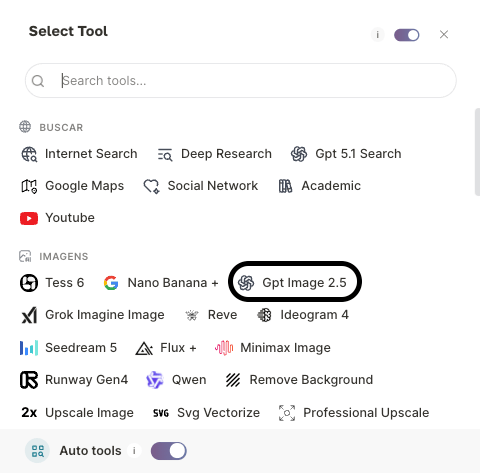
In Chat, open the Tools menu, find the Images category, and select GPT Image 2.5. It appears as a single option in the interface.
2
Define the goal
Explain whether you want to create an image from scratch, generate variations, or edit an existing reference. Generation happens inside the conversation and uses the context you have already shared.
3
Describe the result
Provide the objective, format, composition, style, lighting, colors, visible text, and anything that should not appear. If you have a reference, attach the image in Chat.
4
Refine it in the same conversation
Request focused changes, such as replacing only the background, adjusting a product’s position, or correcting text. The thread context helps preserve the visual direction.
How to use it in Agent Studio
In Agent Studio, select GPT Image 2.5 when creating a new agent. The model follows the style, format, and rules you defined on the agent.How to use it in the Image Generator
In the left side menu, open Agent Studio and select Image Generator. In the model list, choose GPT Image 2.5, describe the image in the prompt, and set the format, aspect ratio, and quality before you generate. Billing on this path is the same as in Chat and for new agents. See Image Generator.Cost
Billing uses generation tokens, not the classic LLM input/output token table. The lowest possible cost is 4 credits (Low quality, 1024 × 1024). Medium, the commercial default, costs 30 credits; High costs 119 credits.Where GPT Image 2.5 creates the most value
Use the tool for work such as:- social media and ad variations;
- visual concepts, moodboards, and thumbnails;
- hero images for campaigns;
- product photography based on references;
- localized editing while preserving the composition;
- pieces with demanding text, materials, or lighting.
Campaign exploration
Precise product editing
An efficient visual production workflow
- Explore directions: request alternatives and compare composition, palette, and framing.
- Choose a version: approve the visual direction before requesting final polish.
- Refine in stages: make focused requests and explicitly state what must remain unchanged.
- Validate the result: check text, anatomy, brand, product, and elements that should not have changed.
AI-generated images may still contain errors in text, hands, objects, brands, or factual details. Review every asset before publishing, especially commercial materials and product representations.
Best practices
- Explicitly state what should change and what must remain unchanged.
- Use high-resolution reference images with useful framing.
- Separate creative exploration from final polishing.
- Avoid requesting too many conflicting changes in a single edit.
- For branded assets, validate colors, typography, logo, and product before approval.