
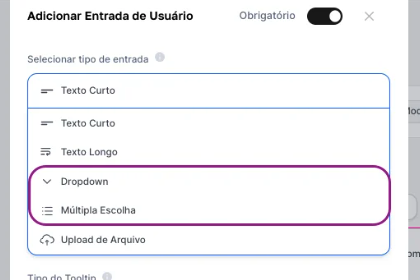
Understanding Selection Input Types
Single Selection Box (Dropdown)
Ideal for when you need the user to choose only one option from a fixed list. This ensures the response is singular and decisive (e.g., “What’s your budget? High, Medium, or Low”).
Multiple Option Box (Checkboxes)
Perfect for allowing the user to select multiple options from a list. It offers more flexibility, multiple preferences (e.g., “What are your interests? Food, Culture, Sports”).
Our Example Project: The Travel Planner Agent
Let’s build an agent that works like a tour guide, creating a travel itinerary based on the user’s preferences.Initial Agent Setup
In AI Studio, start creating a new agent. Since our agent will generate a text itinerary, a Chat or Text Agent is ideal. Keep the default “All LLM” selection or choose a specific model you prefer.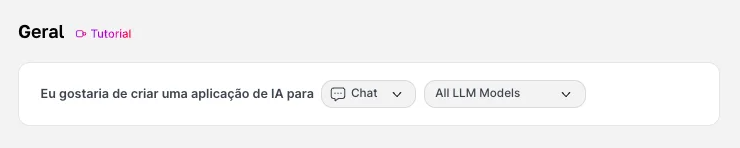
Initial Agent Setup
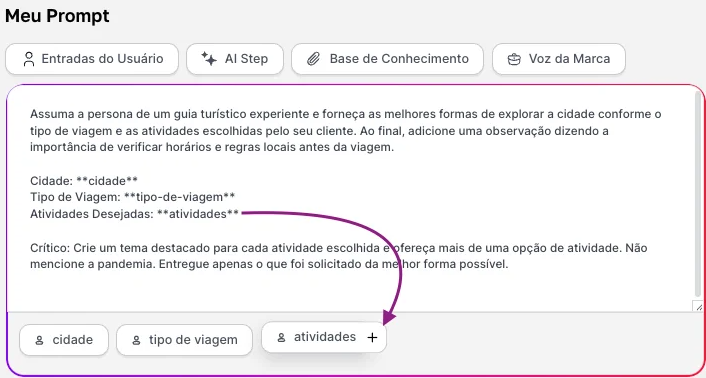
In the prompt field, we’ll insert the logic for our tour guide, the context, and the baseline guidelines that will guide it: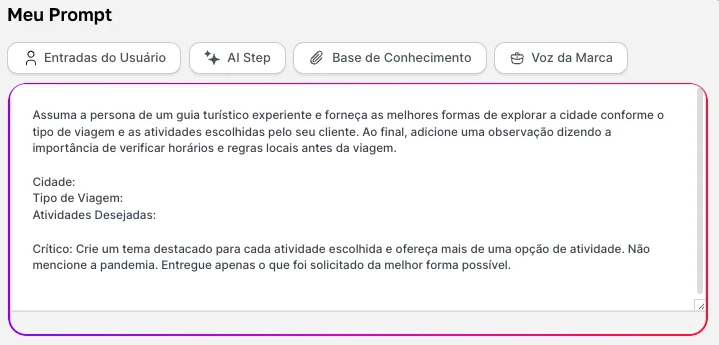
Assume the persona of an experienced tour guide and provide the best ways to explore the city according to the type of trip and the activities chosen by your client. At the end, add a note saying how important it is to check local hours and rules before the trip. _City:
Trip Type:
Desired Activities: _ Critical: Create a highlighted theme for each chosen activity and offer more than one activity option. Do not mention the pandemic. Deliver only what was requested in the best way possible.
Configuring User Inputs
Now, let’s create the interface our end user will fill out.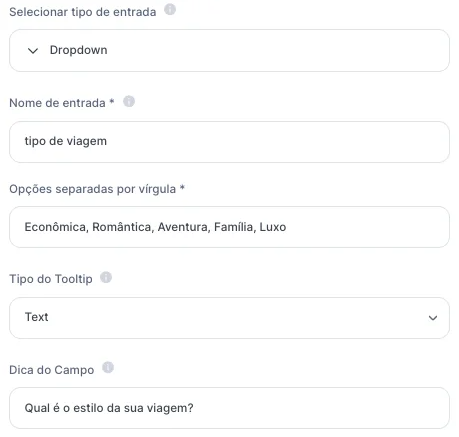
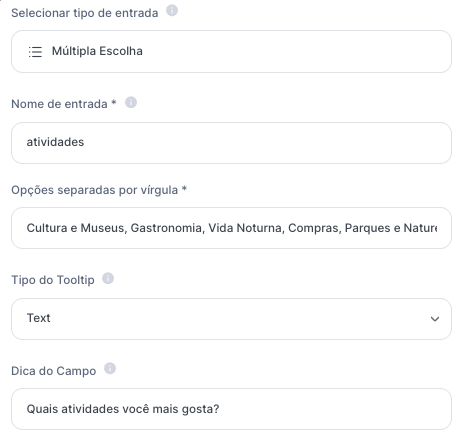
- Input for City: “Short Text”, with the name city and the label “Which City and State do you want to visit?”
- Input for Trip Type (Single Selection): “Single Selection” with the name trip type and the label “What is your trip style?”. For the options, enter the list of choices separated by commas. E.g.: Budget, Romantic, Adventure, Family, Luxury
- Input for Activities (Multiple Selection): “Multiple Selection” with the name activities and the label: “Which activities do you like the most?”. For the options, enter the list of interests separated by commas. E.g.: Culture and Museums, Food, Nightlife, Shopping, Parks and Nature
Saving and Testing
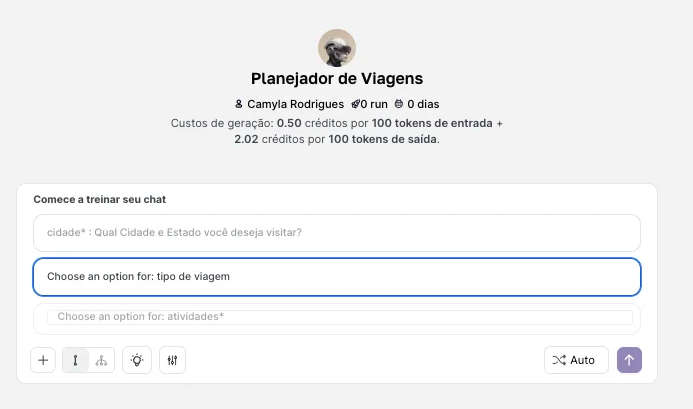
With everything configured, name your agent and click “Save” and then “Preview” to test it. You’ll see a friendly interface with a text field, a dropdown menu, and checkboxes, ready to be filled out.