

How to Transcribe with the Generator?
The process to transcribe an audio or video file in Tess AI is simple and intuitive. Transcription can be done in two ways: using the specialized agent (Transcription Generator) or directly in the chat, with control over language and AI model. To use the Transcription Generator, follow the steps below:Access the generator
Access Agent Studio: In the platform’s left side menu, find and click “Agent Studio”. Click Transcription Generator;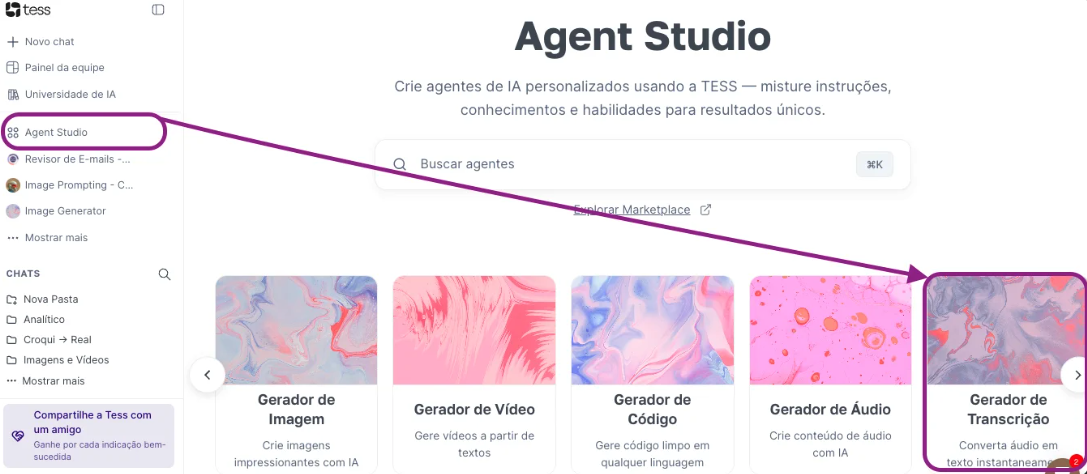
Upload the File
You will find a “choose file” icon. Click it to select the audio or video file you want to transcribe from your computer.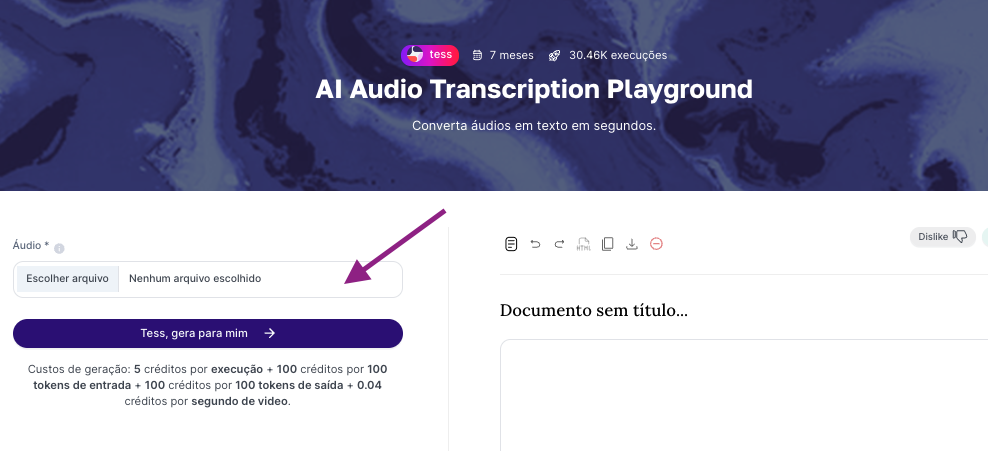
Tips for a high-quality transcription
To ensure the transcription is as faithful as possible to the original audio, consider the following best practices:Audio quality
Prefer audio with clear sound, no background noise, and with speakers talking slowly and clearly.
File formats
The platform is compatible with the most common audio and video formats, such as MP3, MP4, WAV, and M4A.
Languages
Our agents are able to transcribe audio in multiple languages. For best results, make sure the audio’s language is spoken clearly.
Everyday use examples
The transcription feature can be a great ally in many situations. See some examples:- Meetings and interviews: Turn long meeting recordings into minutes or text documents for quick reference.
- Classes and lectures: Transcribe classes and lectures to make studying and reviewing content easier.
- Content creation: Use video transcriptions as a base for captions, blog articles, and other materials.