

Log in to your Tess AI account and then click on your profile icon, located in the lower left corner of the screen. In the menu that opens, select the "Settings" option.
Log in to your Tess AI account and then click on your profile icon, located in the lower left corner of the screen. In the menu that opens, select the “Settings” option.
In the "Workspace" section, click on Knowledge Base. You will be redirected to the Knowledge Base page, with the complete list of files.
In the “Workspace” section, click on Knowledge Base. You will be redirected to the Knowledge Base page, with the complete list of files.
What is this Knowledge Base about?
It’s the global file repository of the workspace (images, PDFs, docs, etc.) sent to Tess. It’s not the same as the Knowledge Base in Agent Studio (which is the content base linked to a specific agent) or in Chat (linked to that context window). Here you can see all uploads, regardless of which agent or chat used the file.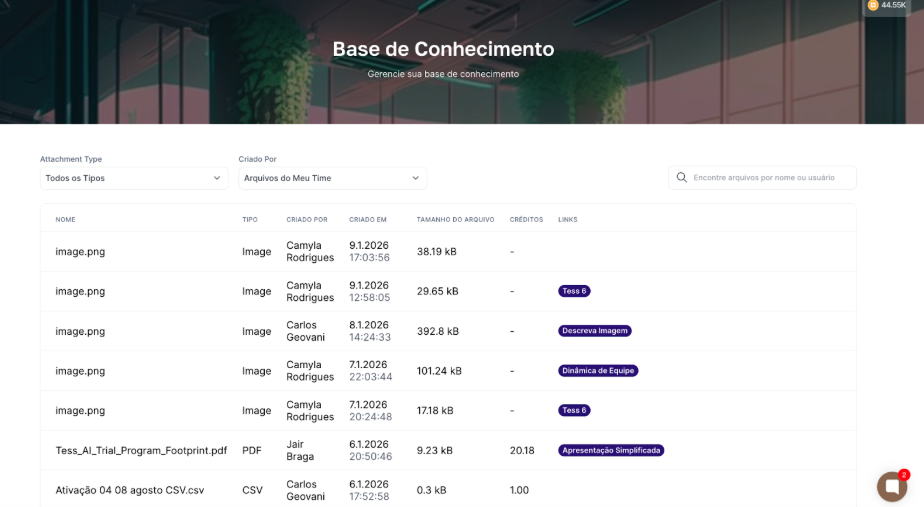
- File name
- Type (e.g., Image, PDF, Document)
- Created by (who uploaded it)
- Created at (date and time)
- File size
- Credits (when there is associated consumption)
- Links (where the file was included – for example: “Tess 6”, agent name, or chat name)
- Filters and search
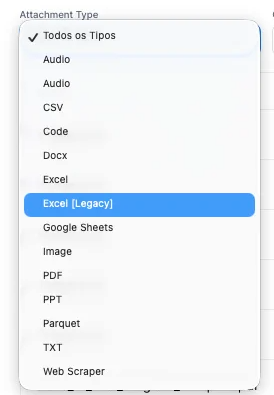
- Filter by attachment type (Attachment Type):
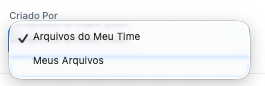
- Filter by creator (Created By):
- Search by file name or user, ideal for quickly locating specific files.

Permissions (who sees what)
Managers and Owners
They can see all team files in the workspace. They can view associated credits and which chats/agents the files were used in. Ideal for governance, cost management, and information security.
Other users:
In the individual user view, it’s only possible to see their own files that were used in their conversations, the credits consumed in each upload and processing, and the associated chats.
What it’s for in practice
Data governance
Data governance
Know which files are circulating in Tess, who uploaded them, and where they are being used.
Cost management
Cost management
Understand which types of files and flows consume the most credits.
Security and compliance
Security and compliance
Allows you to review whether there are any improper sensitive documents being used in agents or chats.
Organization
Organization
Makes it easier to find and reuse materials already sent (manuals, presentations, images, etc.).