

User Types and Permission Levels
In Tess AI, there are different roles that you can assign to members, each with a specific set of permissions. Understanding these roles is essential for effective and secure management.| User Type | Access and Permissions | Notes |
|---|---|---|
| Owner | Absolute access to all features: member management, usage history, data, and full control over the subscription and billing. | Generally the workspace creator. Has the highest level of responsibility and control. |
| Manager | Can invite/manage members and access the execution history and credit consumption of all members. Cannot change or view subscription/billing information. | Ideal for team leaders who need to manage the team and usage, but not the financial aspects. (Legacy Business Plan) |
| Guest | Free access to use all AI models, access all areas of the platform, create agents, and access agents already created in the workspace. Does not have management permissions. | For scaling AI use in the company without a license (seat) cost. (New Plans: Basic, PRO, Team, and Enterprise) |
| User Type | Access and Permissions | Notes |
|---|---|---|
| Owner | Absolute access to all features: member management, usage history, data, and full control over the subscription and billing. | Generally the workspace creator. Has the highest level of responsibility and control. |
| Manager (Full or Lite) | Can invite/manage members and access the execution history and credit consumption of all members. Cannot change or view subscription/billing information. | Ideal for team leaders who need to manage the team and usage, but not the financial aspects. (Legacy Business Plan) |
| User (Full) | Standard access to use the platform and create agents. Does not have permissions to monitor histories, manage other members, or view team usage data. | Intended for collaborators who will use Tess AI to create and execute daily tasks. (Legacy Business Plan) |
| User Lite | Free access to use all AI models, access the Chat, and use agents already created in the workspace. Cannot create their own agents and does not have management permissions. | Equivalent role to “Guest” for legacy plans. (Legacy Plans, e.g.: Business) |
| User Lite (Text Only) | A sub-category of User Lite. In this case, users have access only to text AIs (but not images, videos, etc.). | Equivalent role to “Guest” for legacy plans. (Legacy Plans, e.g.: Business) |
| User Lite (Team Agents Only) | Another sub-category of User Lite. This role allows companies with agents in the workspace to offer controlled access to specific third-party users. This user will have access exclusively to the workspace’s team board with agents that have public or workspace visibility. | Equivalent role to “Guest” for legacy plans. (Legacy Plans, e.g.: Business) |
How to Invite New Members
Access the account settings
Log in to your Tess AI account and then click on your profile icon, located in the lower left corner of the screen. In the menu that opens, select the “Settings” option.
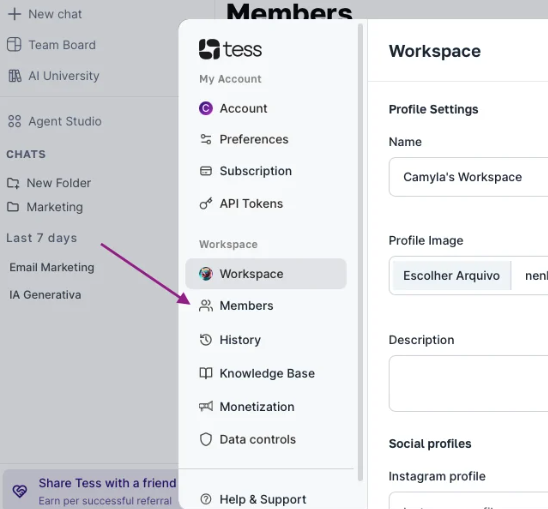
Invite via Secret Link
This is the simplest and fastest way to invite multiple people at once, especially for the Guest role.
- On the Members screen, click the icon to generate a Secret Link.
- Choose the access level that users invited through this link will have. The options for Guests are:
- Guest: Access to use all agents and copilots in the workspace.
- Activate and copy the generated link to share with your team.
Invite via Email
Ideal for inviting specific people, especially for higher-permission roles such as Manager or User.
- Click on “Add new member”.
- Enter the person’s email (or a list of emails separated by commas).
- Set the member’s role.
- Send the invitation.
Managing Members on a Daily Basis
The “Members” screen is your hub for ongoing team management:Member Removal
Member Removal
If a team member leaves, you can immediately revoke their access by clicking the “X” icon next to their name.
Consumption Monitoring
Consumption Monitoring
Track the credit consumption of each member to understand how resources are being used. To do this, access the “Usage” tab in your workspace settings menu, where you can filter executions by user and get a detailed view of consumption.
Seat Management
Seat Management
Maintain clear control over paid seats (User) and free seats (Guest / User Lite) to ensure your team is sized in a smart and cost-effective way.