

The “Usage” screen was created for exactly these situations, offering a detailed history of AI interactions in your workspace.
How to access the Usage screen
Log in to your Tess AI account and then click your profile icon, located in the bottom-left corner of the screen. In the menu that opens, select the "Settings" option.
Log in to your Tess AI account and then click your profile icon, located in the bottom-left corner of the screen. In the menu that opens, select the “Settings” option.
The screen shows a complete record of every time an AI model was triggered. You can filter and analyze this information to get valuable insights.
Using the Filters
At the top of the screen, you’ll find filters to refine your search:-
Type: Lets you filter by interaction type, such as chat, Images, Code, among others.
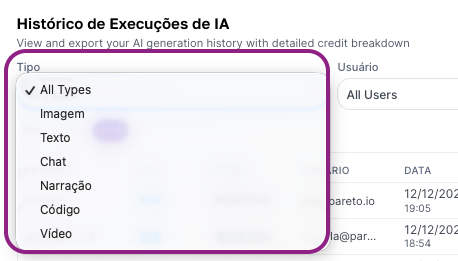
- User: Select a specific Workspace member to view only their activities.
- Period: Choose a time range for the analysis, with quick options for the last 1, 7, or 30 days.
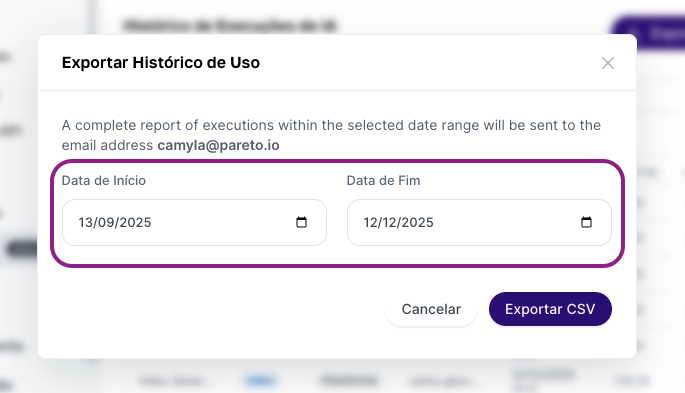
NoteWhen exporting CSV, it’s possible to customize the analysis period, expanding or specifying ranges different from the options above.
Understanding the table data
Each row in the table represents a single AI execution and is detailed in the following columns:Agent
Agent
The name of the AI Agent that was used in the interaction or Tess’s Default Chat (identified as Tess 6).
Type
Type
The execution type (e.g., Chat, Video, Image, etc.).
Origin
Origin
Where the call was made from. It will generally be “Platform” (indicating direct use within Tess AI) or “API” (if the call came from an external system).
User
User
The email of the team member who performed the action.
Date
Date
The exact day and time when the interaction occurred.
Credits
Credits
The number of credits consumed by that specific interaction. This column is essential for cost tracking.
Link
Link
A shortcut that takes you directly to the conversation or the record of that specific interaction, allowing quick and contextual auditing. Here, Owners and Managers will be able to access conversation and execution records.
Exporting the Data for Analysis
For deeper analyses, creating custom reports, or long-term storage, you can export the data. Click the “Export CSV” button in the top-right corner. This will download a CSV file (compatible with Excel, Google Sheets, and other spreadsheet tools) containing all the data that matches the filters selected at the time of export.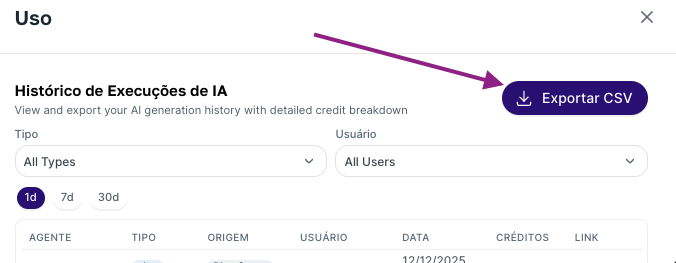
Why is this screen important?
Security and Governance
Monitor your children’s or your team’s usage in order to prevent incompatible or dangerous use.
Cost Control
Monitor exactly which interactions and users are consuming the most credits.
Usage Auditing
Keep a clear record of all activities performed, ensuring security and compliance.
Adoption Analysis
Identify which agents are most popular and which team members are using the platform the most.