

How to access the Preferences settings
Go to account settings
Log in to your Tess AI account and then click your profile icon, located in the bottom-left corner of the screen. In the menu that opens, select the “Settings” option.
Configure the settings
About the available settings: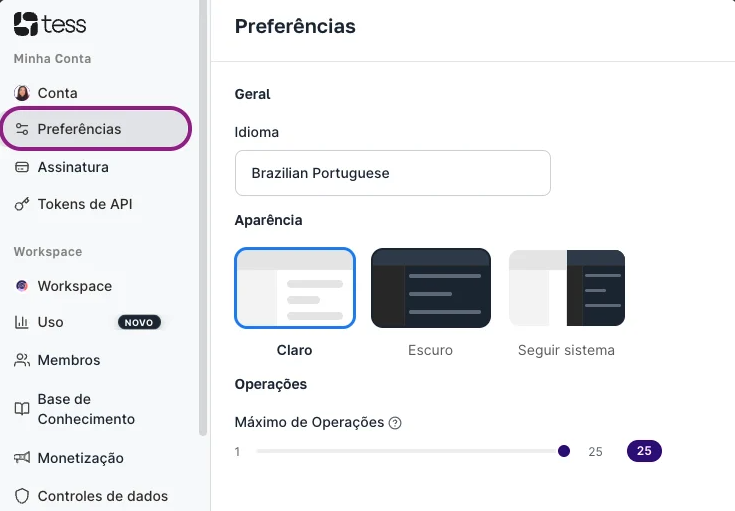
- Language: Currently, the Tess AI platform is available in Portuguese, English, and Spanish. Select the desired language so that all menus and interface texts are translated.
- Appearance: Choose the visual theme you like most for the platform interface:
- Light: The default theme, with a white background.
- Dark: A theme with a dark background, ideal for low-light environments and to reduce eye strain.
- System: The platform will automatically adopt the theme (light or dark) set in your operating system.
- Operations: This setting defines the maximum number of operations (requests) that Tools can execute to generate a single response during a conversation in Tess AI Chat. This is important, for example, for internet research, when you need to search different sources to complete a task.
Adjusting this value is useful for controlling the complexity and resource consumption of the tools. A higher number (up to 25) allows the AI to perform more elaborate, multi-step tasks to formulate an answer, while a lower number limits the scope of actions.
Important:Keep in mind that this limit applies to each individual AI response, not to the conversation as a whole.