

What is the Step?
This step acts as a universal document converter, translating different formats into structured text. In practice, it:- Reads files such as PDFs, Word documents, presentations, and images
- Interprets structure (headings, lists, tables, etc.)
- Converts everything into Markdown
- Delivers organized content ready for AI use
Unlike other steps:
- It does not generate only raw text
- It preserves the document’s logical structure
Where to find it
- Go to AI Studio
- Click on Add AI Step
- Select Document Processing
- Choose Marker Document Processing
How to use?
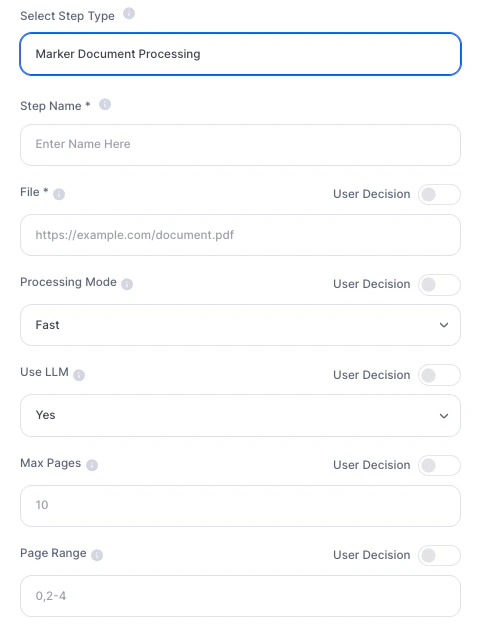
Configuration fields
Deeper explanation
This step works as a document translator into structured language (Markdown).Flow
Document (PDF, DOCX, image…) → Step interprets structure↓Converts to Markdown → Agent receives organized content
Markdown vs plain text
Practical comparison:- Extract Text (DOCX, TXT, etc.) → raw linear text
- Marker Document Processing → structured text (with hierarchy)
# Title
## Subtitle
- Item 1
- Item 2
| Column A | Column B |
|----------|----------|
Practical examples
Centralizing marketing materials
Centralizing marketing materials
- PDFs, presentations, and e-books
- Convert everything to Markdown
- Use as a base for content generation
Commercial proposal extraction
Commercial proposal extraction
- Process contracts or proposals
- Enable Use LLM for better table reading
- Extract:
- values
- deadlines
- clauses
Resume screening (multi-format)
Resume screening (multi-format)
- PDFs, images, DOCX
- Standardize everything into Markdown
- Agent compares with job requirements automatically
Knowledge base creation
Knowledge base creation
- Internal documents → Markdown
- Feed support or FAQ agents
Tabular data extraction
Tabular data extraction
Prompt:
“Extract all tables and organize the data into a structured format.”
“Extract all tables and organize the data into a structured format.”
Important notes
- Links requiring login or preview pages do not work
- Use LLM increases time and cost
- Large files impact performance
- Structure is preserved, but not perfect in all cases