

What is it
This step belongs to the Document Processing group — a category dedicated to transforming file formats into content usable by AI. In practice, Extract Text from DOCX:- Reads the internal structure of the .docx file
- Extracts text from paragraphs, tables, lists, headers, and footers
- Discards visual elements (images, charts, formatting)
- Delivers a block of plain text in the agent’s context
Where to find it
- Go to AI Studio
- Click on Add AI Step
- In Select Step Category, choose Document Processing
- Select Extract Text from DOCX
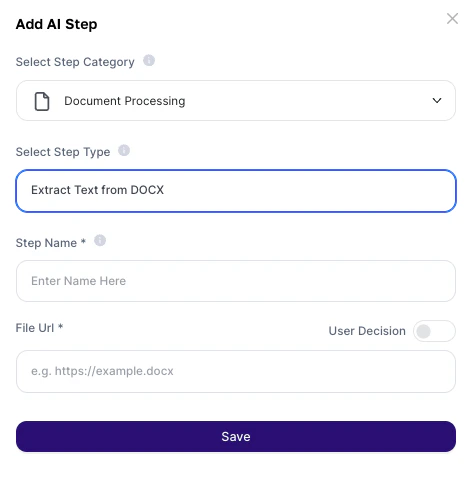
How to use?
Configuration fields:About the Output
The generated result is a continuous block of plain text containing all content extracted from the document.What is extracted:
- Paragraphs
- List items
- Table data (linearized)
- Headers and footers
What is NOT extracted:
- Images and photos
- Charts and elements
- Visual formatting (colors, bold, italics, fonts)
Deeper explanation
The step works as a document decoding layer.Flow
.docx file (URL or variable) → Step extracts plain text↓Content enters the context → Agent uses it to analyze, summarize, or extract data
- Organization of the original document
- Clarity of the prompt that uses the result
Practical examples
Analysis of contracts and commercial proposals
Analysis of contracts and commercial proposals
Prompt:
“Analyze the extracted contract. Identify risk clauses, summarize payment terms, and extract client data.”Usage:
“Analyze the extracted contract. Identify risk clauses, summarize payment terms, and extract client data.”Usage:
- Legal contracts or commercial proposals in .docx
- Agent identifies critical points without manual reading
Automated resume screening
Automated resume screening
Prompt:
“Extract the candidate’s skills, experience, and education. Compare with the job requirements below and evaluate the fit.”Usage:
“Extract the candidate’s skills, experience, and education. Compare with the job requirements below and evaluate the fit.”Usage:
- CVs submitted in .docx
- Agent classifies and summarizes profiles automatically
Internal report summarization
Internal report summarization
Prompt:
“Summarize the main points of this report in up to 5 executive bullet points.”Usage:
“Summarize the main points of this report in up to 5 executive bullet points.”Usage:
- Monthly reports, meeting notes, or management documents
Structured data extraction
Structured data extraction
Prompt:
“Extract from the document: company name, tax ID, total value, delivery deadline, and technical lead.”Usage:
“Extract from the document: company name, tax ID, total value, delivery deadline, and technical lead.”Usage:
- Standardized documents with fixed fields
- Feed CRM or spreadsheets automatically
Important notes
- The step runs before user interaction
- The file URL must be public and accessible
- Visual elements are completely ignored during extraction
- The output is raw text, without visual formatting