

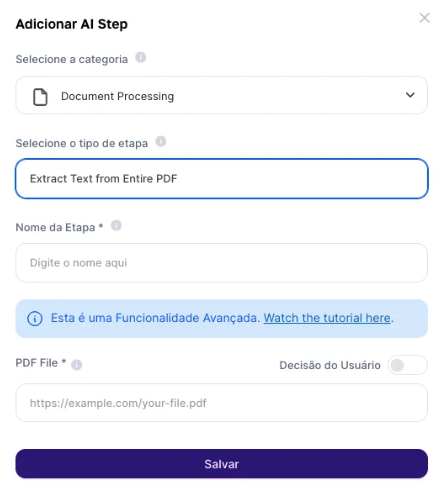
**Fields to Fill In: **Enter the PDF file or link - In this field, you need to provide the link to a PDF file published on the internet and with public access enabled. Alternatively, you can use the result of the “Upload File” user input to extract data from files stored on your computer. **Output Result: **The text from the entire PDF will be extracted.
Use Cases:
- Importing Contracts for Queries: Imagine that you have a library of contracts in PDF format. Using the “Extract Text from Entire PDF” Step, you can extract the text from all these contracts and create a search model that allows users to search for specific terms in the contracts. This is useful for locating important information quickly.
- Importing Knowledge Bases for Queries: If you have a knowledge base in PDF format, you can use this step to extract the content from all documents and make it available in a query system. Users can then search for and access relevant information effectively.
- Importing Documents for Training Across Different Industries: If you are training an AI model for a specific industry, such as the financial, legal, or medical sector, you can use the “Extract Text from Entire PDF” Step to collect data from relevant PDF documents. This data can be used to train the model and improve its understanding of the industry, allowing it to provide more accurate and contextual information.
Limitations:It is important to keep in mind that training your AI based on PDF documents extracted through Tess AI has a size limitation.The training cannot exceed 80,000 words. Therefore, make sure that the selected PDF is within this limit. If you have a PDF with more than 80,000 words, consider splitting it into smaller parts or selecting only the most relevant sections.Otherwise, it is better to use the GPTs mode in creation, adding the file as RAG.