

What is the Step?
This step belongs to the Document Processing group — a category dedicated to transforming file formats into content usable by AI. In practice, CSV to Text:- Reads CSV files hosted online or uploaded by the user
- Automatically detects delimiters (comma, semicolon, etc.)
- Converts tabular content into plain, continuous text
- Injects this text into the agent’s context before the conversation starts
Where to find it
- Go to AI Studio
- Click on Add AI Step
- In Select Step Category, choose Document Processing
- Select CSV to Text
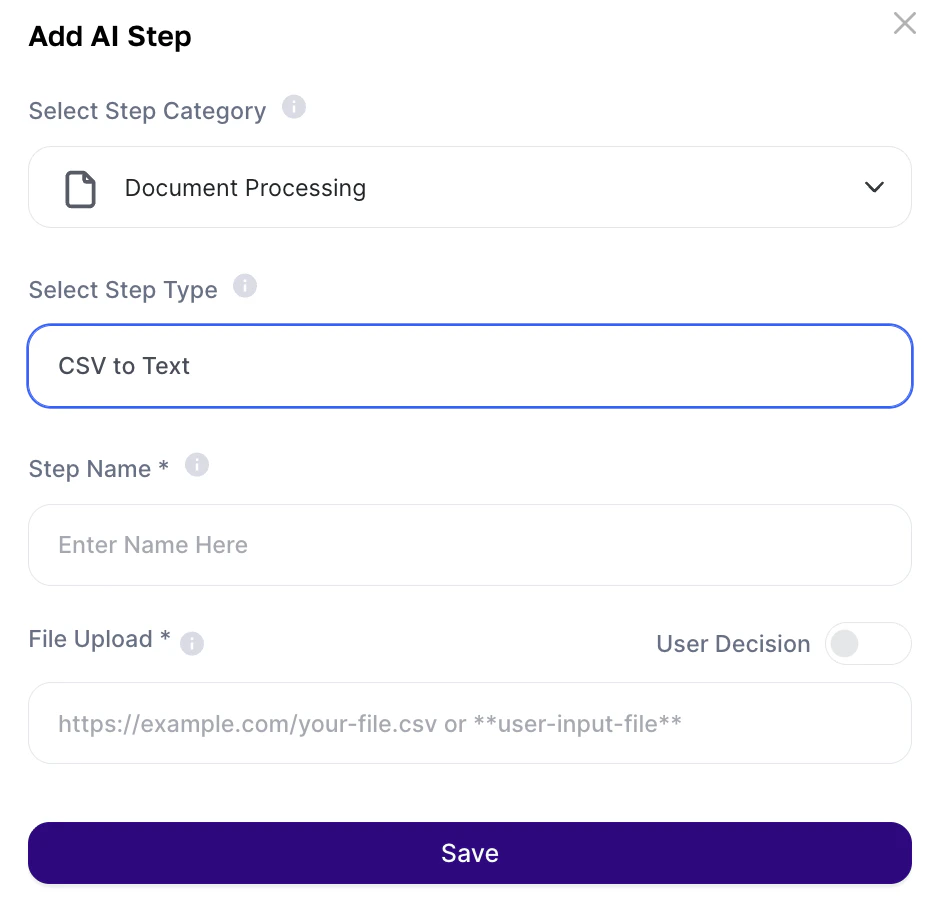
How to use (Quickstart)
Configuration fields:
The step acts as a bridge between tabular data and natural language.
Flow
CSV (URL or upload) → Step processes and converts↓Plain text enters the context → Agent uses the data to respond
- The content is presented linearly — without visual table formatting
- The row and column structure is converted into a textual sequence
- It should be treated as raw data injected into the prompt
Practical examples
1. Campaign and lead analysis Prompt:“Analyze the lead spreadsheet data. Identify conversion patterns, compare performance by channel, and generate a weekly performance report with budget optimization suggestions.” Usage:
- Export CSV from CRM or traffic platform
- Host it online or use as User Input
- Step converts and agent analyzes automatically
“Evaluate the candidates listed in the file. Cross-reference skills and years of experience with the job requirements below and generate a ranking of the top 5 most suitable profiles with individual summaries.” Usage:
- CSV exported from a recruitment platform
- Agent processes and ranks without human intervention
“Analyze customer satisfaction and usage data. Categorize main complaints, identify customers at high risk of churn, and suggest preventive actions for each profile.” Usage:
- CSV exported from CRM or survey tools
- Agent generates actionable insights for the retention team
“Read the spreadsheet data and create an executive summary with the main KPIs, deviations, and operational alerts for the period.” Usage:
- Operational reports in CSV format
- Ideal for Text Agents triggered automatically
Important notes
- The step runs before user interaction
- The file URL must be public and accessible
- The result is raw text, not a formatted table
- Analysis quality depends on the organization of the original file