

What is the Step?
This integration allows the agent to access files hosted in the Microsoft ecosystem and bring that data into the context. Available actions:- Download OneDrive File → files via
1drv.mslink - Download SharePoint File → files via
sharepoint.comlink
How to use (Quickstart)
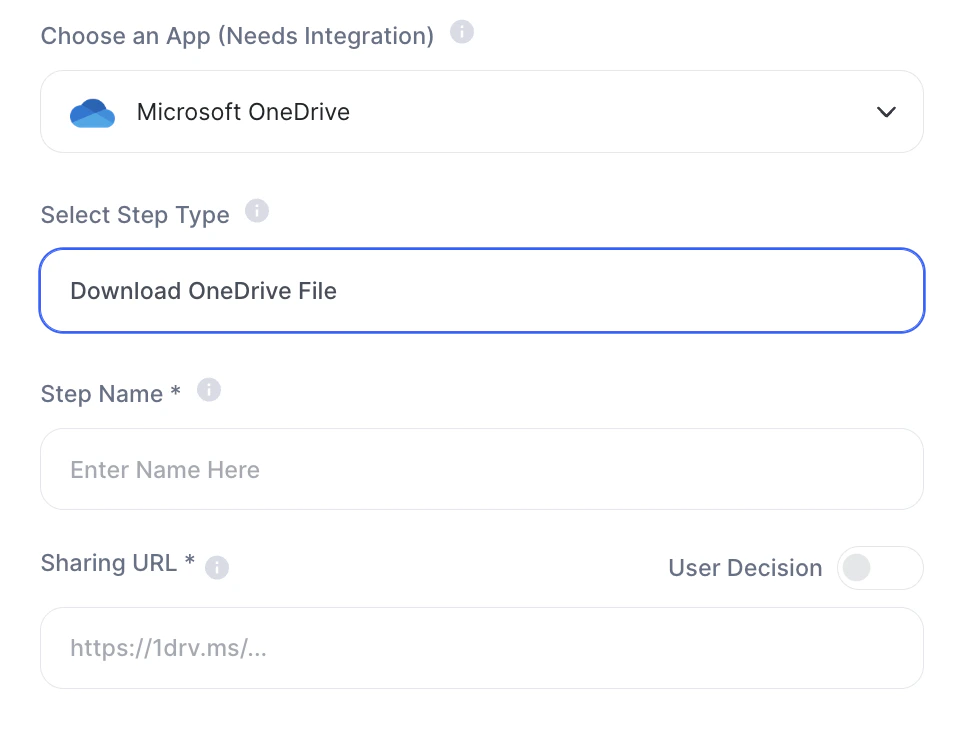
Download OneDrive File
Fields:- Step Name
- Sharing URL *
Ex:https://1drv.ms/...
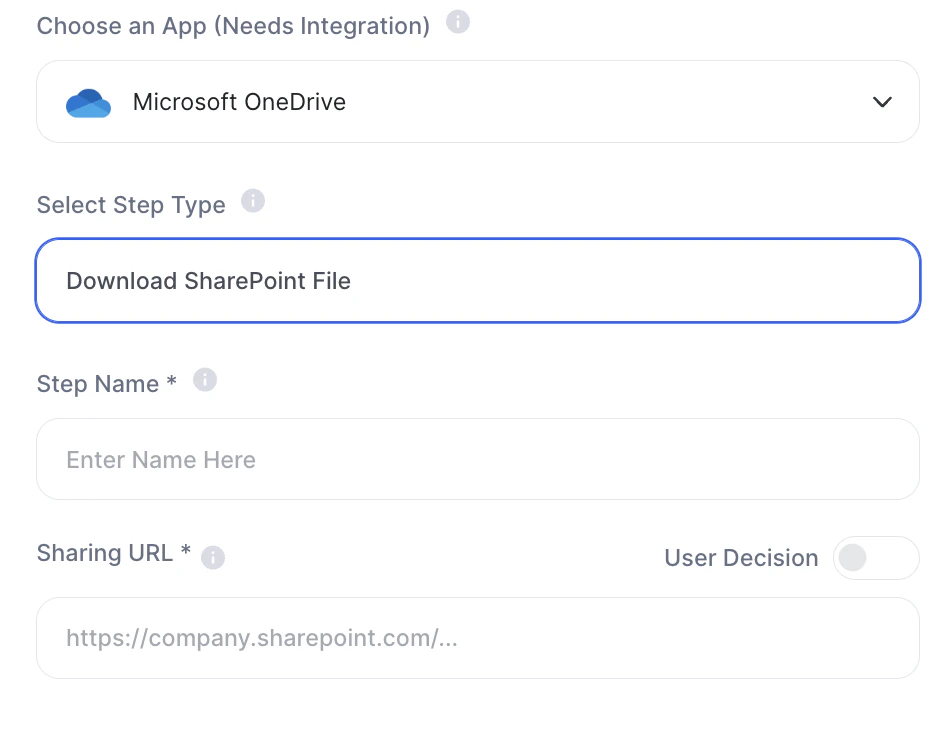
Download SharePoint File
Fields:- Step Name
- Sharing URL
Ex:https://company.sharepoint.com/...
How to configure the URL
You can use:- Fixed URL - pre-configured in the step
- User Input (text field)
- User Decision (collected before execution)
Flow
URL provided → File is downloaded↓Content enters the context → Agent uses it to respond or process
Practical examples
1. Corporate document analysis (SharePoint)- contract, proposal, internal policy
- agent extracts risks, clauses, or a summary
- customer shares a OneDrive link
- agent processes it automatically
- use SharePoint files as an up-to-date source
- avoid manual RAG maintenance
- proposals, briefings, presentations
- transform into insights or structured data
Important notes
- Microsoft integration is required
- SharePoint requires appropriate organization-level permissions
- The step only reads files (does not edit)