

What is the Step?
This step connects Tess to Box to download files from a shared URL. In practice, it downloads the file from Box and injects the content into the agent’s context, also allowing the file to be used in:- Other steps
- Agent responses
- Processing (summary, analysis, extraction, etc.)
Where to find it
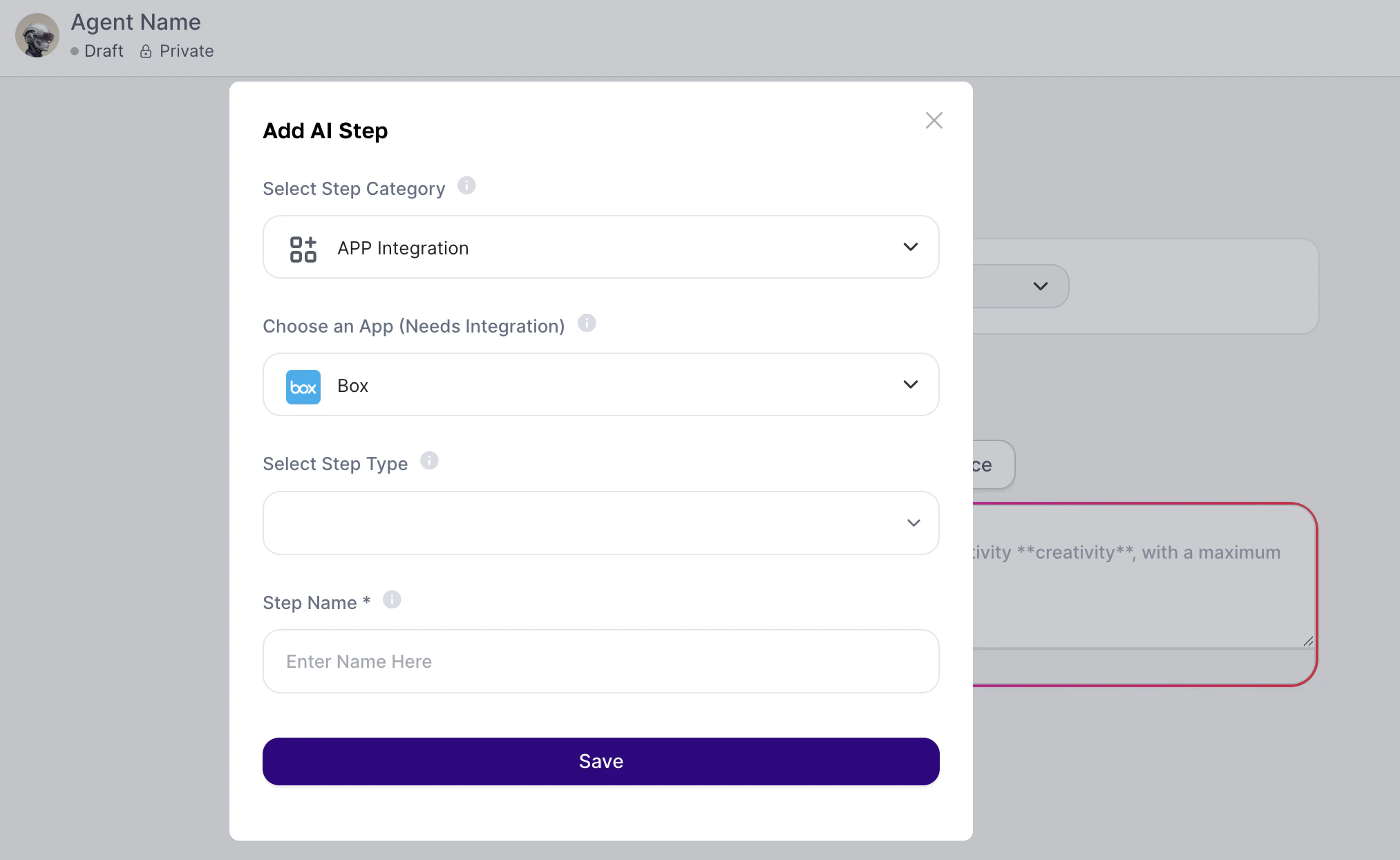
- Go to AI Studio
- Click Add AI Step
- In Select Step Category, choose App Integration
- In Choose an App, select Box
- In Select Step Type, choose Download File
How to use (Quickstart)
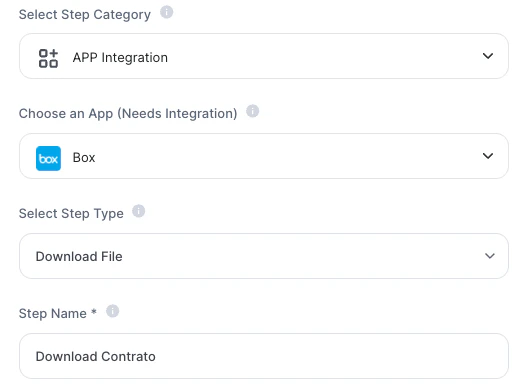
- Add the step
Choose App Integration → Box → Download File and define a name for the step.
Ex: Download contract, Download briefing, etc.
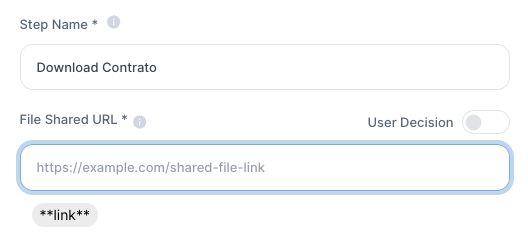
- Configure the file URL
Here you have 3 options:
2.1 Fixed URL (pre-configured): Paste the shared Box link directly. Ideal for standard files
2.2 Via user input: Create an input field (short text) for the user to enter the URL and reference this variable in the URL field
2.3 User Decision enabled: The agent will request the URL during execution. It works similarly to input, but is already enabled in the step as a required field.
- Save the step
Practical Examples:
- Automatic contract analysis
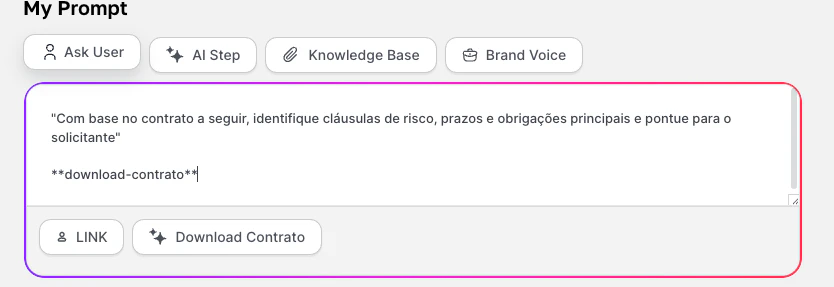
- Client briefing summary
- Fixed URL or provided by the user
- Ideal for marketing teams
- Structured data extraction
Important!
- Box must be integrated with your Tess account
- The step consumes credits (download + subsequent processing)
- The file enters the agent’s context window
- The step does not edit or send files, it only downloads