

The Google Ads step allows your agents to manage campaigns directly from Tess. This includes everything from budget and status adjustments to full performance reports. With it, AI can act as an autonomous paid media manager, executing actions and generating insights without manual intervention.

What is the Step?

This integration connects Tess to Google Ads and provides six actions divided into two categories: Actions (execute changes in campaigns)
  • Change Campaign Budget → changes the budget of a specific campaign
  • Change Campaign Status → enables or pauses a campaign
  • Budget Shift Campaigns → redistributes budget across campaigns based on performance
Reports (collect and analyze data)
  • Keyword Performance Report → analyzes keywords
  • Metrics Trend Report → analyzes metric trends over time
  • Search Term Performance Report → analyzes search terms that triggered campaigns

Where to find it

  1. AI Studio
  2. Add AI Step
  3. App Integration
  4. Google Ads
  5. Choose the desired action

How to use (Quickstart by action)

1. Change Campaign Budget

Changes the budget of a specific campaign with control over the change method.
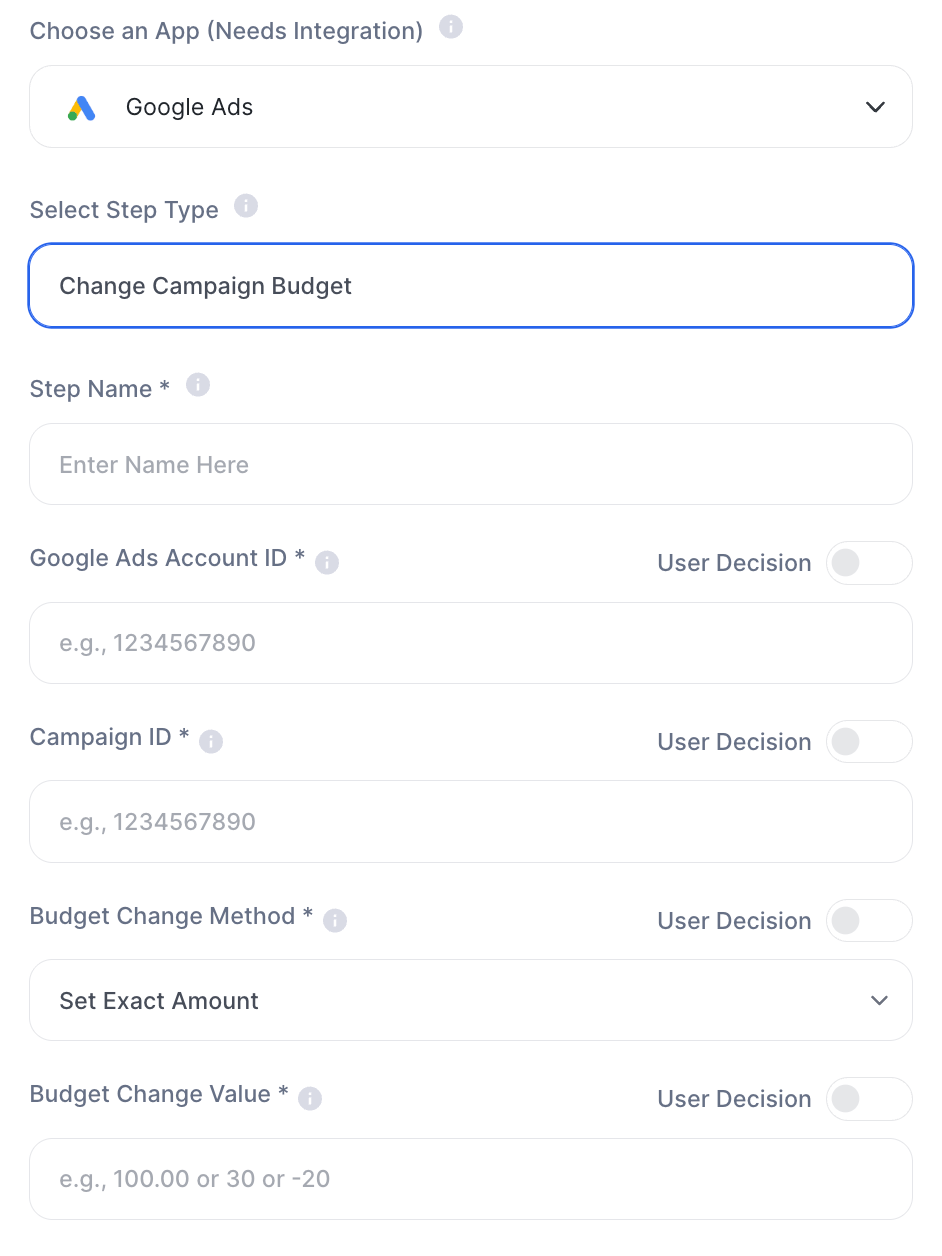
FieldDescription
Step NameInternal step name
Google Ads Account ID *Ads account ID. Ex: 1234567890
Campaign ID *Campaign ID to be changed. Ex: 1234567890
Budget Change Method *Change method. Option: Set Exact Amount
Budget Change Value *Value to apply. Ex: 100.00 (fixed), 30 (percentage) or -20 (decrease)
Image
This step allows you to either define an exact value or apply a relative adjustment, depending on the Budget Change Method logic.

2. Change Campaign Status

Enables or pauses a campaign directly via the agent.
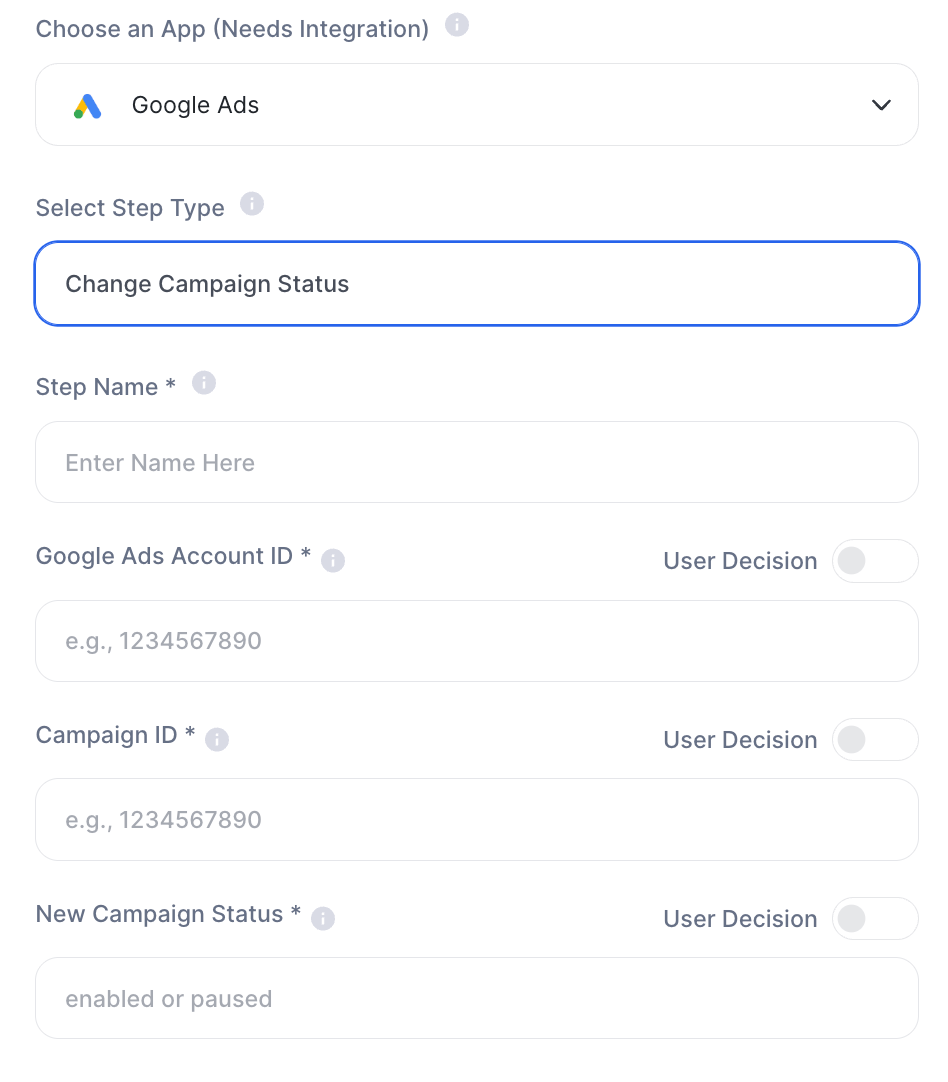
FieldDescription
Step NameInternal step name
Google Ads Account ID *Ads account ID
Campaign ID *Campaign ID
New Campaign Status *enabled to activate or paused to pause
Image
Attention: this action impacts real and active campaigns. Make sure the IDs are correct before saving.

3. Budget Shift Campaigns

Redistributes budget across campaigns based on performance analysis.
FieldDescription
Step NameInternal step name
Google Ads MCC ID *Manager account ID
Google Ads Account ID *Ads account ID
Analysis Period (Days) *Analysis period. Ex: 30
Has New Budget Allocation *Yes or No
New BudgetNew budget value. Ex: 2500.00
Percent AdjustPercentage adjustment. Ex: 20 or 20%
Excluded Campaigns IDCampaign IDs to ignore in redistribution. Ex: 123, 456

4. Keyword Performance Report

Analyzes keyword performance over a period.
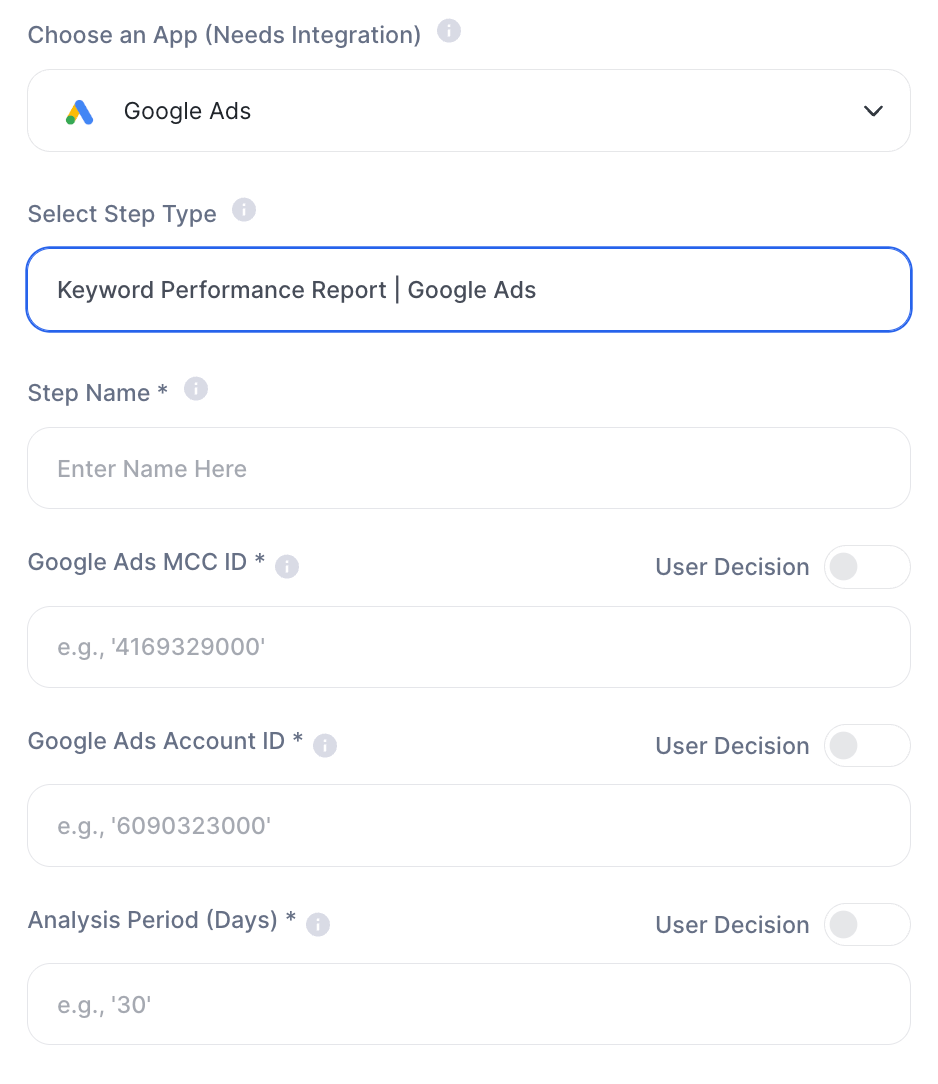
FieldDescription
Step NameInternal step name
Google Ads MCC ID *Manager account ID
Google Ads Account ID *Ads account ID
Analysis Period (Days) *Period analyzed. Ex: 30
Image

5. Metrics Trend Report

Analyzes the trend of a metric over time by segment.
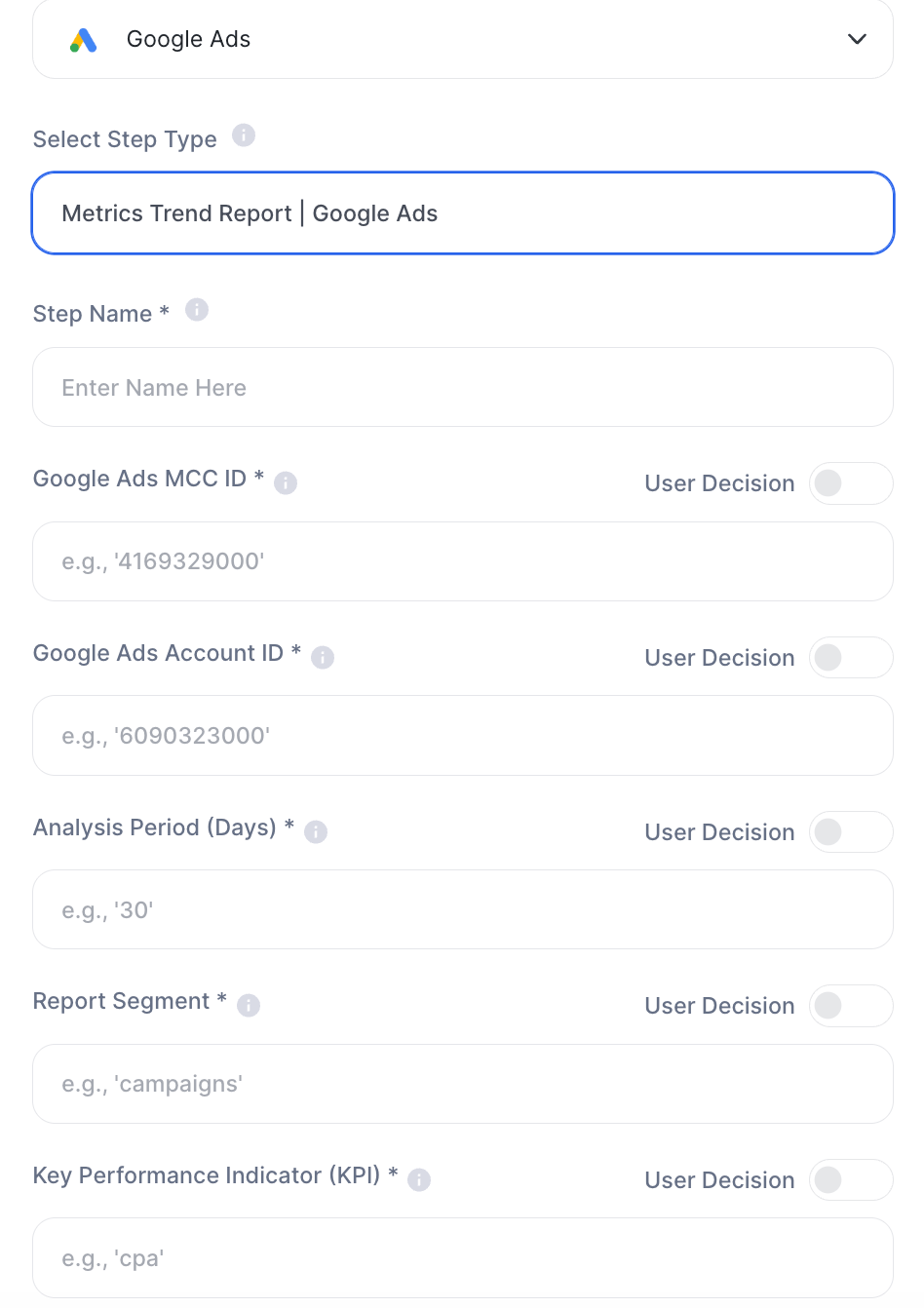
FieldDescription
Step NameInternal step name
Google Ads MCC ID *Manager account ID
Google Ads Account ID *Ads account ID
Analysis Period (Days) *Period analyzed. Ex: 30
Report Segment *Report segment. Ex: campaigns
Key Performance Indicator (KPI) *Main metric. Ex: cpa, roas
Image

6. Search Term Performance Report

Analyzes the search terms that triggered campaigns and evaluates their performance.
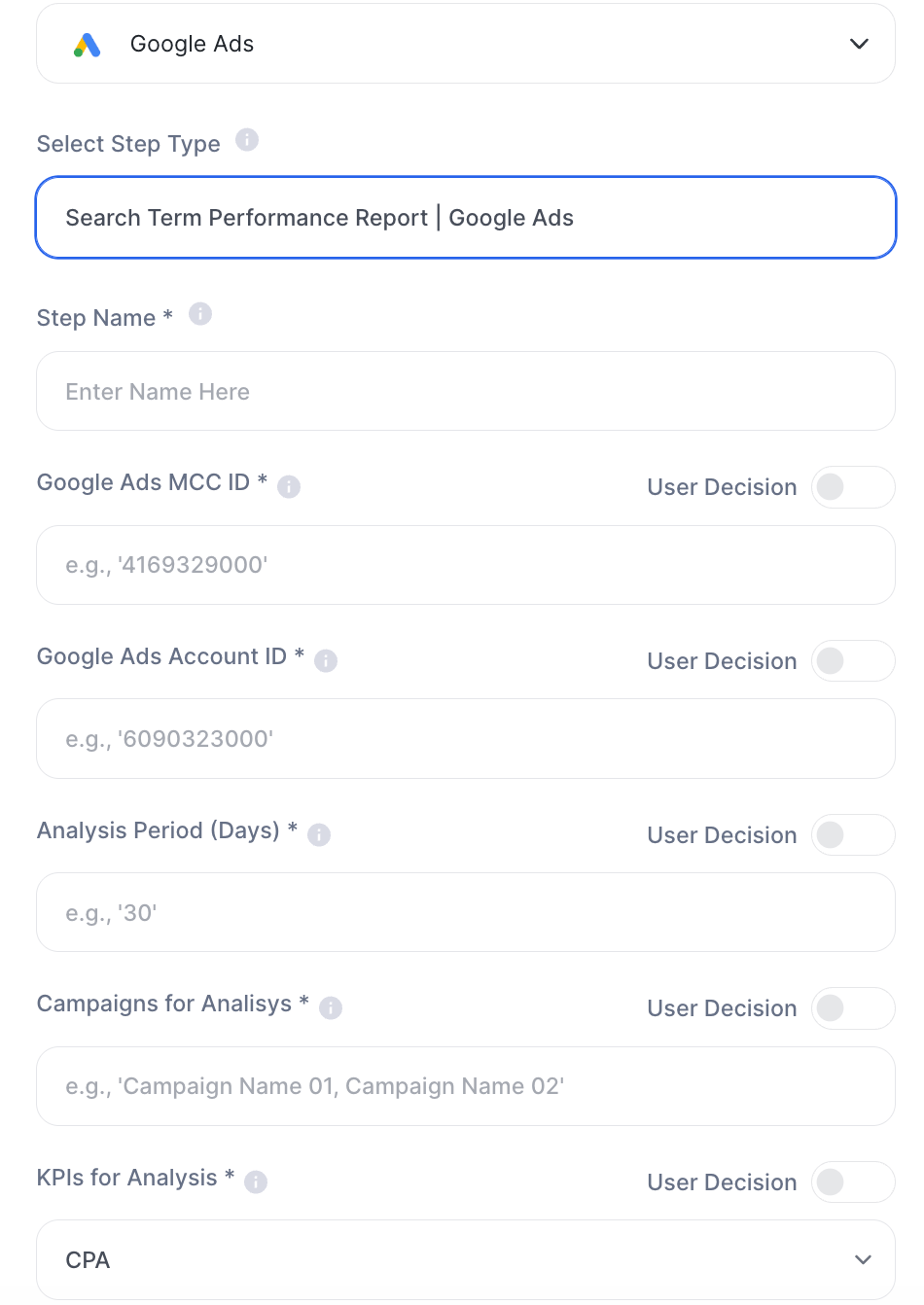
FieldDescription
Step NameInternal step name
Google Ads MCC ID *Manager account ID
Google Ads Account ID *Ads account ID
Analysis Period (Days) *Period analyzed. Ex: 30
Campaigns for Analysis *Campaign names. Ex: Campaign 1, Campaign 2
KPIs for Analysis *Select: CPA, ROAS, Clicks, CPC, Conversions, Cost
Image\

Important variable details

MCC ID vs Account ID

  • MCC ID → manager account
  • Account ID → specific ads account
Both are required to properly access the data.

Analysis Period

  • Defines the analyzed period:
    • 7 → last week
    • 30 → last month
    • 90 → more strategic view

Analysis Period

  • The step can work in two ways:
    • With a new defined budget
    • With a percentage adjustment This enables strategies such as:
    • increasing 20% on high-performing campaigns
    • automatically redistributing budget

Practical examples

1. Automatic media optimization
  • campaigns with higher ROAS receive more budget
  • underperforming campaigns lose investment
2. Automated marketing report Prompt:
“Analyze CPA trends and identify the main deviations.”
3. Discovering new opportunities
  • search term analysis
  • identify high-potential keywords
4. Campaign audit
  • identify wasted budget
  • find bottlenecks
Best practices
  • Always validate MCC and Account ID
  • Use consistent periods (e.g., 30 days)
  • Avoid mixing very different campaigns in the same analysis
  • Define clear KPIs: avoids generic analysis
  • Be careful with Budget Shift: direct impact on investment

Important notes

  • Google Ads integration is required
  • Account permissions are necessary
  • Data depends on account structure
  • Budget Shift impacts real investment
  • Results vary depending on data volume
Google Ads within Tess turns your agent into a paid media analyst and optimizer. It enables identifying patterns, generating insights, and even automatically adjusting budgets, bringing more efficiency and scale to marketing operations.