

What is the Step?
This integration connects Tess to the Microsoft ecosystem to perform actions on Excel files. Currently, the available actions are:- Get Values: reads values from a spreadsheet
- Write Values: writes values to a spreadsheet
Where to find it
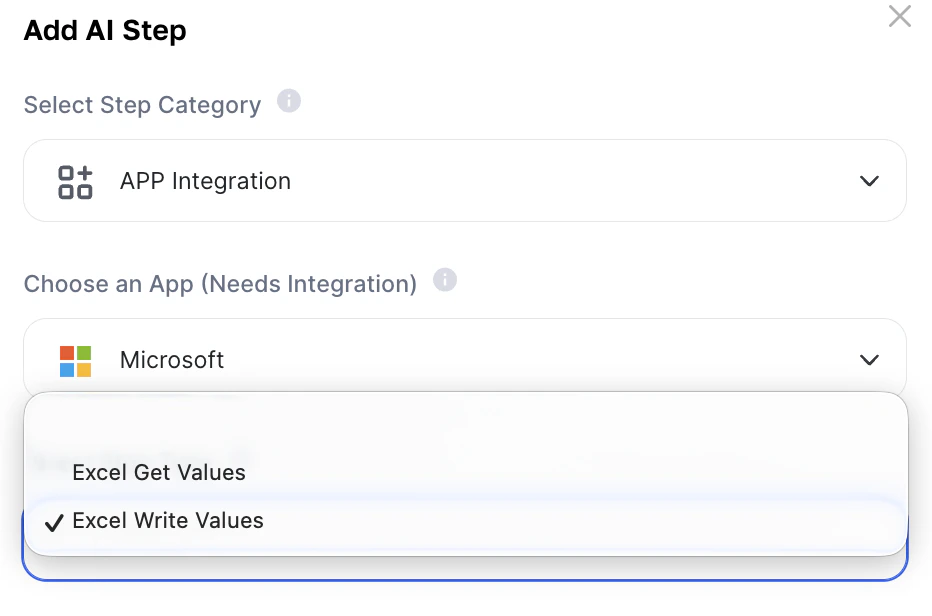
- Go to AI Studio
- Click on Add AI Step
- In Select Step Category, choose App Integration
- In Choose an App, select Microsoft
- In Select Step Type, choose:
- Excel Get Values
- Excel Write Values
How do the steps work?
Important note: App Integration steps run before the user interaction. This means that:- the spreadsheet is read before the chat starts
- writing to the spreadsheet also happens before the conversation
- data must already be defined via:
- User Inputs
- User Decision
- Variables coming from external integrations
How to use (Quickstart)
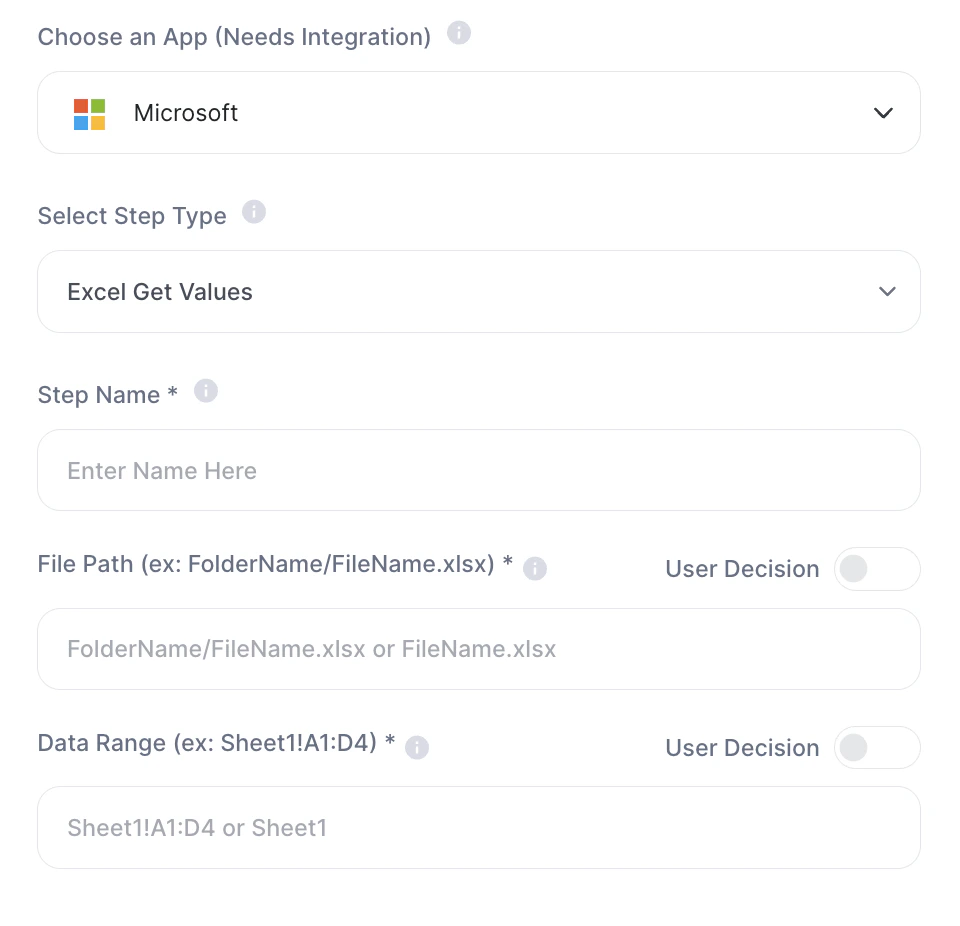
1. Excel Get Values
Use this action to read data from a spreadsheet.Fields
- Step Name: internal name of the step
- File Path: path to the Excel file (example: FolderName/FileName.xlsx or FileName.xlsx)
- Data Range: range or sheet to be read (example: Sheet1!A1:D4 or Sheet1)
How It Works
- Enter the file path
- Define the sheet or range you want to work with in the Step
- Save the step
- The read values become available in the agent’s context
The Path and Range fields can be specified by the user at the time of use — just select it as User Decision.
2. Excel Write Values
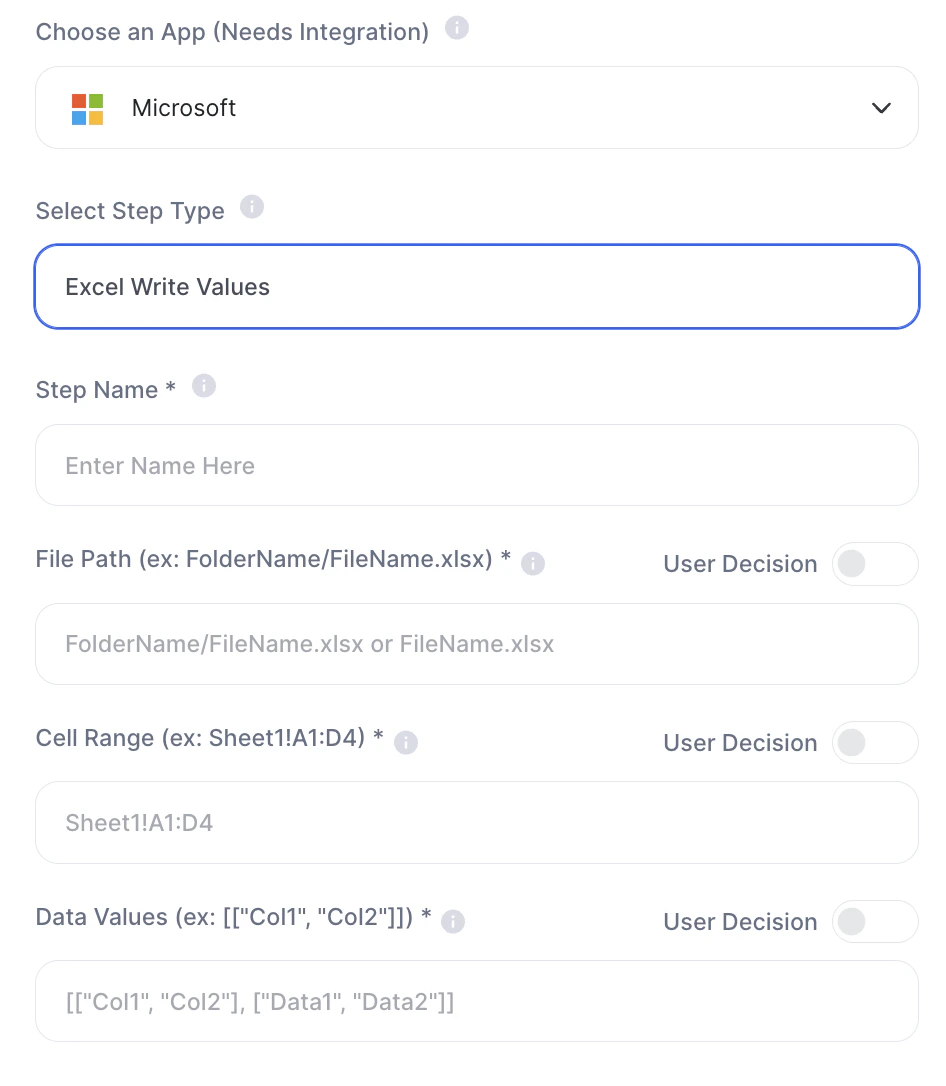
Use this action to write data to a spreadsheet.Fields
- Step Name: internal name of the step
- File Path: path to the Excel file (example: FolderName/FileName.xlsx or FileName.xlsx)
- Cell Range: range where the data will be written (example: Sheet1!A1:D4)
- Data Values: matrix of values in list format (example: [[“Col1”,“Col2”],[“Data1”,“Data2”]])
How It Works
- Enter the file path
- Define the exact write range the Step will need to interact with
- Fill in the values in the expected format
- Save the step
- The spreadsheet will be updated automatically
The Path and Range fields can be specified by the user at the time of use — just select it as User Decision.
What is each field?
File Path
File Path
The File Path points to the Excel file that will be read or updated. It can be:
- just the file name, if it is at the root
- folder + file name, if it is inside a subfolder
- Relatorio.xlsx
- Financeiro/Forecast.xlsx
- Operacao/Clientes/Base.xlsx
Range
Range
The range defines exactly where Tess will act.Examples:
- Sheet1
- reads the entire sheet [CONFIRM exact behavior]
- Sheet1!A1:D4
- reads or writes in the range between A1 and D4
Data Values
Data Values
In Write Values, data must be sent in a matrix structure.Simple example:
[[“Name”,“Email”],[“Ana”,“ana@company.com”],[“Bruno”,“bruno@company.com”]]In practice:
[[“Name”,“Email”],[“Ana”,“ana@company.com”],[“Bruno”,“bruno@company.com”]]In practice:
- each inner list represents a row
- each item represents a cell
Practical examples
1. Query a customer database
Action: Excel Get Values Usage: the agent reads a spreadsheet with customer data before the conversation, then answers questions based on that information. Example prompt:“Use the spreadsheet data to identify customers with renewals this month and summarize the key points.”
2. Automatically register leads
Action: Excel Write Values Usage: a form submits name, email, and company — and the step writes that data to the sales spreadsheet Example Data Values:[[“Name”,“name@company.com”,“Tess AI”]]
3. Update internal controls
Action: Excel Write Values Usage: populate an onboarding, support, or sales tracking spreadsheet. Ideal for teams that still run part of their processes through Excel4. Read operational metrics
Action: Excel Get Values Usage: pull data from a metrics spreadsheet and ask the agent to summarize bottlenecks, trends, or deviations. Example prompt:“Analyze the spreadsheet data and highlight the 3 main operational alerts.”
Important notes
- The Microsoft account must be integrated with Tess — this process is done before using the agent
- The user who will use the agent must have access permission to the file
- Incorrect writes can overwrite the wrong cells
- Very broad reads may bring more context than necessary