Memory Boost is a feature that helps Tess retrieve relevant parts of the conversation history when the current message’s context can no longer hold everything. In practice, it improves the continuity of long chats without requiring you to maintain a high context window all the time.
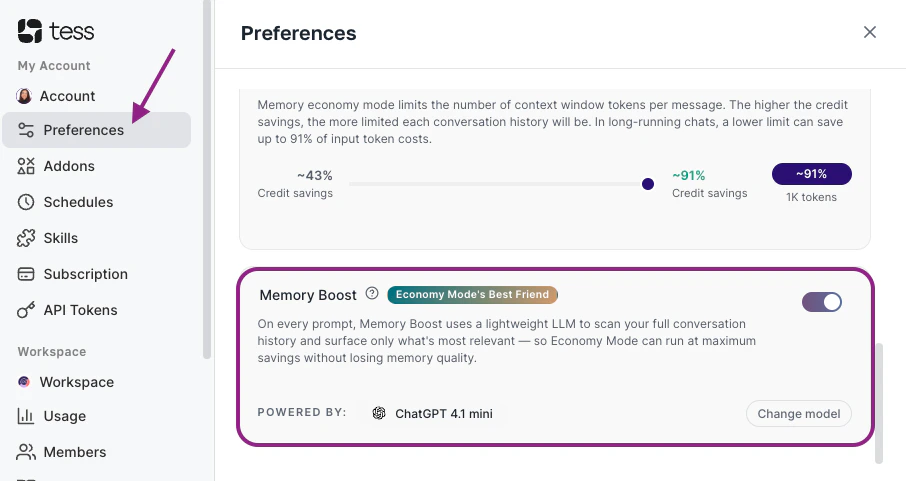
In Tess, Memory Boost is configured in Preferences. It is an individual setting, done per user, and influences your experience on the platform as a whole.
What is it?
Memory Boost is a support agent that runs in the background to analyze the complete conversation history and bring back only what is most relevant to the current message.
Instead of always sending a larger context to the main model, Tess can use this feature to perform a smart search in the history and complement the response with important excerpts of what has already been said.
In practice, it helps when:
- the conversation is already long
- older parts of the history would no longer fit in the normal context
- you want to save credits without losing continuity
Once configured, the feature works automatically in the background. You don’t need to write a specific prompt to “call” Memory Boost.
Where to find it?
To activate the feature:
- In the side menu, click on your user icon, then on Settings and Preferences
- Scroll until you find the Memory Boost option
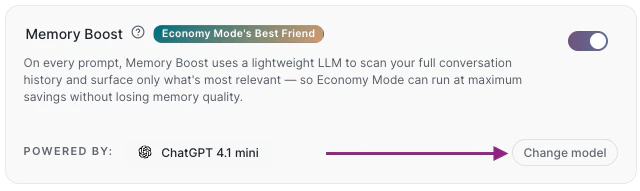
- Turn on the enable switch and, if you want, click on Change model to choose the model used in the feature:
Before using: what you need to know
Before activating Memory Boost, it’s worth understanding some important points:
- It’s a per-user setting: Each user defines their own preference, and activating the feature does not automatically change the experience of other workspace members. It is a global setting for your experience in Tess.
- It is not activated per chat individually: Once turned on, it becomes part of your use on the platform until you turn it off. Memory Boost is complementary to the context.
- It does not replace the context window: It helps recover relevant history when the conversation grows.
- The feature uses a separate model: This model runs in the background to search the history. Therefore, Memory Boost may generate additional consumption of credits.
- You don’t need to keep the context at maximum all the time: The system searches the history only for what is useful for that interaction
How it works in practice
Whenever you send a new message, Tess can trigger Memory Boost to analyze the complete conversation history and identify what makes sense to recover at that moment.
Instead of bringing everything back, the system tries to select only the most useful excerpts for the new response.
In practice, the flow is this:
- you send a message
- Memory Boost evaluates the history
- it finds information related to your current request
- this information helps compose the final response
This is especially useful when the conversation has already gone through many topics; important instructions were given at the beginning of the chat; you need to return to an old topic several messages later.
Relationship with Memory Economy Mode
Memory Boost was designed to work together with Memory Economy Mode. This relationship is important because Memory Economy Mode limits the context per message to reduce cost. In long chats, this can cause old parts of the conversation to stop being considered in the normal flow.
When Memory Boost is active, Tess gains an extra layer of context recovery. Instead of keeping a high window all the time, it searches the history only for what matters for that question.
For example, this combination usually works well with the most economical Memory Economy Mode and Memory Boost activated. This way, you reduce fixed context costs without giving up continuity in longer conversations.
Not surprisingly, we say it is the Economy Mode’s Best Friend!
When it makes sense to activate
Memory Boost tends to be more useful when you:
- maintain long chats for a long time
- work on topics that evolve over several interactions
- usually return to points discussed at the beginning of the conversation
- want to save tokens without losing consistency
- use Tess for analysis, planning, or iterative construction
This scenario is relatively common in cases like:
- ongoing projects
- content production by stages
- work agents with accumulated context
- strategic or consultative conversations
When it may not be necessary
In short chats or very objective tasks, Memory Boost might not make that much of a difference.
For example:
- quick questions
- punctual text adjustments
- independent prompts
- interactions where the history barely matters
In these cases, the feature being off does not hinder, and being active will not negatively impact the result obtained in the conversation.
Practical examples
You gave several instructions at the beginning of the chat and, after many messages, you write:
“Redo the proposal following that positioning we defined at the beginning.”
In this case, Memory Boost helps retrieve that previous positioning to support the response.
Over the course of a long conversation, you build a strategy in stages and want to ask:
“Now consolidate all of this into a final plan.”
Even if the normal context can no longer hold the entire history, Memory Boost can bring relevant parts of what was discussed before.
You keep Memory Economy Mode at a more economical level, but activate Memory Boost to avoid context loss in long conversations.
In this scenario:
- the fixed context cost is lower
- relevant history can still be recovered when necessary\
How to choose the Memory Boost model
Memory Boost allows you to choose which model will be used to search the history. In practice, this step tends to work well with lighter models, because:
- the work is focused on recovering context
- it is not always necessary to use a more expensive model
- this helps keep the cost under control
In general, the recommendation is to start with a light model and only test something more robust if there is a clear reason for it.
Best practices
- Activate Memory Boost mainly in long chats
- Combine the feature with Memory Economy Mode to balance cost and continuity
- Prefer lighter models for this function
- Review usage if you notice a cost increase without practical gain
- Use the feature when the history really matters for the quality of the response
- Guide teams and users not to confuse Memory Boost with “infinite memory”
Common mistakes
- Activating the feature without necessity: In quick and independent tasks, the gain may be small and the extra cost may not pay off.
- Using a heavy model in the Boost without necessity: Since the feature runs in the background, choosing a more expensive model can increase the cost without bringing a proportional benefit.
- Thinking that Memory Boost completely replaces context. It helps recover relevant parts of the history, but does not eliminate the importance of a proper context configuration.
- Expecting it to recover everything all the time: The goal of the feature is to search for what seems most relevant to the current interaction, not to fully reinject the entire previous conversation.
- Confusing the feature with a per-chat setting
Important notes
- The feature broadly influences your experience in Tess, not just in an isolated chat
- It uses a separate model to analyze the history, this may generate additional consumption of credits
- The main gain of the feature appears in longer chats
- When combined with Memory Economy Mode, it helps maintain savings without losing as much context
Memory Boost is the ideal feature for those who need to maintain continuity in long conversations but do not want to depend on a consistently high context window.
When used correctly, it improves history recovery, reduces the need for high fixed context, and helps make the use of Tess more efficient on a daily basis.