

Default User Types and Permission Levels
In Tess, there are different default roles you can assign to members, each with a specific set of permissions. Understanding these roles is essential for effective and secure management.Advanced Access Control (Teams and Permissions)
In addition to default roles (Owner, Manager, User/Guest), Tess also allows more granular access control through:- Custom permissions
- Teams
- Restrictions by team or user
- Control which AI models each group can use
- Limit credit consumption by team or user
- Restrict access to connectors or specific features
- Organize users by department (e.g., Marketing, Sales, Operations)
- What you can control
With these settings, it is possible to define:
- Access to AI models (e.g., allow only text models)
- Access to chat tool groups (e.g., web search, image generation, integrations) — same governance pattern as models and connectors
- Use of connectors (e.g., Google Drive, Notion, etc.)
- Monthly credit limit
- Specific rules per team or per user
Screenshot placeholder — tool groups & roles: Capture (1) team/member restrictions showing tool group toggles, and (2) the action to delete a custom role in Members/Permissions.The structure follows this logic:
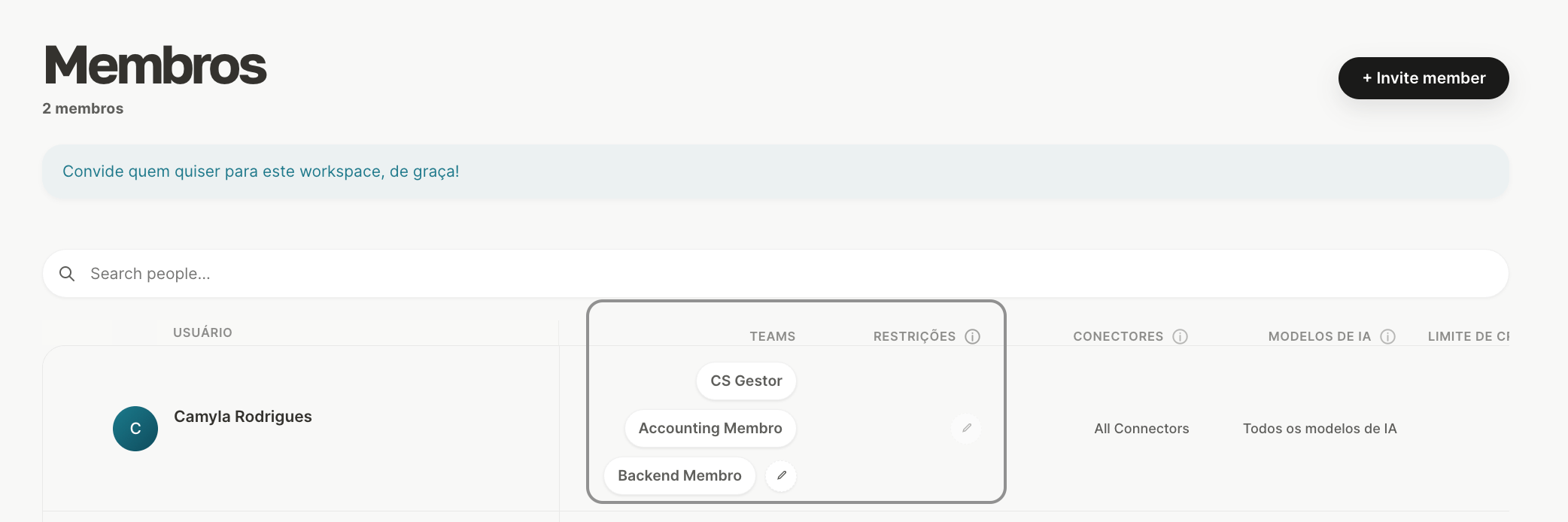
- Teams → group users (e.g., “Marketing”)
- Team policies → define default rules for everyone in that group
- Individual restrictions → can override team rules for specific cases
Example: Marketing Team → access allowed to image models Specific user → restricted to text only In this case, the individual rule takes priority.All these settings can be configured within the workspace member management area:
Ways to Invite New Members
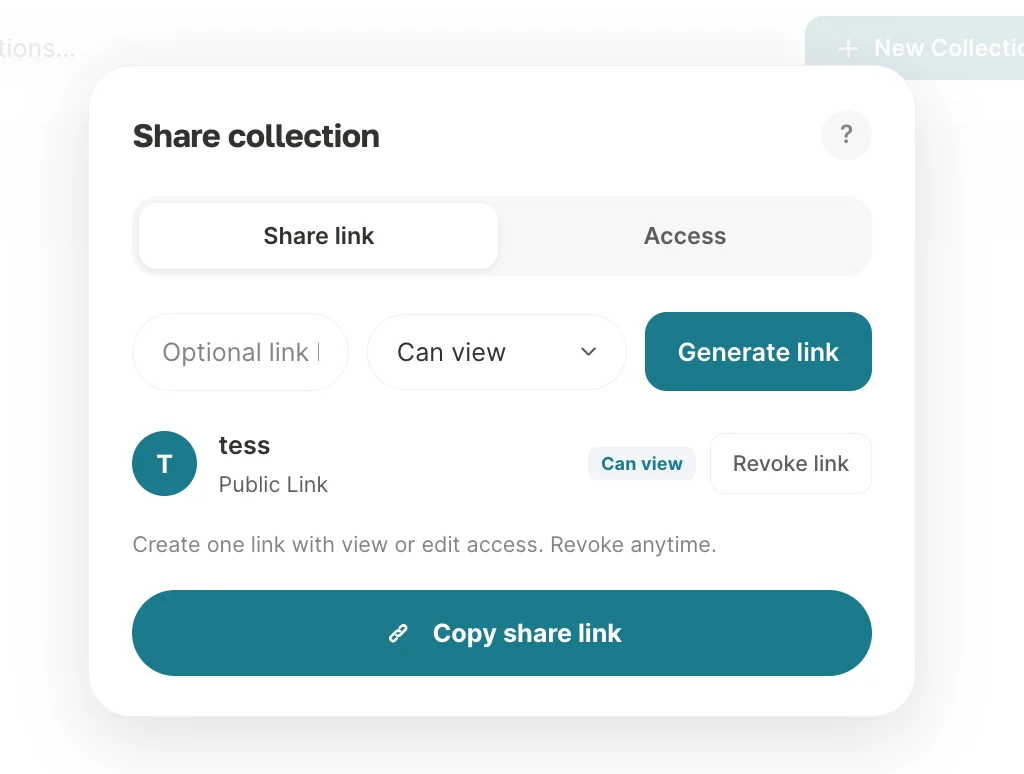
You have two options to invite people:Invite via Secret Link
This is the simplest and fastest way to invite multiple people at once, especially for the Guest role.
- On the Members screen, click the icon to generate a Secret Link.
- Choose the access level that users invited through this link will have.
- Activate and copy the generated link to share with your team.
Invite via Email
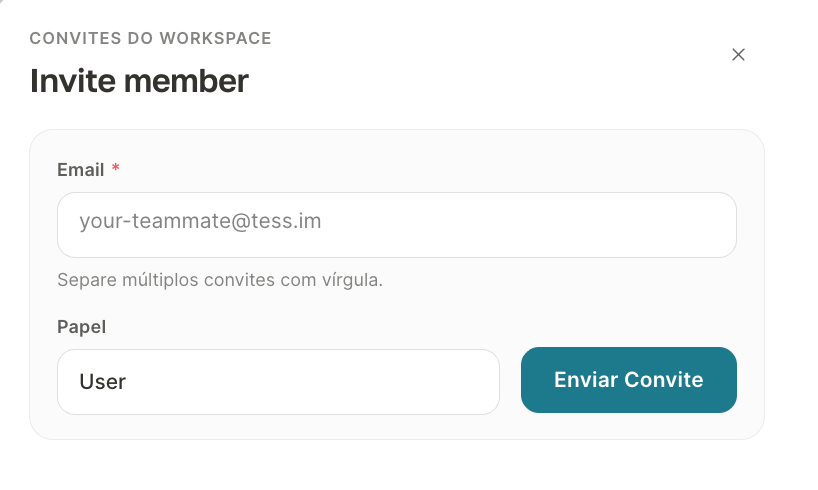
Ideal for inviting specific people, especially for higher-permission roles such as Manager or User.
- Click “Add new member”.
- Enter the person’s email (or a list of emails separated by commas).
- Define the member’s role.
- Send the invitation.
Managing Members Day to Day
The “Members” screen is your hub for ongoing team management:Removing Members
Removing Members
If an employee leaves the team, you can revoke their access immediately by clicking the “X” icon next to their name.
Usage Monitoring
Usage Monitoring
Track each member’s credit consumption to understand how resources are being used. To do this, go to the “Usage” tab in your workspace settings menu, where you can filter executions by user and get a detailed view of consumption.
Seat Management
Seat Management
Keep a clear view of paid seats (User) and free seats (Guest / User Lite) to ensure your team is sized intelligently and cost-effectively.