

- In the left sidebar menu, click on your profile, then on settings and preferences
- The Max Subtasks per Prompt control will be the first options block on the screen.
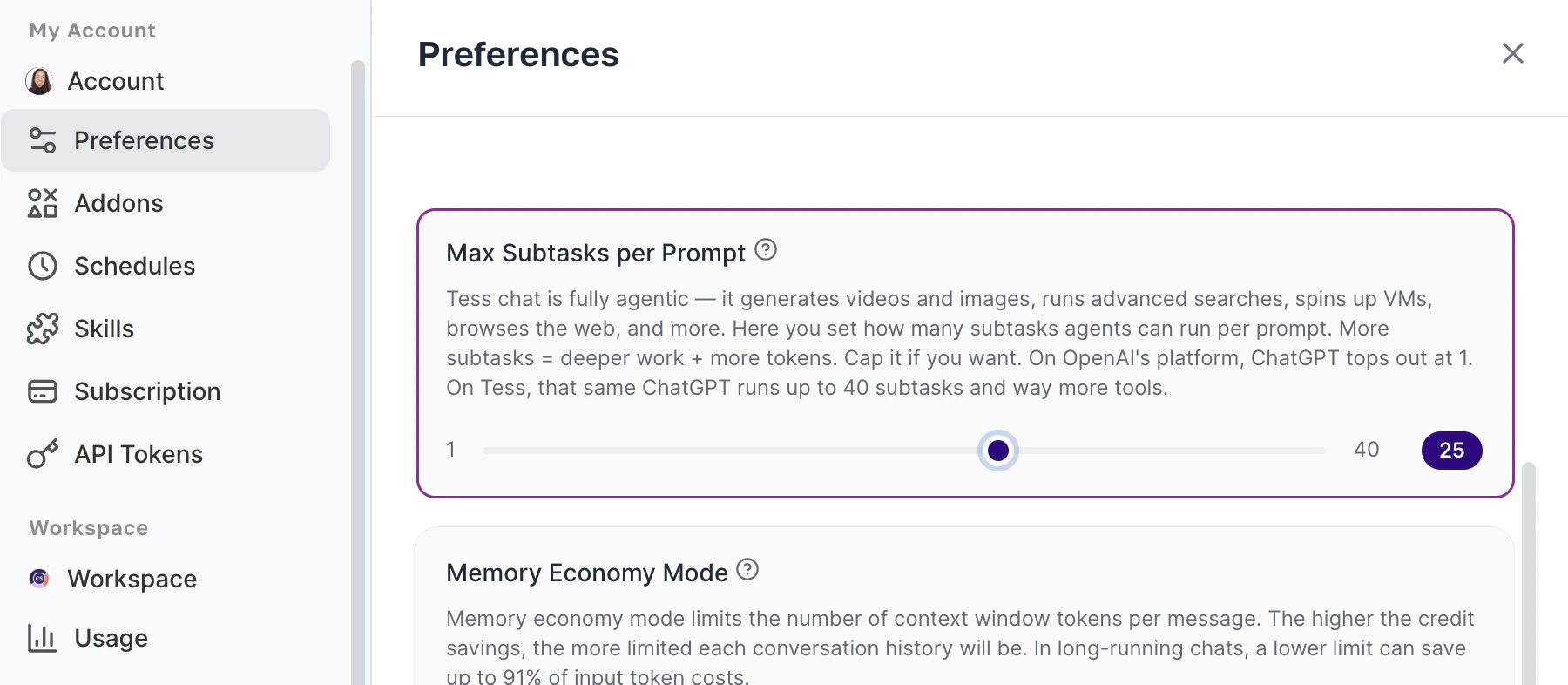
- In the Max Subtasks per Prompt block, locate the purple slider button.
- Drag the control to the left to limit autonomy (minimum of 1) or to the right to expand it (maximum of 40). The exact value chosen will appear highlighted on the dark button to the right of the bar (e.g.: 25).
- Done! Just close the window and continue using Tess.
Understanding details
The relationship with tools and tokens
Whenever the AI understands that it needs an external Tool (such as consulting Google Search or opening Python to run code), it opens a subtask. If it tries to run code, gets an error, researches the solution, rewrites the code, and executes it successfully, it consumed several subtasks and, consequently, processed and transacted new tokens at each step.
The interruption rule:
The limit you configure applies strictly per prompt, not to the entire conversation. Higher values (such as 30 or 40) ensure that the AI is not interrupted in the middle of a huge research task. However, if the AI reaches the exact number of actions you defined in the slider and the task is still not completed, it will pause processing and a message will appear asking if you want it to continue the work from where it stopped.
Practical examples\
“Research the 5 main CRM solutions for b2b sales teams, extract the pricing tables from each of their websites, generate a comparison report in Excel, and deliver it to me for download.”Why: The AI will need multiple robust actions (searching the web several times, extracting complex data, using the Python file builder, reviewing the data). If the limiter were set to 5, it would pause shortly after visiting the second site. 2. Quick Generation or Text Analysis (Ideal: Low | 1 to 5 Subtasks)\
“Create an executive summary of this document I attached and create an abstract cover image based on the content, using corporate blue colors.”\Why: It requires only two concrete actions (reading the provided document and calling the image creation tool). Keeping the limit low for these routine tasks prevents a hallucination (context guessing) from making the AI open unnecessary tools, wasting your credits.
Important notes
- Risk of Accelerated Spending: More subtasks running generate more actions and consume more tokens from your credit allowance.
- Does not block the project: The AI’s final window asking if you want to “continue” is native to the system. You will never lose the work done up to that point if that prompt’s subtask package ends.