

Where to find it
- Log in to your Tess account
- Click on your profile icon in the bottom-left corner
- Select “Settings”
- Click “Preferences”
Available settings
Language
Currently, the Tess platform is available in Portuguese, English, and Spanish. Select the desired language so that all menus and interface texts are translated.
Appearance
Choose the platform’s visual theme: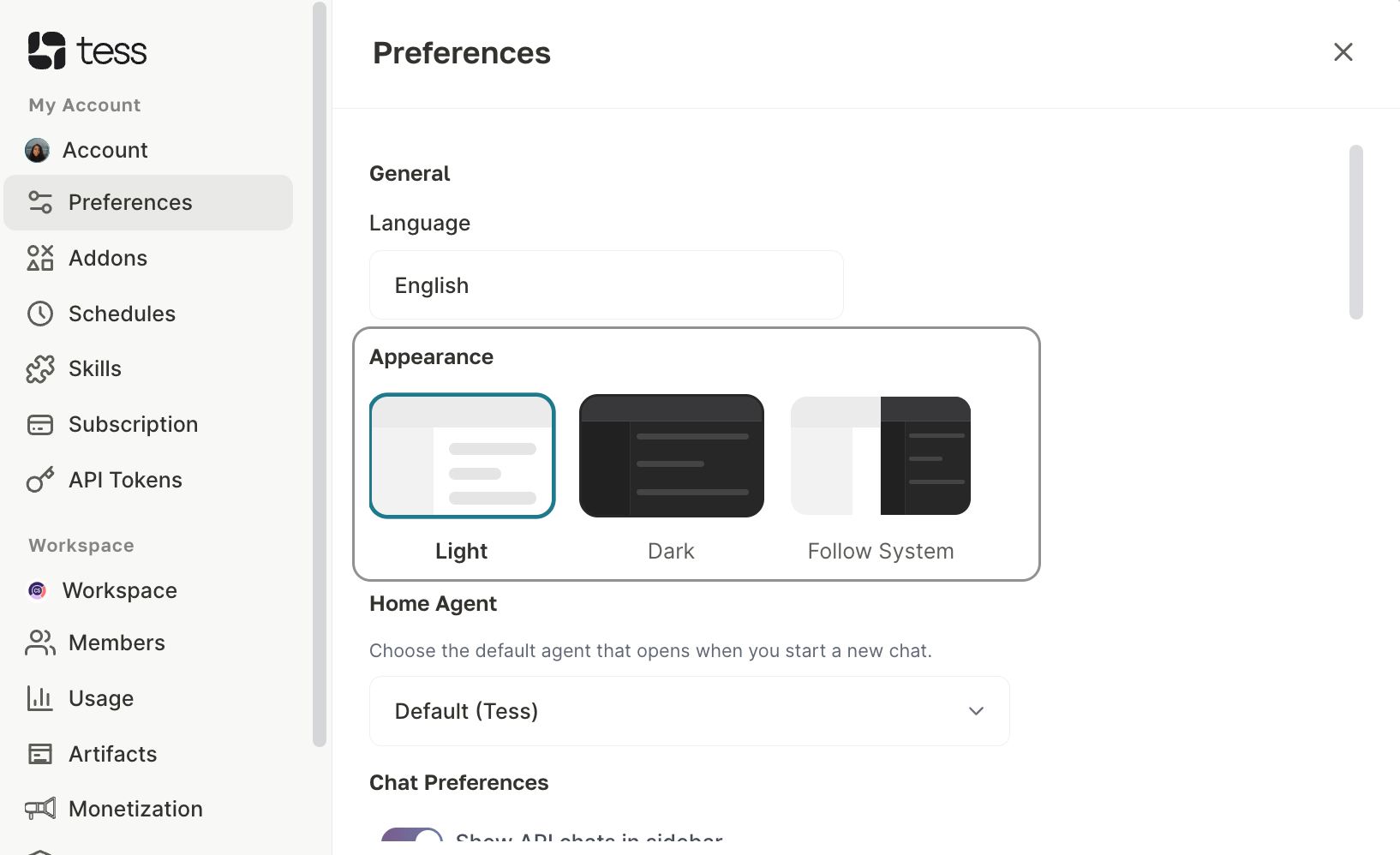
Initial Agent
Defines which agent is loaded by default when opening the main Tess AI chat.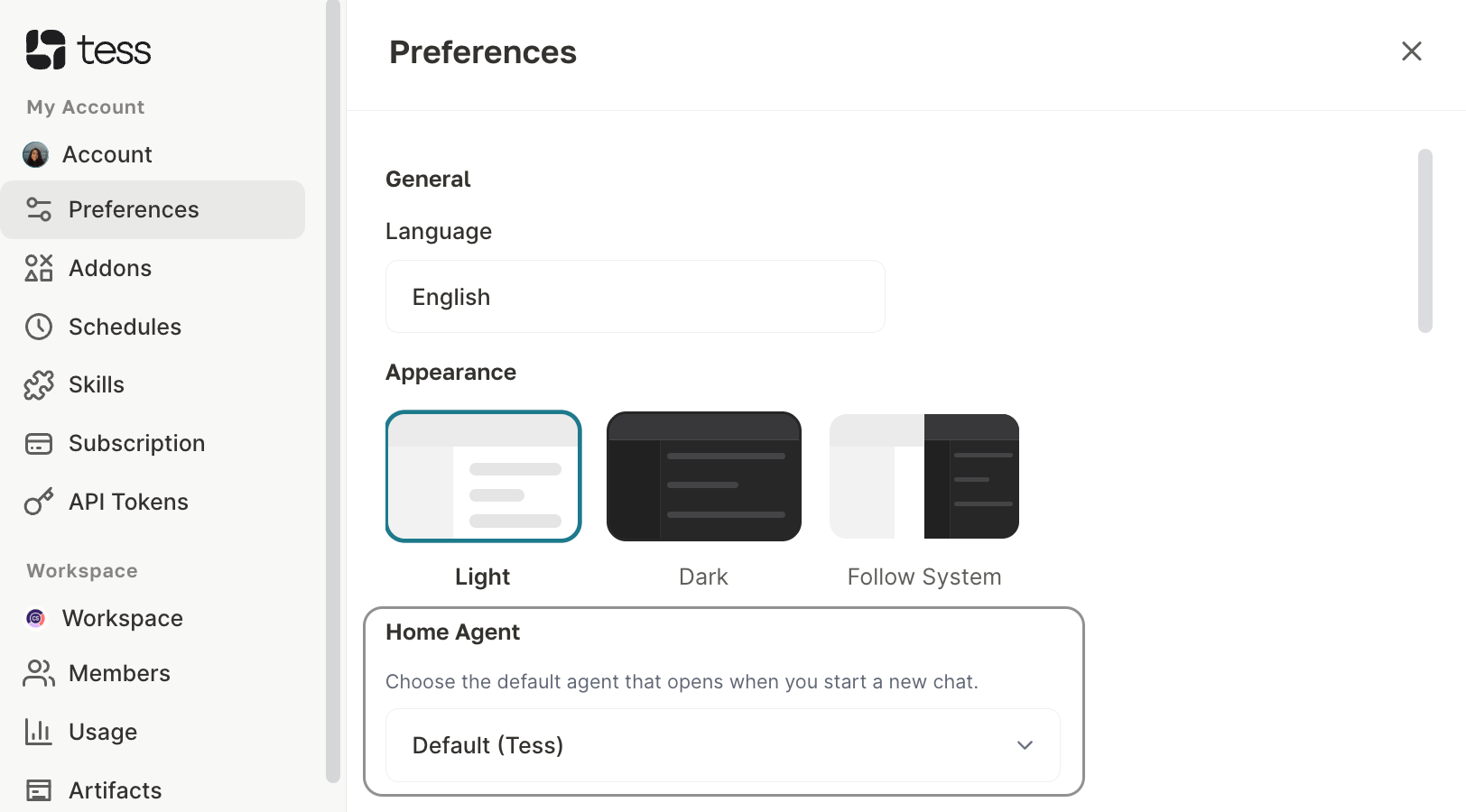
- By default, the selected agent is Default (Tess general agent)
- You can switch to any of your own agents created on the platform
- Useful for those who always work with a specialized agent and want to access it directly when opening the platform, without needing to navigate to it manually
Chat Preferences
Settings that control the behavior of the chat and Tools.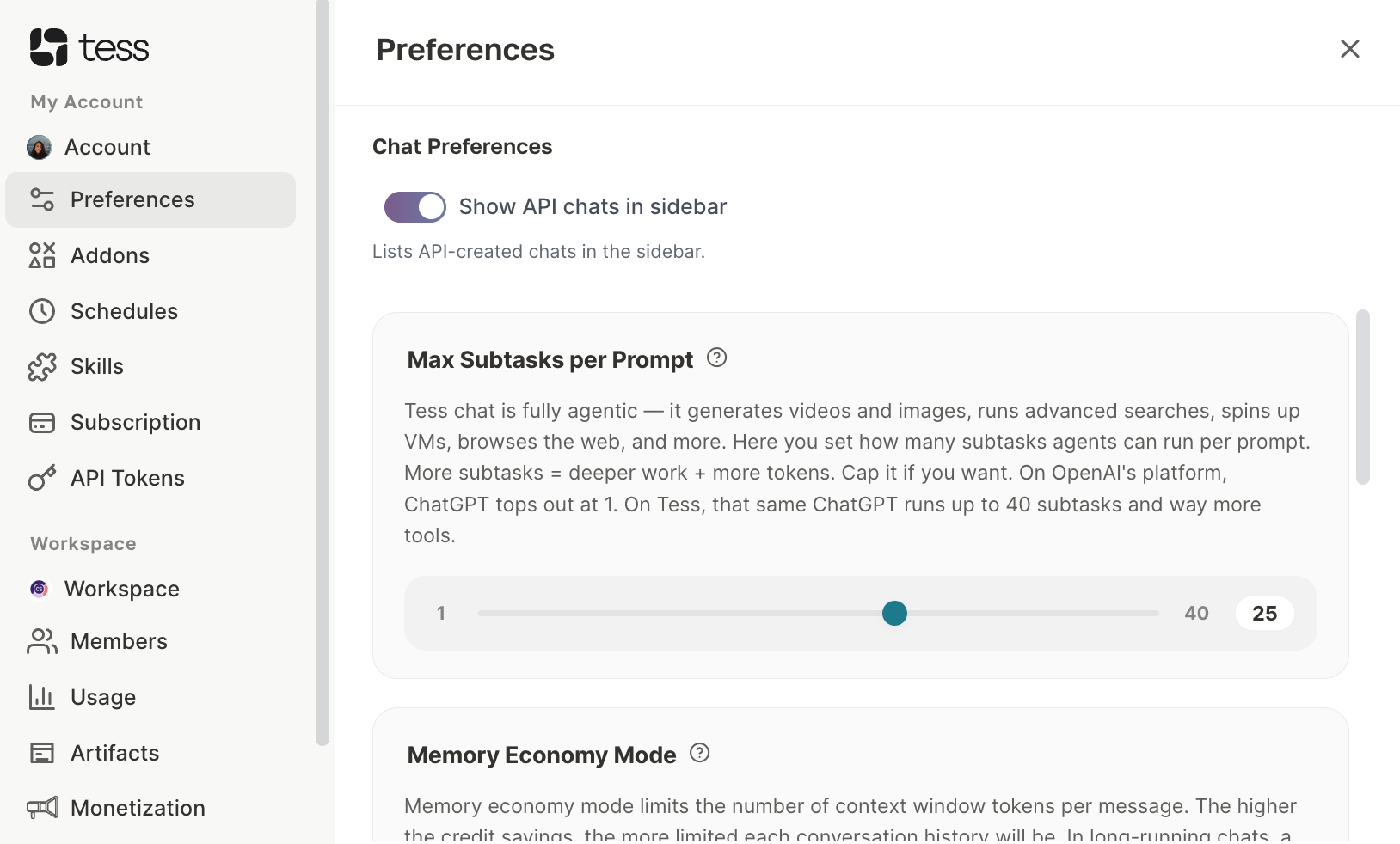
- Operations Defines the maximum number of operations (requests) that Tools can execute to generate a single response in the chat. Maximum value: 25 operations
- Higher numbers allow more elaborate, multi-step tasks
- Lower numbers limit the scope of actions and reduce resource consumption
This limit applies individually per response, not to the conversation as a whole. - Maximum Subtasks per Prompt Controls how many subtasks the AI can create internally when processing a single prompt. (Learn more in the article: Link)
- Memory Saving Mode Optimizes memory usage during conversations, reducing context consumption. (Learn more in the article: Link)
- Memory Boost Expands the AI’s context retention capacity during the conversation. (Learn more in the article: Link)
Search Settings — Experimental
These settings control how Tess processes and searches for information within files attached to conversations. They are technical chunking parameters — the way the file content is divided into pieces for analysis.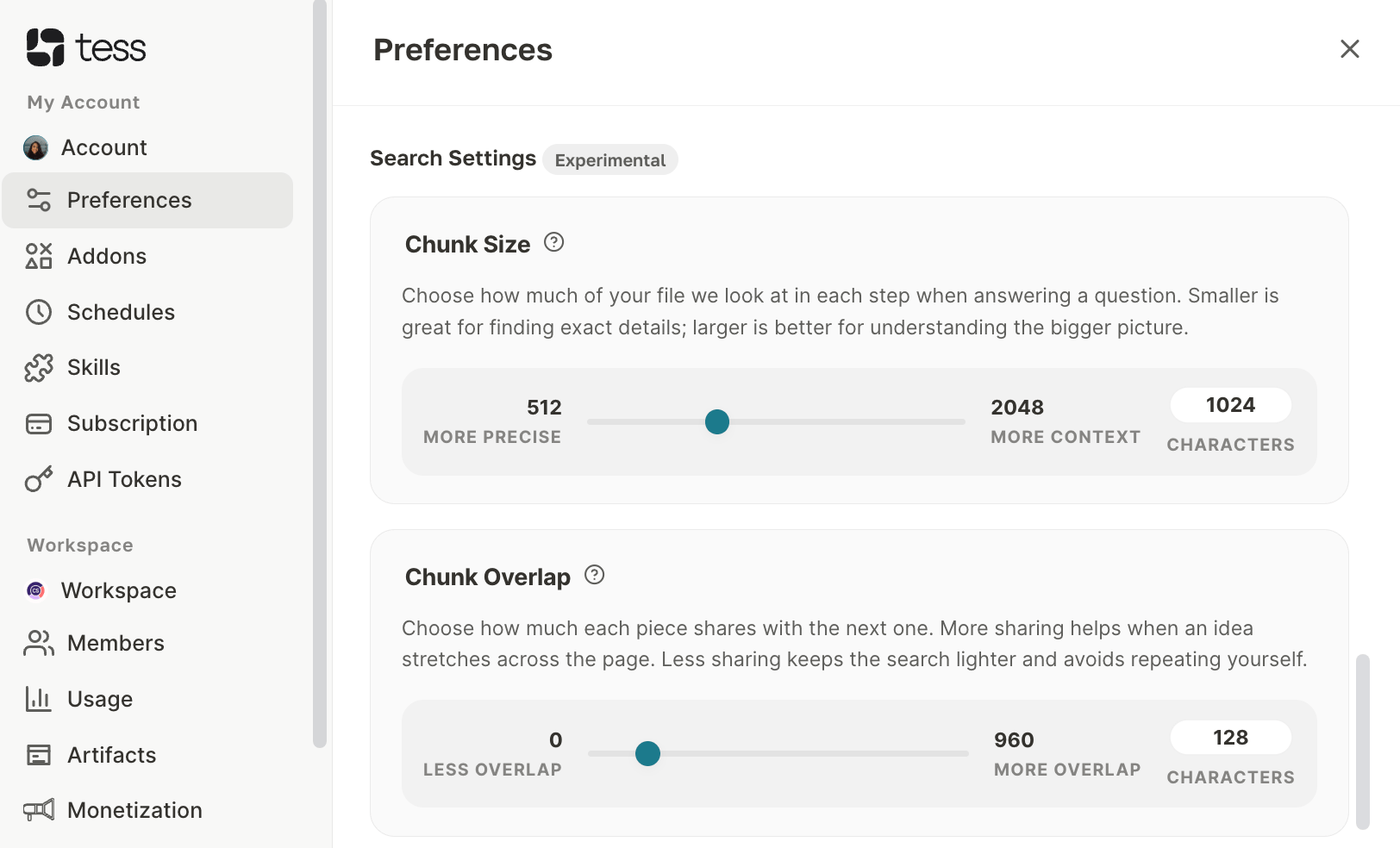
Experimental feature: these options are still in testing and may change.
- Chunk Size (Fragment Size)
When to use each extreme:
- Use lower values when you need precise answers about specific excerpts (e.g.: finding a clause in a contract)
- Use higher values when the question requires understanding the broad context of the document (e.g.: summarizing the central idea of a report)
- Chunk Overlap (Overlap Between Fragments)
When to adjust:
- More overlap: when answers seem “cut off” or lose context between paragraphs
- Less overlap: when answers repeat the same information too much
Important notes
- Search Settings settings are experimental and may be changed or removed in future versions
- Changes to preferences are saved automatically and applied immediately
- Chunk Size and Chunk Overlap settings affect only search in attached files — they do not impact responses based on plain text