

What is Auto Mode in Tess Chat?
It’s the technology that allows Tess to choose which LLM to use to respond to your request at the time of the query. Instead of having to manually decide which model to use for each chat, Tess evaluates the type of message and selects the most suitable model at that moment. This is made possible through a sophisticated routing algorithm developed by Tess to choose the best model according to several variables: response quality (performance), speed, cost, and the complexity of the model and request. This is the safest option for those who want good responses without needing to understand models.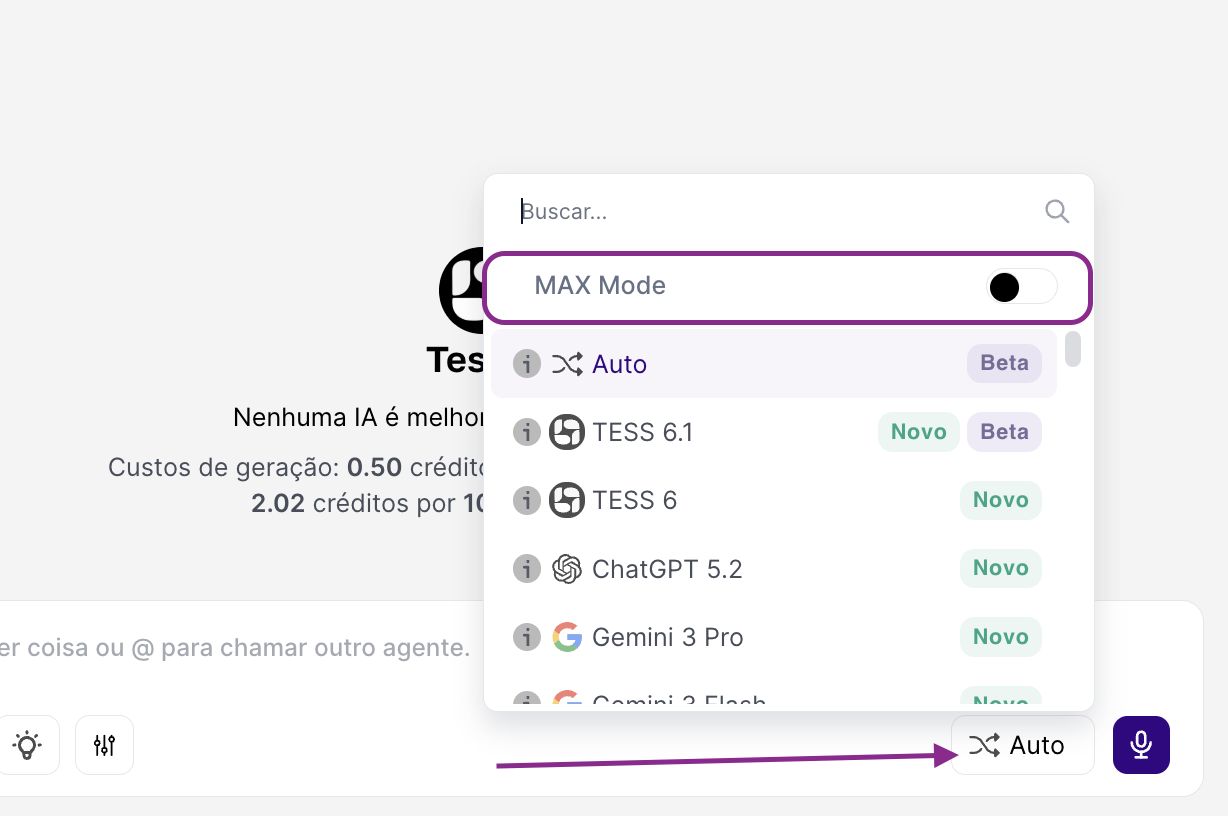
Why does it matter?
- Ideal for non-specialists: you don’t need to know technical details about AI.
- Strong overall performance: Tess chooses an appropriate model for most cases.
- Collaboration between models: with each query, a new model can be called and collaborate with the previous model’s response.
Quick start
Enable the Auto option
If it’s not already selected, find the LLMs control and enable the “Auto” option
Start or continue your conversation
Send your typical messages (support, sales, internal). Observe the quality and response time.If in any specific case you want to test another model, temporarily disable Auto, manually select any LLM from the list, and compare the results.Switching between models is the key to Multi-LLM usage in a single chat!