What is it?
The Images tool in chat allows you to:- Create images from text (prompt)
- Recreate the same image in different models
- Apply quick functions such as:
- Remove background (remove background)
- Upscale image (improve resolution)
- SVG vectorize (convert to vector)
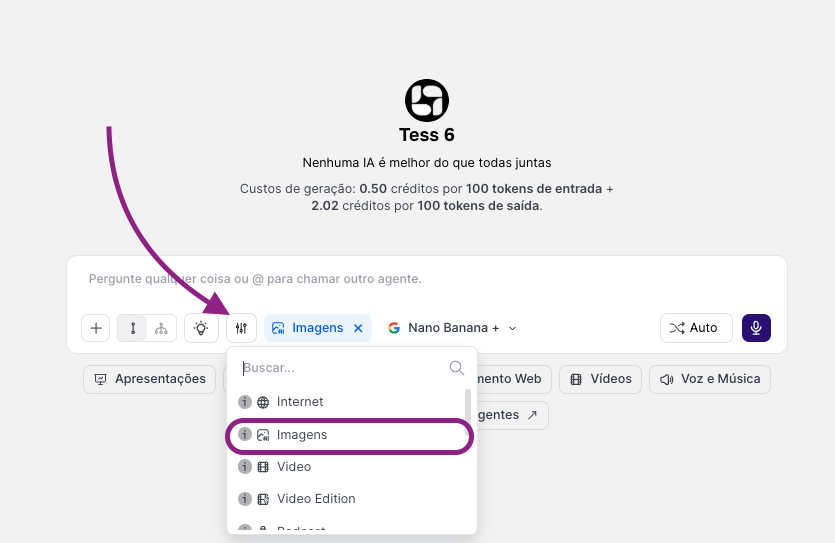
All of this without leaving the conversation: the previous context (brand, visual reference, persona, post objective, etc.) is used by the LLM to suggest better prompts and faster adjustments.
How to use it?
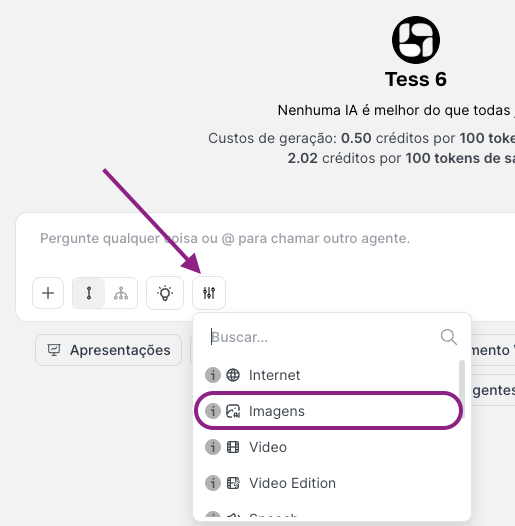
Choose the model
Another button will open where we will see the AIs and other features available for selection. You can test the same prompt across different models to compare styles and quality.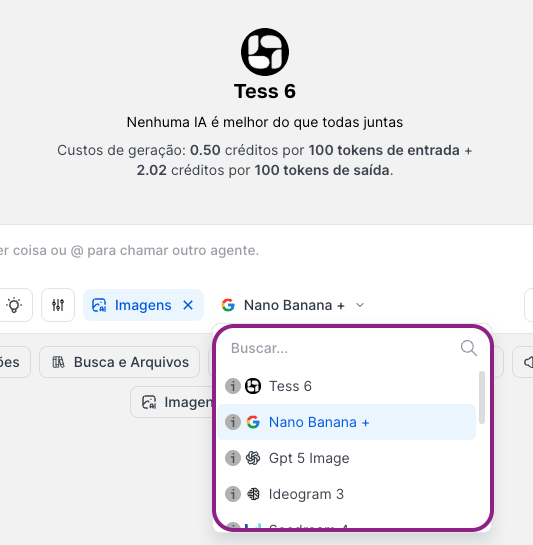
Ask for the image (the LLM will help with the prompt)
Write in natural language what you want:“I want a minimalist Instagram post about mental health, light background, female character, flat style”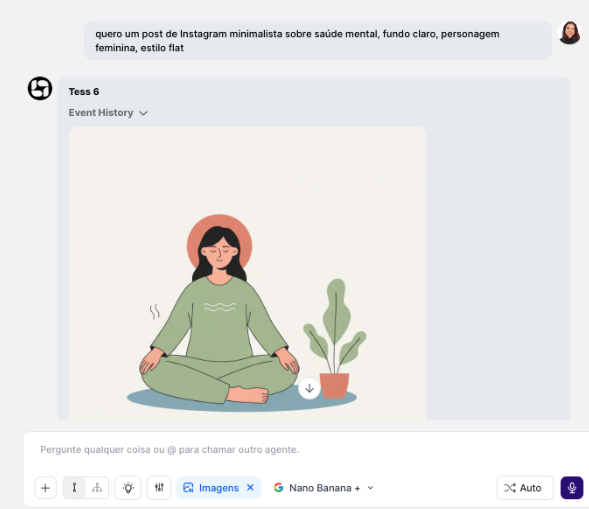
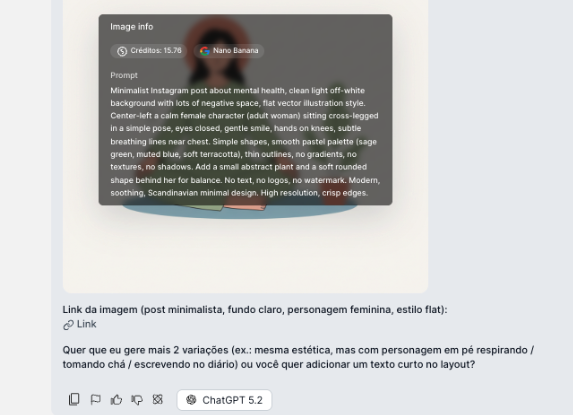
Minimalist Instagram post about mental health, clean light off-white background with lots of negative space, flat vector illustration style. Center-left a calm female character (adult woman) sitting cross-legged in a simple pose, eyes closed, gentle smile, hands on knees, subtle breathing lines near chest. Simple shapes, smooth pastel palette (sage green, muted blue, soft terracotta), thin outlines, no gradients, no textures, no shadows. Add a small abstract plant and a soft rounded shape behind her for balance. No text, no logos, no watermark. Modern, soothing, Scandinavian minimal design. High resolution, crisp edges.Notice that the prompt asks for the image with no logos, text, or watermark. In other words, whenever you want images with specific details or text, share it in the chat so the text model can help you!
See the result and refine the request
The generated image appears directly in the conversation.You can comment on it, ask for variations, change colors, adjust style, etc.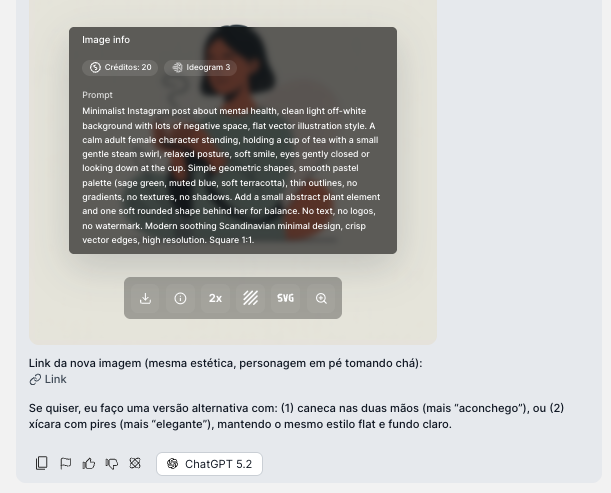
- Download: download the generated image to your device
- Information: see the prompt, model, and image generation cost
- Upscale: improve the image quality by 2x
- Remove background: remove the background with AI, generating a PNG version
- Vectorization: generate a vector of this image in SVG
- Open image: to view it better, open it and see the details of your image
Recreate it using another model
One of the differentiators is being able to: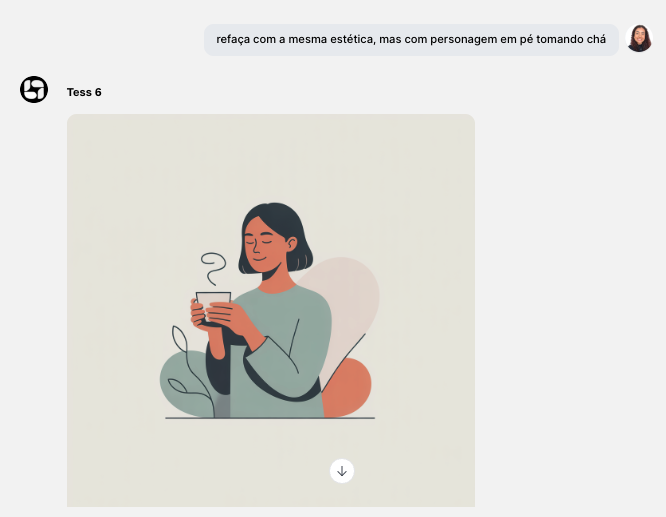
- Generate the image with one model (e.g., Nano Banana).
- Then choose another model (e.g., Ideogram 3 or Runway Gen4).
- Ask: “recreate it with the same aesthetic, but with the character standing up drinking tea”.
Extra functions (after image processing)
In addition to generating images from scratch, you can use specific functions directly through the chat:Remove Background
Remove Background
Automatically removes the background from an image. Useful for cutting out products, creating stickers, building compositions in social media templates
Improve Resolution
Improve Resolution
Upscale increases the resolution and improves image sharpness. Useful for preparing assets for printing, making images sharper in presentations, avoiding pixelation in video crops.
Convert to vector
Convert to vector
Converts logos, icons, or simple drawings into vector format (SVG). Useful for responsive logos, icons in interfaces, and adjustments in vector design tools.
Quick usage examples in chat
- Instagram post
- Image with readable text
\
Advantages of creating images directly in chat- Continuous context: the LLM remembers the conversation (brand, persona, campaign) and uses it to improve prompts.
- Fast iteration: you adjust text, color, style, model — all in the same thread.
- Real multimodality: text, image, video, music, and audio in the same flow.
- Model testing: generate with one model, switch to another, and compare styles.
- Integrated post-processing: remove background, upscale, and vectorize without leaving the chat.